SharKNX exports data in the following formats, depending on where you export from:
| Format | Exported from | Extension |
|---|---|---|
| Telegram XML (ETS) | Monitor, Shark Hunt monitor | .xml |
| Telegram CSV | Monitor, Shark Hunt monitor | .csv |
| Line Scan Text | Tools → Line Scan tab | .txt |
| Line Scan PDF | Tools → Line Scan tab | .pdf |
| Device Tables PDF | Tools → Inspect tab | .pdf |
| Associations CSV / TXT | Tools → Inspect tab → session details | .csv, .txt |
| Group Address Table CSV | Tools → Inspect tab → session details | .csv |
| Shark Hunt JSON | Shark Hunts page | .json |
On mobile, the exported file is handed to the OS share sheet. On desktop (Windows, macOS), a native save-file or save-folder dialog opens.
Telegram exports
Telegrams are exported from the Monitor page (⋯ Actions → Export Telegrams) and from any Shark Hunt monitor page (export button). Both open the same export sheet:
| Option | Default | Description |
|---|---|---|
| Export format | XML | XML writes an ETS-compatible communication log; CSV writes the SharKNX Monitor Export v3 table. |
| File name | See below | Editable. Switching format swaps the extension and keeps any name you typed. |
| Export limit | All | All, or only the 100, 500, or 1000 most recent telegrams. |
Whichever limit you choose, the file lists telegrams in chronological order - oldest first.
Filename
SharKNX_[Context_]{count}t_YYYY-MM-DD_HHMMSS.xml
From the Monitor page there is no context part; from a Shark Hunt monitor the context is the hunt and action name (sanitised, max 30 characters). {count} is the number of telegrams available when the sheet opened. Example: SharKNX_1840t_2026-09-29_143022.xml.
Telegram XML (ETS)
The XML export uses the ETS communication log format (namespace http://knx.org/xml/telegrams/01) - the same format ETS uses for its bus monitor and group monitor recordings, so a SharKNX export opens directly in ETS.
<?xml version="1.0" encoding="utf-8"?>
<CommunicationLog xmlns="http://knx.org/xml/telegrams/01">
  <Telegram Timestamp="2026-09-29T14:30:22.410Z" Service="L_Data.ind" FrameFormat="CommonEmi" RawData="2900BCE011FA0801010080" />
  ...
</CommunicationLog>
| Attribute | Description |
|---|---|
Timestamp |
Time the telegram was observed, ISO 8601 in UTC |
Service |
L_Data.ind, L_Data.con, or L_Data.req for tunnel traffic; L_Busmon.ind for bus monitor frames |
FrameFormat |
Always CommonEmi |
RawData |
The complete cEMI frame as a hex string - never just the payload |
Frames captured in bus monitor mode are wrapped in a <RecordStart Mode="Busmonitor" MediumType="Tp" /> … <RecordStop /> pair, and their RawData carries the bus monitor status and relative timestamp as cEMI additional information.
Observations that have no ETS equivalent - such as gaps where telegrams were missed, or frames from media ETS cannot represent - are left out. The app tells you how many were omitted after the export.
Telegram CSV
The CSV export is the SharKNX Monitor Export v3 format: a fixed table designed to keep everything SharKNX observed, so a file can be imported back without losing information.
File structure
- Line 1 - the signature
# SharKNX Monitor Export v3 - Line 2 - the header row with all 46 column names
- One row per observation after that, in chronological order
The layout is fixed: always comma-delimited, always all 46 columns in the same order. A cell is empty when the value does not apply to that row or was not available. Values containing commas, quotes, or line breaks are quoted as per RFC 4180.
Row kinds
The kind column says what each row represents. Besides normal telegrams, the monitor also records bus-level events:
kind |
Meaning |
|---|---|
telegram |
A decoded KNX telegram |
bus_control |
A bus monitor acknowledgement frame (acknowledge, negative_acknowledge, busy, negative_acknowledge_busy) |
raw |
A frame SharKNX received but could not decode - the reason is in observation_reason |
invalid |
A malformed frame |
gap |
Telegrams were missed at this point - see the gap_* columns |
Columns
| Group | Columns |
|---|---|
| Identity and time | id, observed_at_ms (Unix time in ms), observed_at_utc (ISO 8601), kind, session_generation, sequence |
| Frame | service, original_encoding (cemi or tp1), medium, medium_code, original_bytes_hex |
| Bus monitor | bus_relative_timestamp, bus_status_hex |
| Addressing | source_raw, destination_raw, destination_kind, source, destination, destination_name |
| Control field | priority, hop_count |
| Transport and application layer | tpci_code, tpci_service, tpci_sequence, apci_code, apci_service, apci_embedded_value, apci |
| Payload and value | payload_hex, decoded_payload_hex, value, dpt_main, dpt_sub, numeric_value |
| KNX Data Secure | data_secure_status, data_secure_sequence, data_secure_sender_authorization, data_secure_destination_raw, data_secure_rejection, data_secure_rejection_details_json |
| Bus events | bus_control, observation_reason, observation_reason_code, gap_missed_count, gap_after_sequence, gap_source |
destination_name, value, and the DPT columns are only filled when an ETS project is loaded. For secured group telegrams, data_secure_status is one of opened, ets_decrypted, key_unavailable, or rejected; when rejected, data_secure_rejection gives the reason and data_secure_rejection_details_json any details as a JSON object.
Importing telegrams
Both telegram formats can be loaded back into the Monitor page from the ⋯ Actions menu:
| Menu item | Accepts |
|---|---|
| Import SharKNX CSV | SharKNX Monitor Export v3 CSV files only. Files from older app versions (# SharKNX Export v1) are not accepted. |
| Import from ETS XML | ETS communication logs (.xml) - recordings made in ETS, or XML exported from SharKNX. Up to 5000 observations; larger recordings are rejected and nothing is imported. |
Importing replaces the current telegram list. The newest telegrams are kept, up to the maximum buffer size of 5000 (20 on the free plan), and the Telegram buffer size setting is raised automatically if the import needs more room.
Line Scan Text
Exported from Tools → Line Scan tab after a scan completes, via ⋯ Actions → Export as Text.
Filename
line_scan_{area.line}_{YYYY-MM-DD}.txt
Example: line_scan_1.1_2026-09-29.txt.
File structure
The report is divided into three sections separated by dashed lines.
Header block
Generated     : 2026-09-29 14:30:22
ETS Project   : My Building
Gateway       : Secure Tunnel  192.168.2.7:3671  (1.1.0)
Line          : 1.1
Medium        : TP
Range         : 0 - 255
Devices Found : 12
Duration      : 38s
Device list - compact numbered table:
  [1]   1.1.1    MDT SCN-00.02        (0x0900)
  [2]   1.1.5    Siemens 5WG1...      (0xFFFF)  [DataSecure]
  ...
Each row shows: index, individual address, model string, descriptor hex, and a [DataSecure] flag if the descriptor is 0xFFFF.
Detailed results - one block per device, with four subsections:
| Subsection | Fields |
|---|---|
| Identity | Descriptor, Device Role, Device Name, DataSecure |
| Hardware | Serial No., Manufacturer, Order Info, Firmware version, Hardware Type, Max APDU length |
| Application | Load State, Run State, App Version, Address Table load state, Association Table load state, Group Object Table load state |
| Status | Programming Mode, Error Flags, Device Control |
Fields that were not read (e.g. if Read Info was not triggered for a device) are shown as -.
Sample file: sample-line-scan.txt
Line Scan PDF
Exported from Tools → Line Scan tab after a scan completes, via ⋯ Actions → Export as PDF.
Filename
line_scan_{area.line}_{YYYY-MM-DD}.pdf
Example: line_scan_1.1_2026-09-29.pdf.
Content
The PDF contains the same information as the Line Scan Text report, formatted as an A4 document with the SharKNX logo, section bands, and alternating row shading. Page numbers and the generation timestamp appear in the footer.
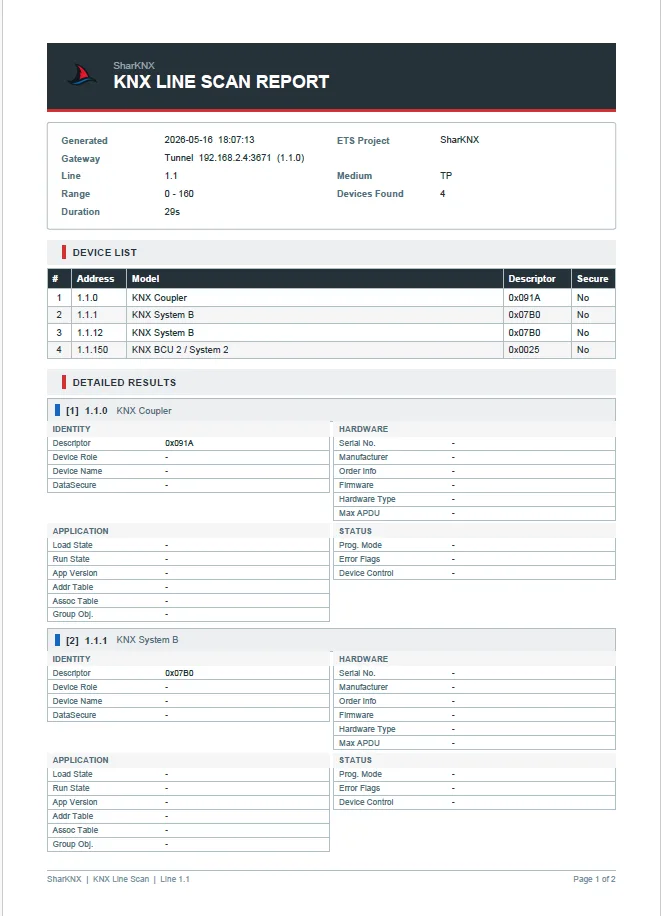
Sample file: sample-line-scan.pdf
Device Tables PDF
Exported from Tools → Inspect tab once a device's tables have been read:
- One device - open the session's details page and tap the share button in the top bar.
- All devices - tap Export on the Inspect tab to create one PDF per completed session. On desktop they are saved to a folder you choose; on mobile they are shared as a batch.
Filename
device_tables_{individual_address}_{YYYY-MM-DD}.pdf
Example: device_tables_1.1.5_2026-09-29.pdf.
Sections
| Section | Content |
|---|---|
| Header + Info | Device address, generation timestamp, device model, manufacturer, order info, serial number, firmware, device role, Data Secure status, and group address and link counts |
| Communication Objects | One row per communication object with its number, name (if available from ETS), size, flags, priority, and linked group addresses |
| Group Address Table | Raw address table entries: index, 3-level, 2-level, and hex value |
| Device Info | Identity, Hardware, Application, and Status fields (same as Line Scan Text) - only present if Read Info was performed before exporting |
Each section starts on a new page so multi-section reports paginate cleanly.
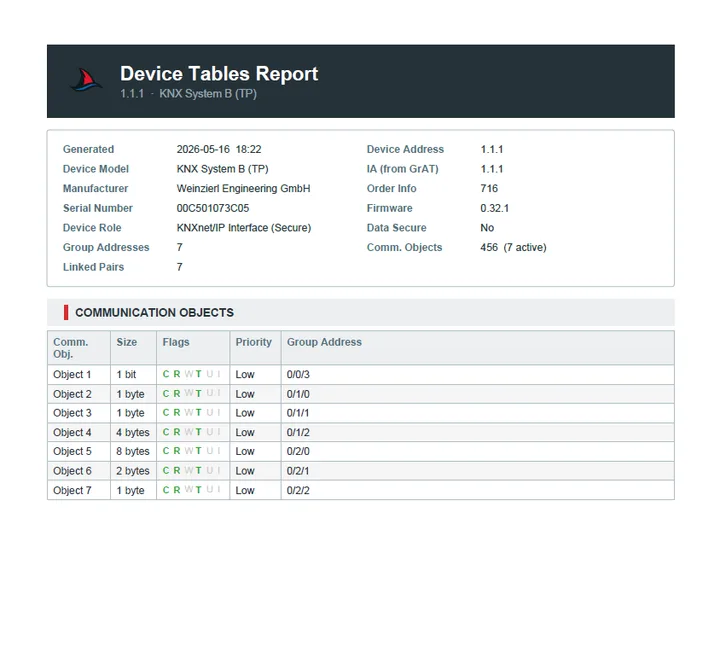
Sample file: sample-device-tables.pdf
Associations CSV / TXT
Exported from a session's details page in Tools → Inspect tab, via the Export CSV and Export TXT buttons above the associations list. Both contain one entry per communication object, with its flags and linked group addresses.
Filename
associations_ia-{area-line-device}_{YYYY-MM-DD}.csv
associations_ia-{area-line-device}_{YYYY-MM-DD}.txt
Example: associations_ia-1-1-5_2026-09-29.csv.
CSV structure
comm_object,c,r,w,t,u,i,size,group_addresses
0,1,0,1,0,0,0,1 bit,1/1/1
1,1,1,0,1,0,0,1 bit,"1/2/1, 1/2/9"
The flag columns are 1 (set) or 0 (not set): Communication, Read, Write, Transmit, Update, and read on Init. When an object is linked to several group addresses they share one quoted, comma-separated cell.
TXT structure
Comm. Object 1
  Flags: C=1 R=1 W=0 T=1 U=0 I=0
  Size: 1 bit
  Group Addresses:
    1/2/1
    1/2/9
Group Address Table CSV
Exported from a session's details page in Tools → Inspect tab, via the Export CSV button above the group address table.
Filename
group_address_table_ia-{area-line-device}_{YYYY-MM-DD}.csv
Structure
tsap,3-level,2-level,hex
1,1/1/1,1/257,0x0901
2,1/2/1,1/513,0x0A01
tsap is the entry's index in the device's address table.
Shark Hunt JSON
Exported from the Shark Hunts page - Export All Hunts for every hunt, or a hunt's own menu for a single one.
Filename
- Single hunt: the hunt name (sanitised, max 50 characters), e.g.
HVAC_Diagnostics.json - All hunts:
SharKNX_Export_YYYY-MM-DD.json
File structure
The file is a JSON object with a metadata block and a hunts array. Single-hunt and all-hunts exports use the same structure, so any export can be imported.
{
  "metadata": {
    "version": "1.0.0",
    "exportedAt": "2026-09-29T14:30:22.000Z",
    "huntCount": 1,
    "appVersion": "1.2.0",
    "exportedBy": "SharKNX"
  },
  "hunts": [
    {
      "id": "e3224ab9-...",
      "name": "HVAC Diagnostics",
      "description": "Fan coils and heat pump",
      "actions": [
        {
          "id": "fe00f896-...",
          "name": "Fan coil setpoint",
          "type": "sendFixed",
          "commands": [
            { "groupAddress": "11/0/1", "value": "21", "dpt": "9.001", "delayMs": 0, "isRead": false }
          ]
        }
      ]
    }
  ]
}
Each action's type is one of sendFixed, sendSequence, sendVariable, sendCommObject, sendAndMonitor, monitorSpace, monitorDevice, monitorGaRange, monitorDeviceRange, monitorThreshold, or monitorCustom; the remaining fields depend on the type.
Sample file: sample-shark-hunt.json
Import
On the Shark Hunts page, Import Hunts accepts any SharKNX hunt export. Imported hunts are added to your existing list and get new IDs, so they never overwrite a hunt you already have. Hunts that break the limits - more than 25 actions, or more than 15 commands in an action - are skipped, and the import is refused if it would take you over 25 saved hunts.