A Shark Hunt is a reusable, self-contained set of actions for testing and diagnosing a KNX installation. Instead of navigating to a group address, selecting a datapoint, and composing a command every time you need to run a test, you build a hunt once and execute it in one tap - from anywhere, on any visit to the same installation.
Premium feature: creating, editing, and running Shark Hunts needs a subscription or lifetime purchase on Android, iOS, and macOS, and is included on Windows. See Subscription Plans.
The Core Idea
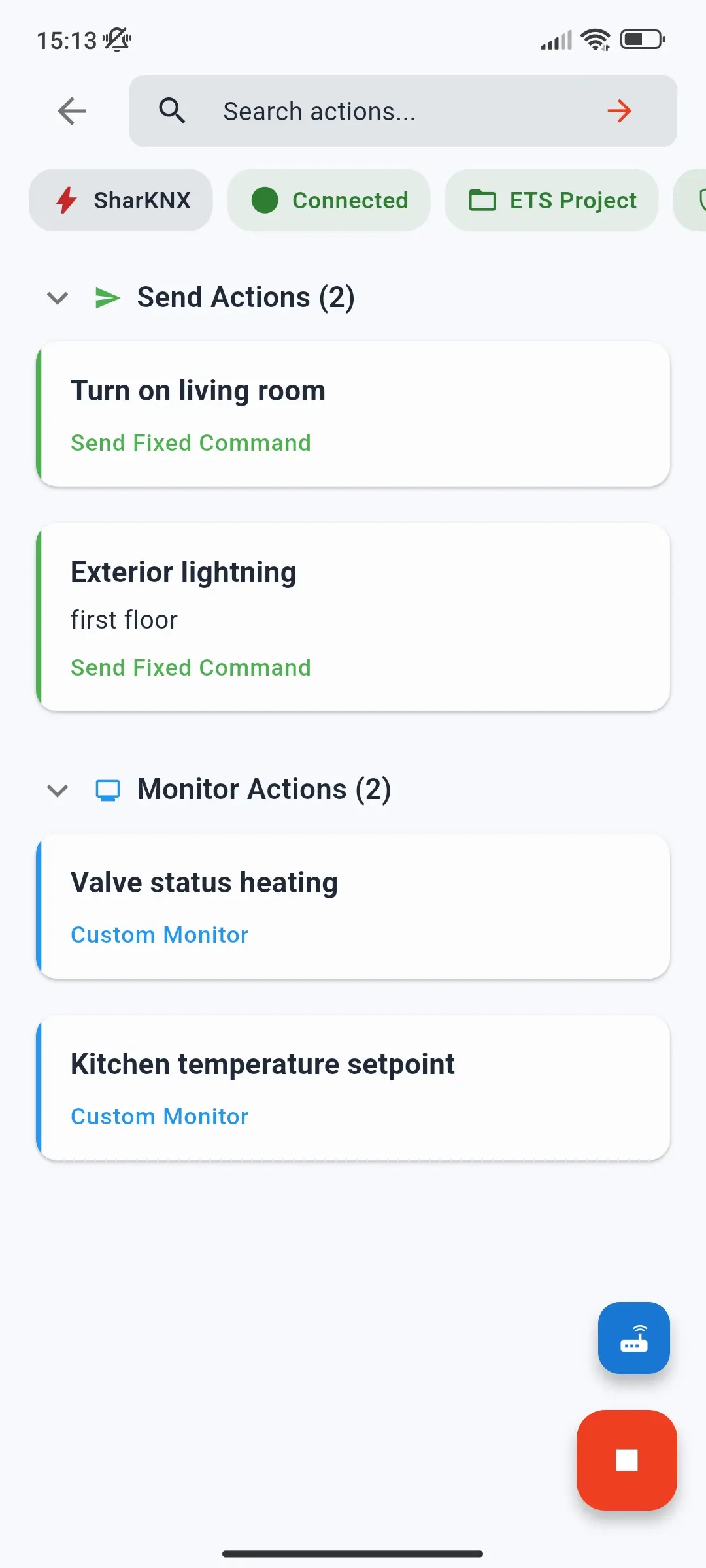
Each Shark Hunt is a named collection of send actions (commands to the bus) and monitor actions (filtered monitor sessions). A hunt can contain either type, or both. When you open a hunt, all its actions are presented as a single page of tappable cards, ready to run.
This makes Shark Hunts useful in several scenarios:
- Repeated testing. Commissioning often requires sending the same commands dozens of times across multiple site visits. A hunt captures those commands so you never have to reconstruct them.
- Delegating diagnostics. A hunt can include the gateway for a specific installation. You can export it and share it with a colleague who then runs it on their own device without needing to configure a gateway or find a group address.
- Structured test sequences. A multiple/sequence action can send a series of commands with configurable delays between them, covering a full lighting scene test or a shutter cycle in one tap.
- Advanced bus filtering. Monitor actions can apply complex filter logic - combining group address ranges, device filters, telegram type filters, and time windows - that the standard monitor filter bar does not support.
An example
A typical hunt for handing over a meeting room might contain:
| Action | Type | What it does |
|---|---|---|
| Lights on / off test | Send Multiple / Sequence | Switches every light circuit on, waits 3 s, then switches them off |
| Setpoint | Send Variable | Asks for a temperature and writes it to all the room's heating setpoints |
| Room traffic | Monitor Space | Shows only telegrams for the room's group addresses |
| Faulty actuator | Custom Monitor | Watches responses from one actuator line, e.g. 1.2.* |
On site, you open the hunt, tap the sequence, check the lights, tap the monitor action, and see exactly the traffic you care about - no searching, no typing addresses.
Action Types
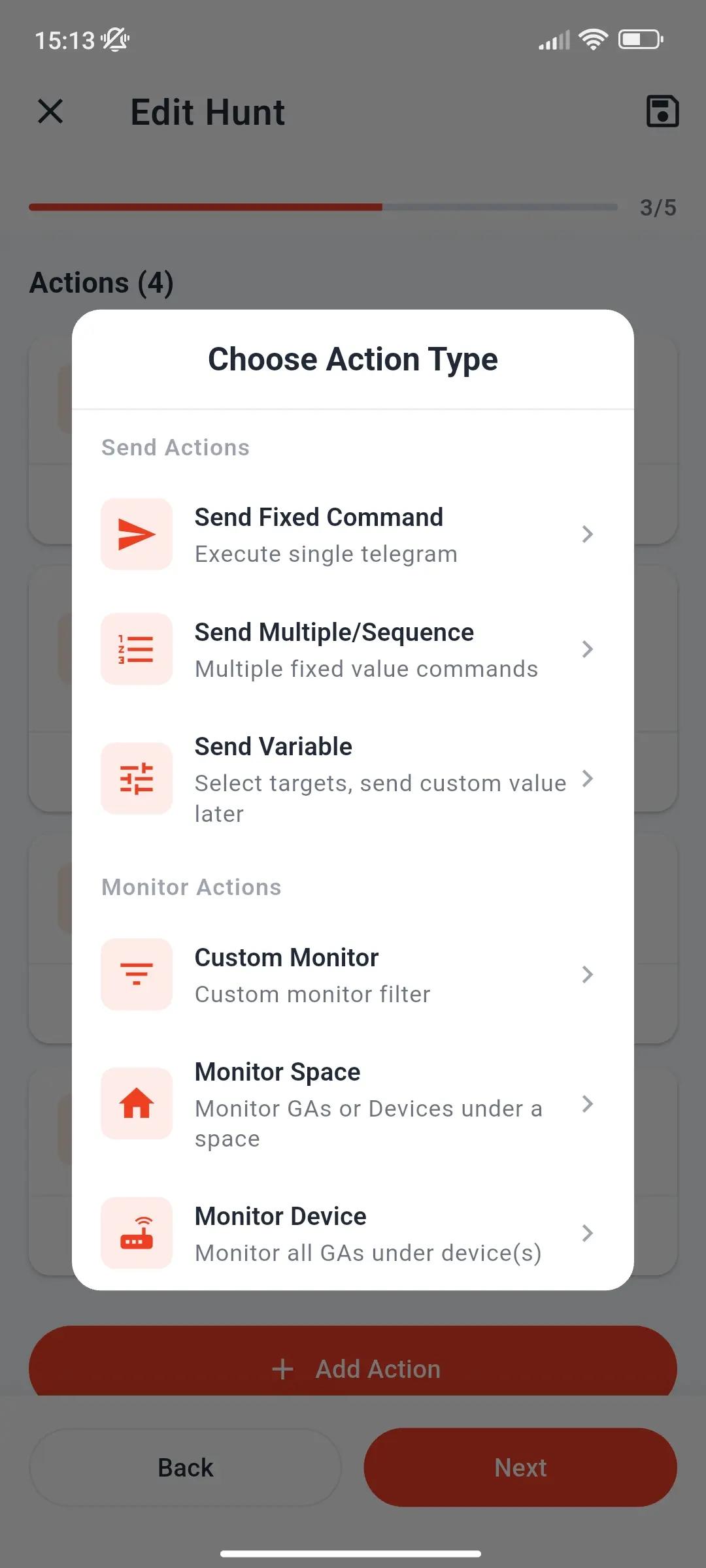
When you add an action to a hunt, you choose from six types - three that send commands and three that monitor the bus. Each is explained below.
Send Actions
Three types of send actions are available:
Send Fixed runs a single write or read command to a specific group address with a fixed value every time. Useful for quick device triggers - turning a light on, saving a scene, checking a sensor value.
Send Multiple / Sequence runs a series of fixed commands in order. Each command in the sequence can have a configurable delay before the next one fires (up to 10 seconds per step), with up to 15 commands per action. Use this to test scene saves, shutter travel sequences, or any multi-step automation logic.
Send Variable sends a value you choose at the moment of execution to up to 15 group addresses sharing the same datapoint type. When you tap the action card, a value input sheet opens with the appropriate DPT controls (sliders, colour pickers, numeric fields, etc.). Useful when you want flexibility to test different values without editing the hunt.
Monitor Actions
Three types of monitor actions are available:
Custom Monitor applies a multi-condition filter to the bus monitor. Conditions can filter by group address (including wildcards like 1/*/0), by sender individual address (including wildcards like 1.*.*), by telegram type (read, write, response), by name or description text, and by time window. Up to 10 conditions are connected with AND/OR logic, enabling filters that are not expressible through the standard monitor search bar. Address and device entries can also be set to exclude rather than include, so you can monitor everything except a specific range.
Monitor Space uses your ETS project's building structure to set the filter target. You select a room or space from the building hierarchy and the monitor shows only the group addresses or devices belonging to that space - up to 750 of them. No manual address entry needed.
Monitor Device targets one or more specific devices from your ETS project and monitors all group addresses connected to them. Effective for isolating the communication of a single actuator or sensor during testing.
When you open a monitor action in a hunt, the filters are applied immediately. A badge in the monitor view shows the active filter details, and a quick-switch sheet lets you swap between all monitor actions in the hunt without leaving the monitor page.
Sharing and Portability
Shark Hunts are designed to be shared. Each hunt can optionally include a preconfigured gateway - the IP address, port, and connection settings for the installation it was built for. When someone opens a shared hunt, that gateway appears as a connection option so they can connect and run the hunt without needing to discover or configure anything themselves.
A hunt never contains KNX IP Secure credentials. If its gateway is secure, whoever runs the hunt is asked to load the keyring or project with the credentials on their own device - so sharing a hunt never shares your keys.
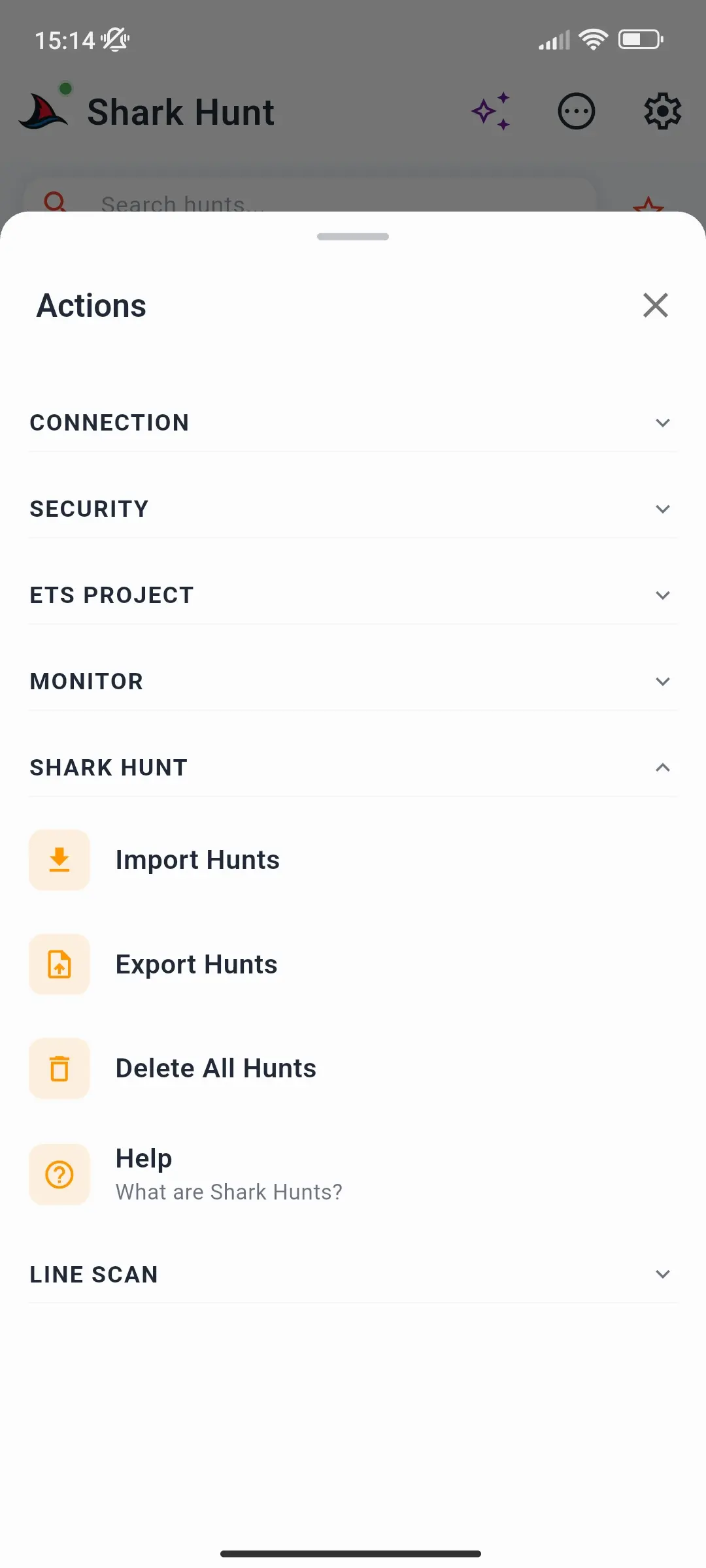
You can export a single hunt or all your hunts at once as a JSON file, then share it via any file transfer method - messaging apps, email, cloud drives. Importing a JSON file adds the hunts it contains to your list without overwriting existing ones. The file format is described in Export Formats.
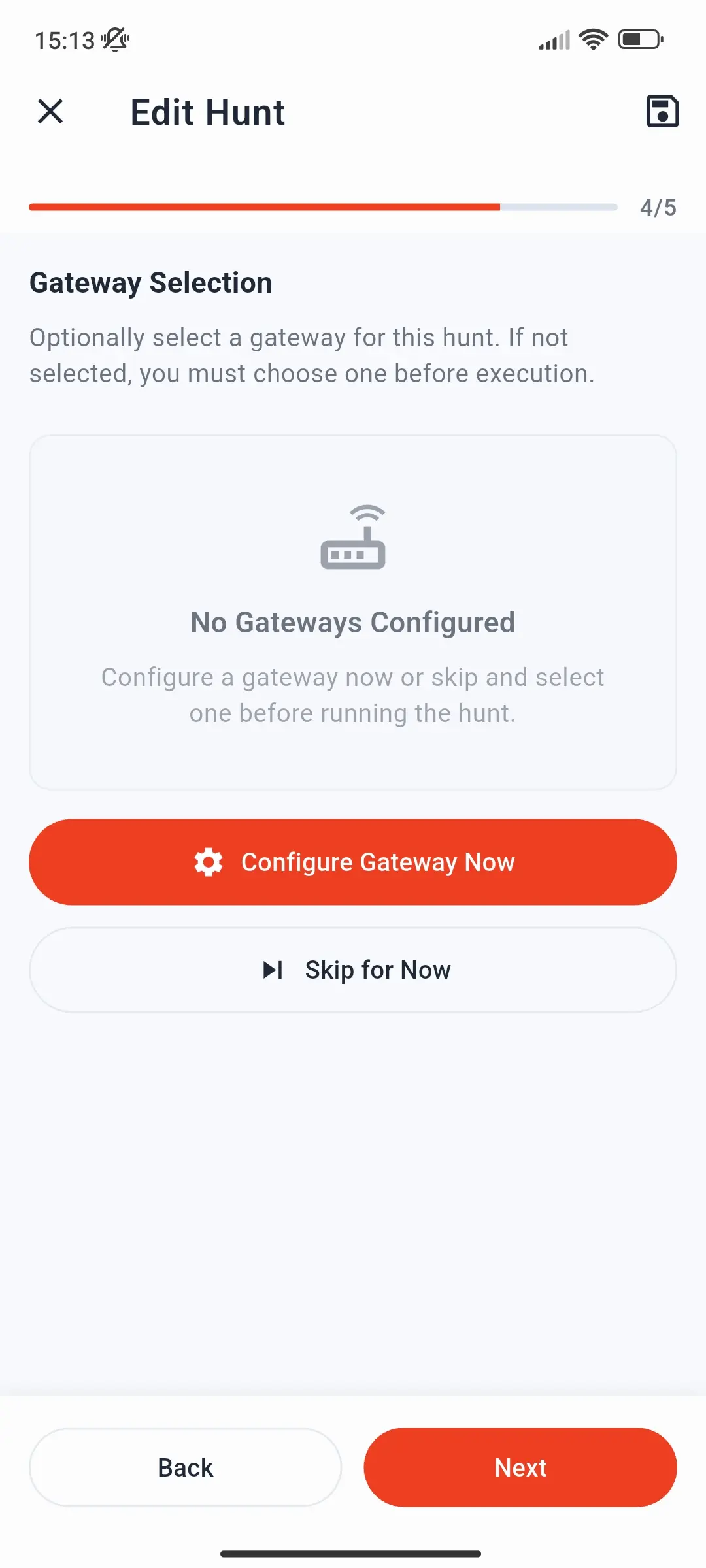
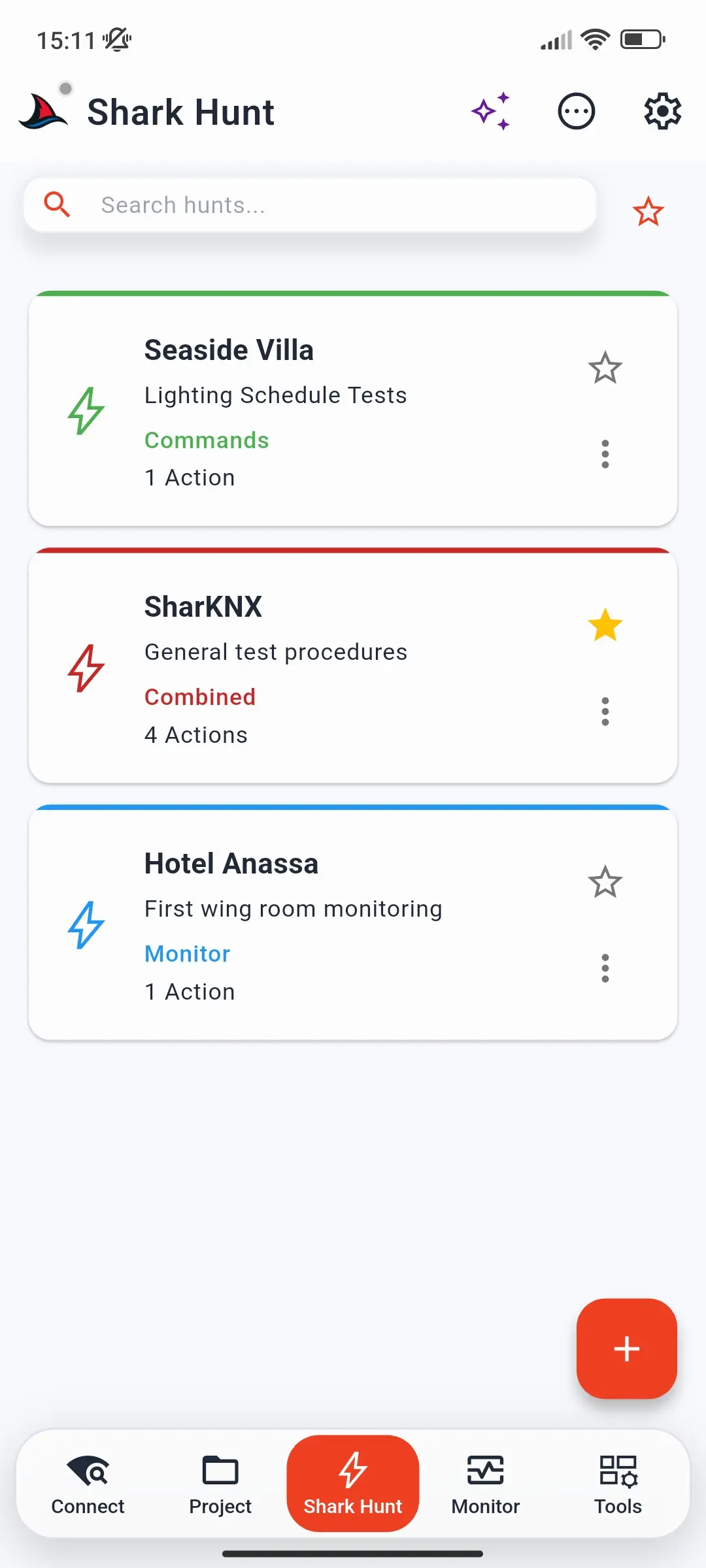
Hunt cards are colour-coded so you can see at a glance what a hunt does:
| Border colour | Content |
|---|---|
| Green | Send actions only |
| Blue | Monitor actions only |
| Red | Both send and monitor actions |
| Grey | Incomplete - saved before the setup was finished |
Persistence
Hunts are saved on your device and persist across app restarts. The creation and last-modified timestamps for each hunt are visible in the hunt info sheet. You can keep up to 25 hunts, each with up to 25 actions - see Limits for the full list.
Further Reading
- Create a Shark Hunt - step-by-step guide to building your first hunt
- Shark Hunts Page - every button and screen of the Shark Hunts page
- Limits - how many hunts, actions, commands, and conditions you can use