ETS names are often cryptic - LI_EG_KÜ_Decke_1 - and some requests you make every day. Aliases teach the SharKNX assistant your own words for addresses and requests, and scripts save command sequences you can run by name.
| Aliases | Scripts | |
|---|---|---|
| What | Your own names for group addresses, groups of addresses, and requests | Named sequences of exact commands |
| Used in | Plain-English prompts: turn off exterior lights | Exact commands: sharknx secure house |
| Belong to | One ETS project - active only while it is loaded | No project - always active |
| Created | In the app, or by importing a YAML file | By importing a YAML file |
Kinds of alias
| Kind | Gives | Example |
|---|---|---|
| Phrase | A shortcut for a longer request | good night runs turn all kitchen lights off |
| Address | A name for one group address | reading lamp for 1/2/3 - turn on the reading lamp |
| Group | One name for several group addresses | exterior lights for every outdoor light - turn off exterior lights switches them all |
| Room | A room of your own, with each address typed as a light, blind, temperature, and so on | set home office temperature to 21 changes only that room's temperature addresses. Rooms can only be imported from a file - see the file format. |
A phrase goes through the assistant like any other request, with the same clarification and confirmation. Writing to a group always needs strong confirmation, because it writes to several addresses at once.
Create an alias in the app
- Load the ETS project the alias is for - see Load an ETS Project.
- In the assistant, open ☰ → Settings → Create.
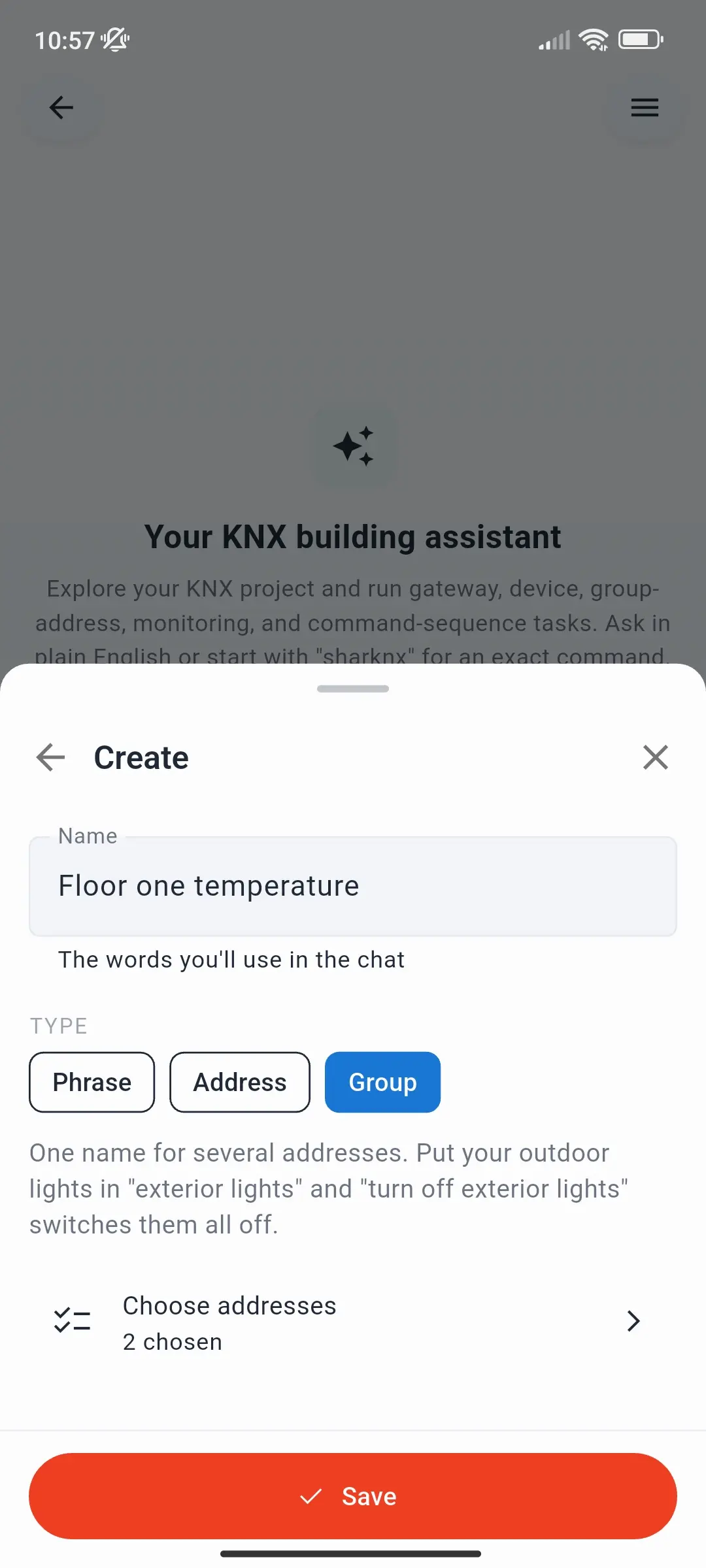
- Enter a Name - the words you'll use in the chat.
- Choose the Type:
- Phrase - enter the request it Runs, e.g. turn off all kitchen lights.
- Address - tap Choose address and pick a group address from the project.
- Group - tap Choose addresses and pick several. They must all have the same datapoint type, because a group writes one value to all of them.
- Tap Save.
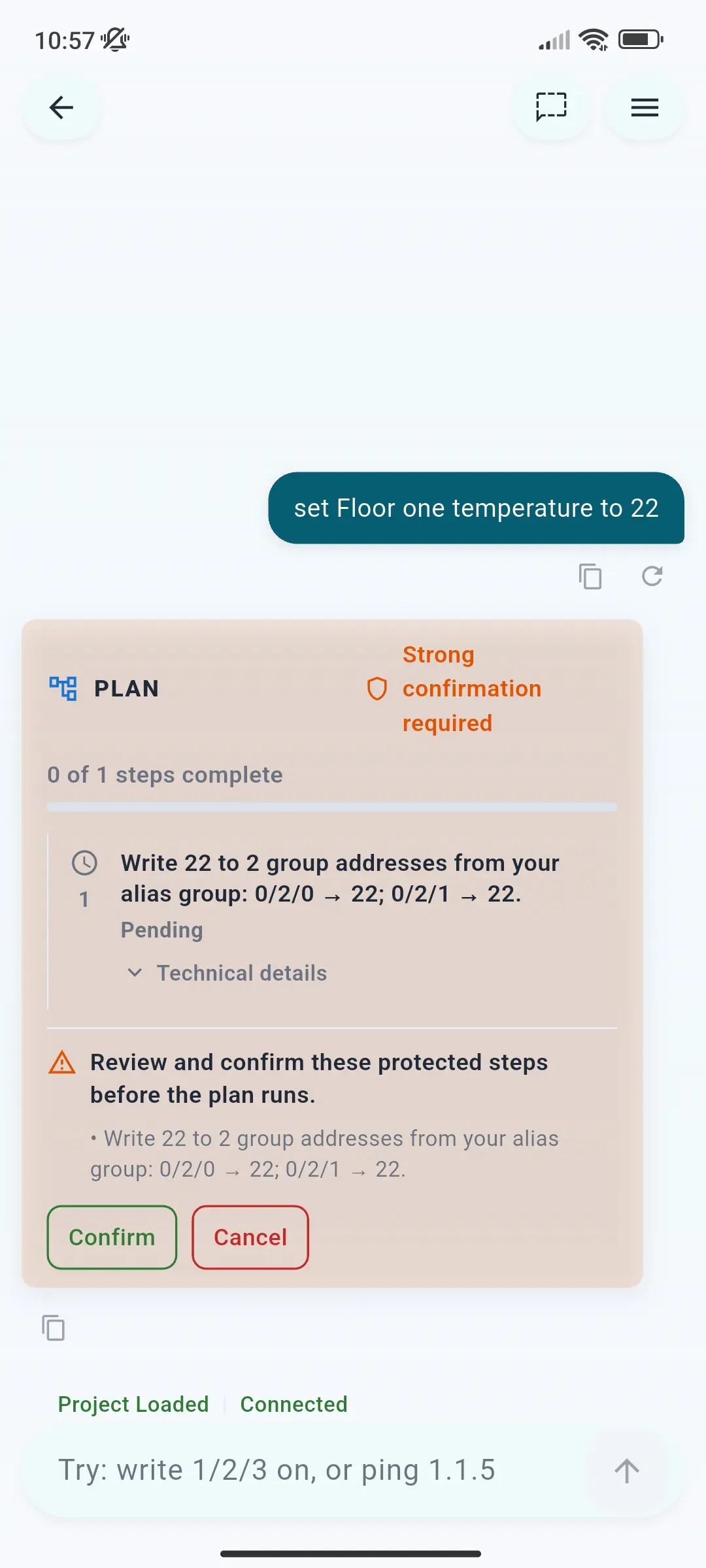
Use it straight away - for a group named Floor one temperature, set Floor one temperature to 22 writes 22 to every address in it, after you confirm.
A name can't be used twice. If it matches a name in your ETS project, the assistant asks which one you mean - an imported alias can take precedence with
override: true.
Import aliases and scripts from a file
A YAML file holds many aliases and scripts at once - handy for a large project, for rooms and scripts, or to share with colleagues.
- Get a starting file: in the assistant, open ☰ → Help → Aliases & scripts and tap Download template. It contains one example of everything, with every field explained.
- Edit it: replace the sample names and addresses with your own, and delete what you don't need. Every field is described in Alias and Script File Format.
- Load the ETS project the aliases are for. A file with aliases can't be imported without one; a scripts-only file can.
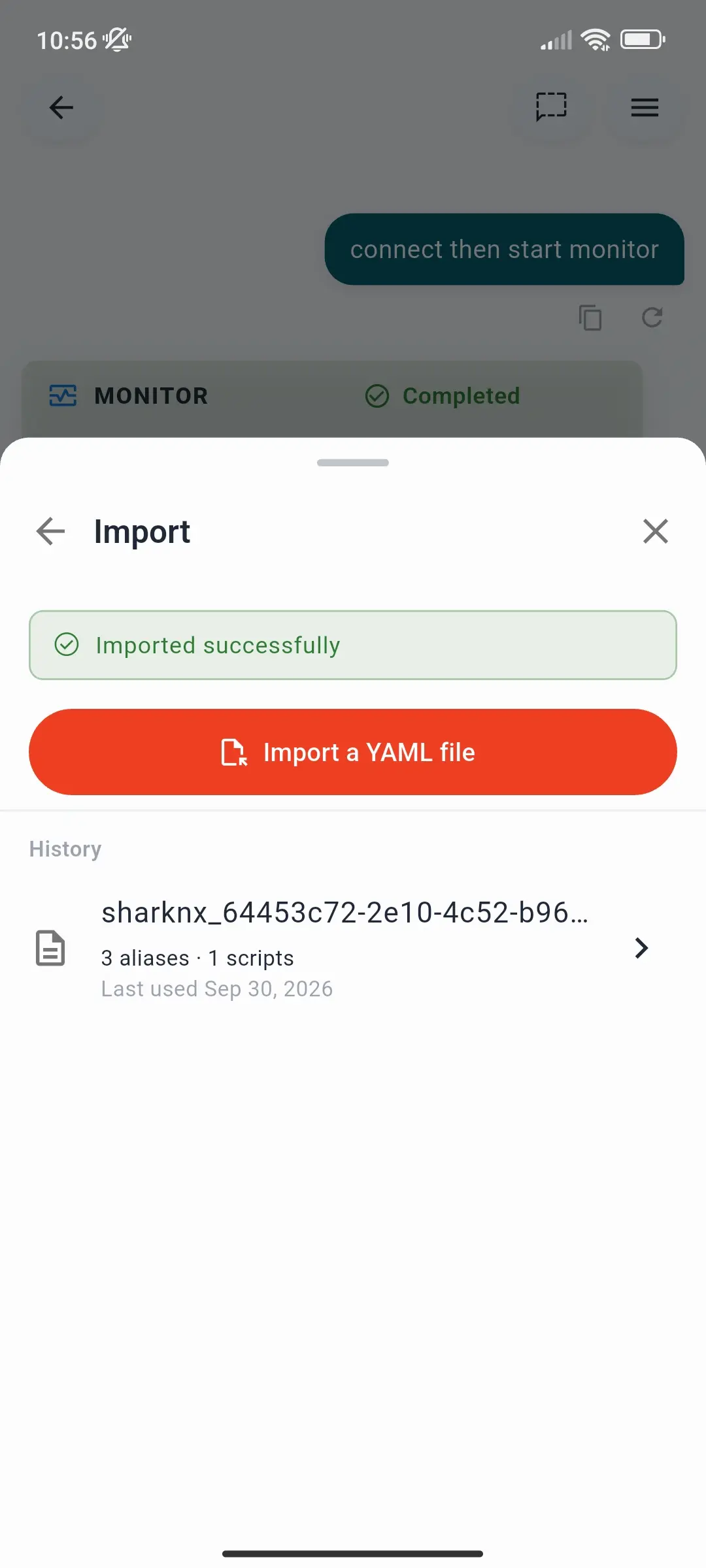
- Open ☰ → Settings → Import and tap Import a YAML file.
- Check the Review import report:
- It says which project the aliases will be tied to.
- Fix these before importing: lists errors, with the line where possible. Fix the file and import it again.
- Worth knowing: lists warnings - for example an address that isn't in the loaded project. You can still import.
- Not in this file lists aliases you have now that the file doesn't contain. Turn on Keep them to add them to the imported aliases; otherwise they are removed.
- Tap Import.
Importing aliases replaces the project's alias set. Scripts are added to your scripts; a script with the same name as an existing one replaces it. Importing the same file again changes nothing.
Imported files are listed under History with their alias and script counts - tap one to import it again, for example after switching projects.
Run a script
Type sharknx and the script's name, for example sharknx secure house - or sharknx run secure house. The script runs as a plan: SharKNX shows its steps and asks for confirmation where a step needs it. Add -y to skip ordinary confirmations; steps that need strong confirmation are still confirmed, together, before the script starts.
Script lines are exact commands with literal addresses - see Assistant Commands.
Manage aliases and scripts
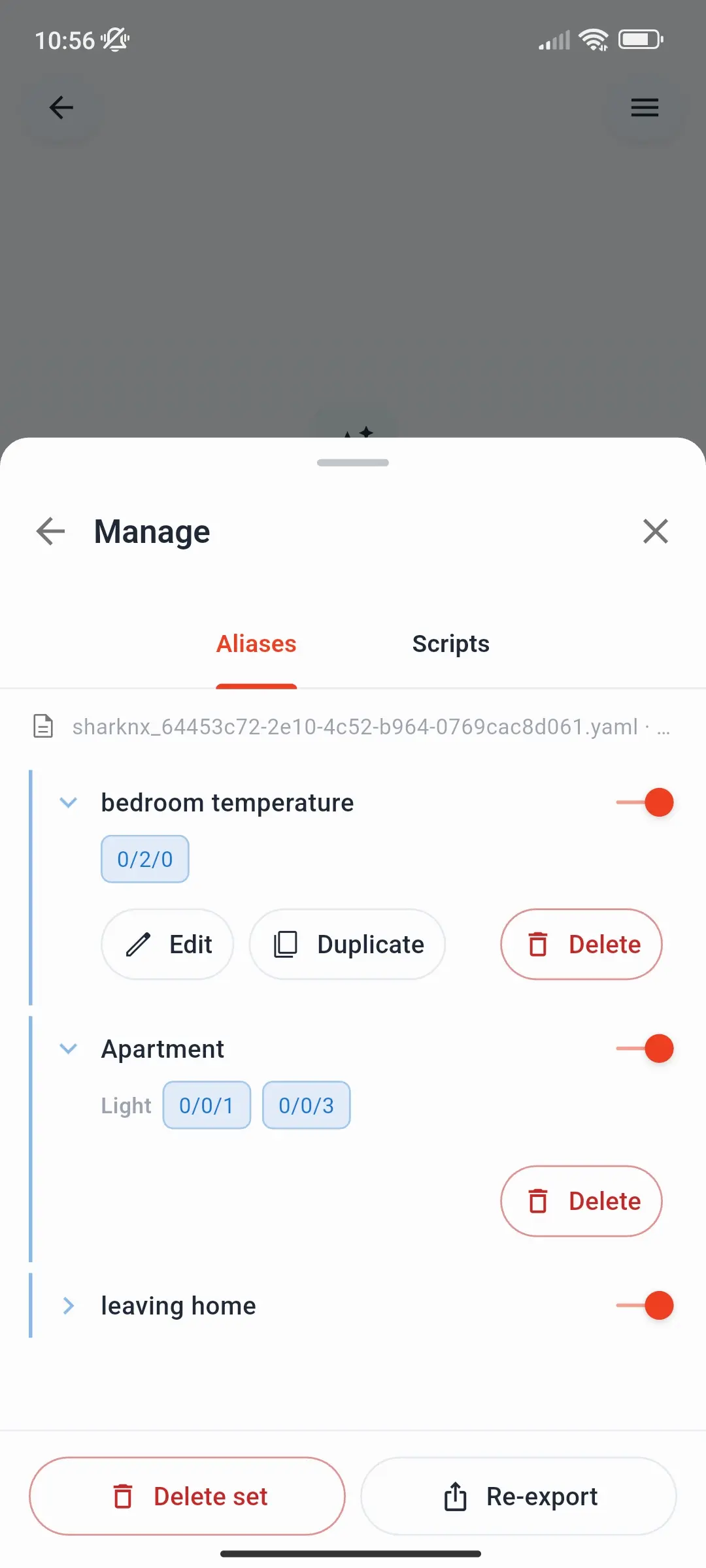
Open ☰ → Settings → Manage. (The card at the top of Assistant settings already shows how many aliases and scripts are active and which file they came from.)
Aliases tab - the loaded project's aliases:
- The switch turns an alias off or on without deleting it. An alias turned off in the file itself shows Disabled in file.
- Edit, Duplicate, and Delete change one alias. Rooms can only be changed in the file.
- Delete set removes every alias of the loaded project. You can import the file again from History.
- Re-export saves the project's aliases - including the ones you created in the app - as a YAML file.
Scripts tab - every script, with its command lines:
- The switch turns a script off or on.
- Delete script removes one script; the button next to a file name removes every script from that file.
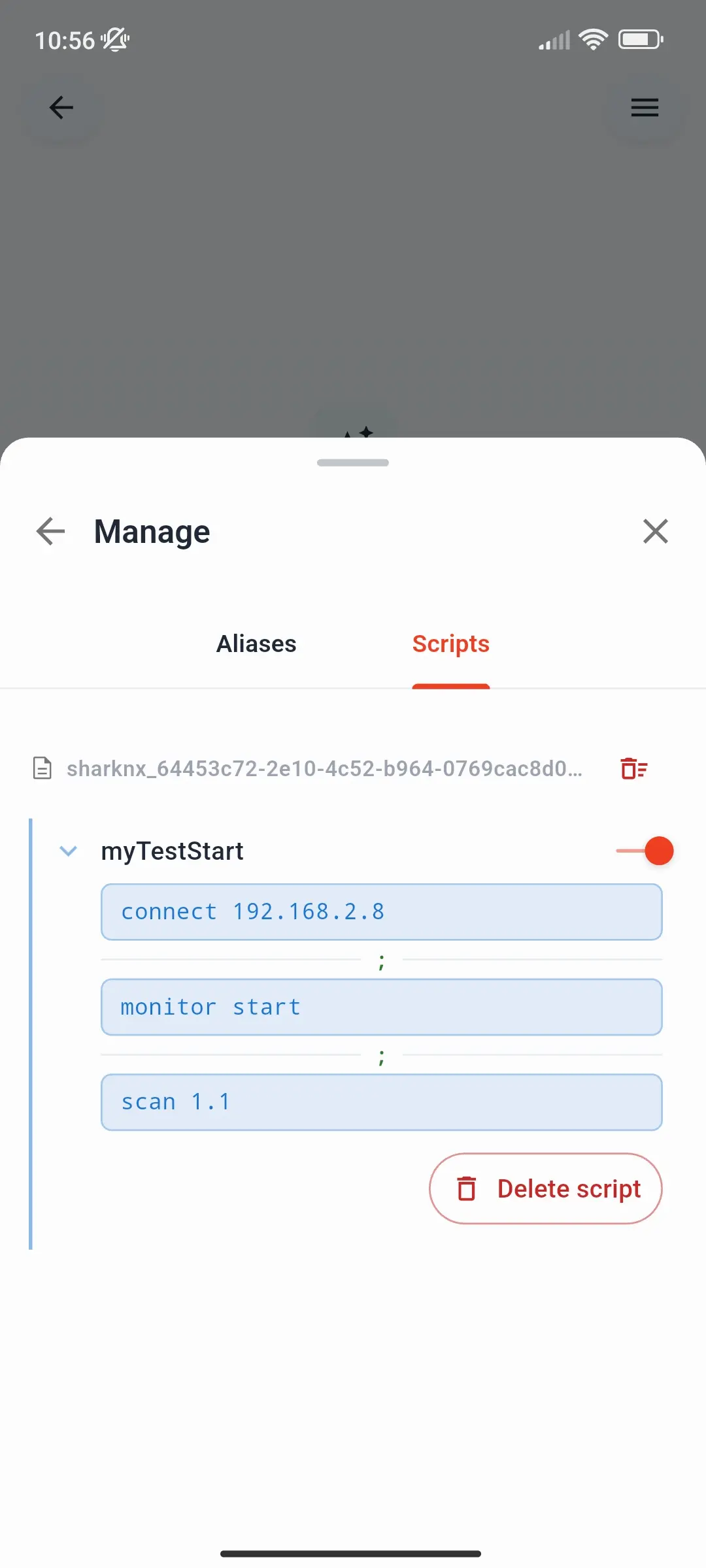
Aliases you create in the app are added to the project's alias file. If an imported file can't take a change without being reformatted, SharKNX asks you to make the change in the file and import it again.
Troubleshooting
| Problem | What to check |
|---|---|
| Create says ETS project must be loaded | Aliases belong to a project - load it first. |
| Aliases don't work | They are active only while their project is loaded. The Settings card says which project they belong to. |
| This project's alias file could not be read | Import the file again. |
| These addresses don't share one DPT type | A group writes one value to all its addresses - pick addresses of one datapoint type. |
| An alias name also matches a project name | The assistant asks which you mean. In a file, set override: true to make the alias win. |
| A script name is refused | Script names can't be the same as a built-in command such as connect or scan. |