The Discovery page is the first page in the bottom navigation bar and opens by default when the app starts. It is where you find, configure, and manage KNX IP gateways to connect to. It has three tabs: Discover, Config, and Security.
Discover Tab
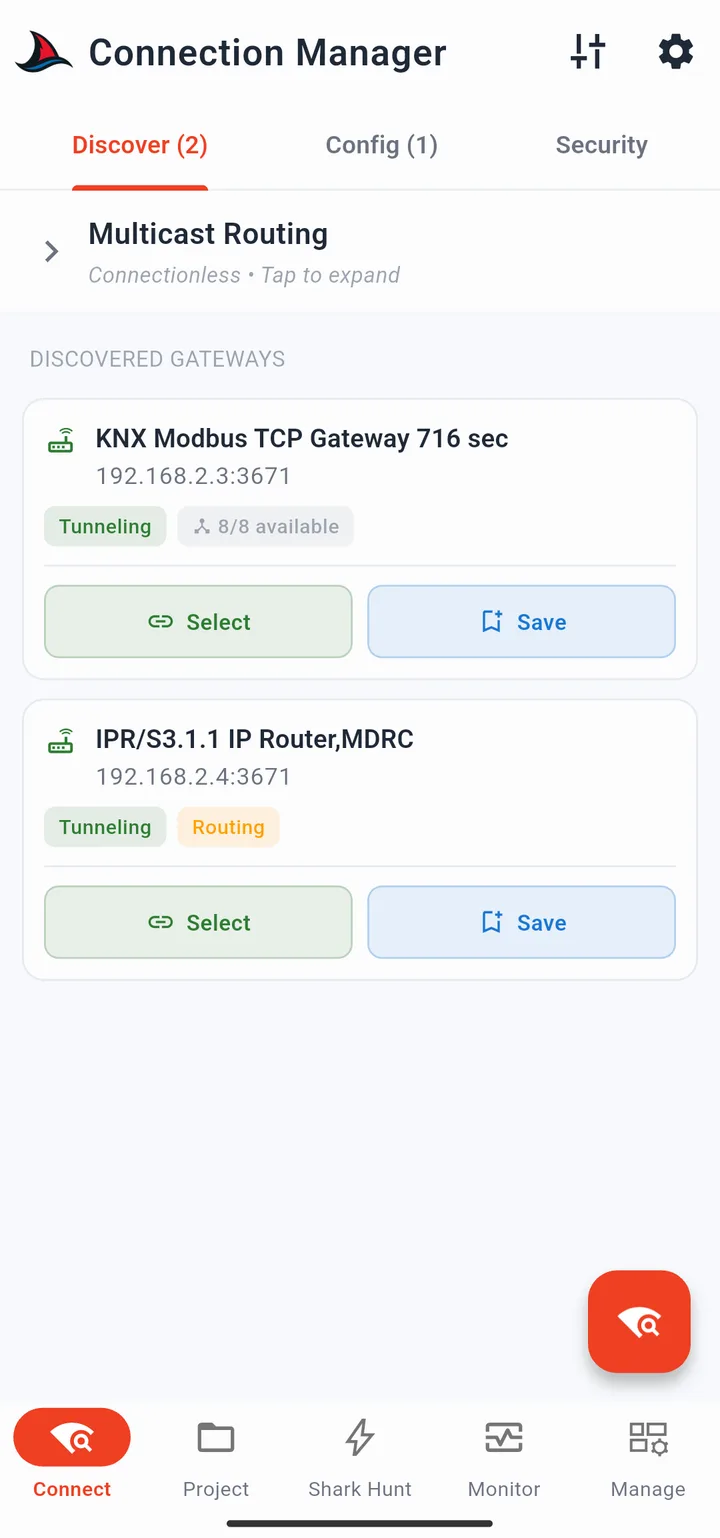
Tap the scan FAB to begin searching the local network for KNX IP devices. The app sends KNX IP search requests and lists any responding devices as cards.
Gateway Cards
Each discovered gateway card shows:
- Gateway name (as advertised by the device)
- IP address and tunnel port
Two buttons are on each card:
Select - marks this gateway as the active connection target. The gateway moves to the Last Selected Gateway section at the top of the page and is remembered across app restarts. Selecting a gateway does not immediately connect to it; the app connects automatically when you perform an action (start the monitor, send a command, etc.).
Save - saves the gateway to the Config tab so it can be reused without rediscovering. Useful when you visit the same installation regularly.
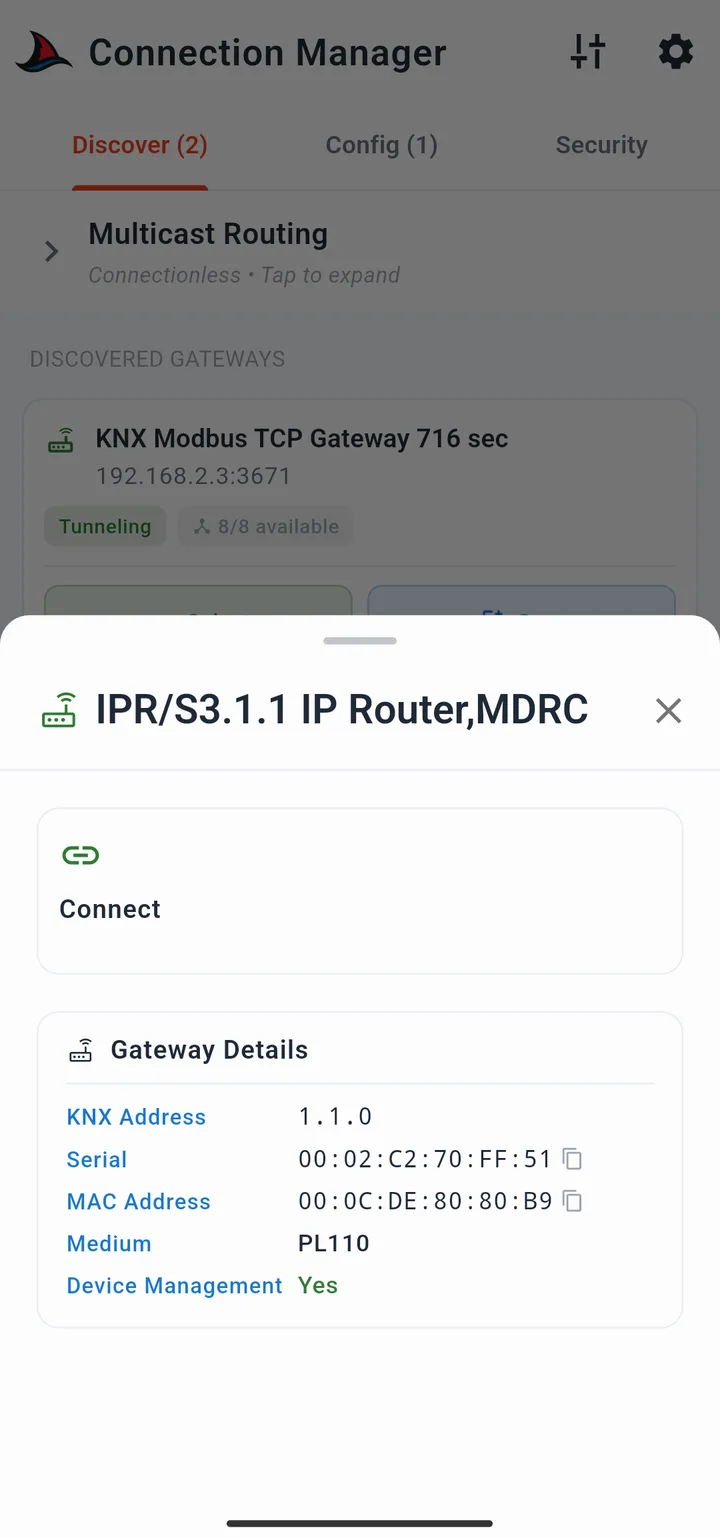
Tapping a card (not a button) opens the gateway detail sheet:
- KNX individual address
- Serial number
- MAC address
- Medium type
- Device management capabilities (if supported)
- Connect button - connects immediately; useful for testing reachability, though not required for normal operation
- Load Credentials button (KNX IP Secure gateways only) - loads
.knxkeysor.knxprojcredentials for this gateway. See KNX IP Secure.
 |
 |
Last Selected Gateway
If a gateway has previously been selected, it appears in a pinned section at the top of the Discover tab. It is automatically re-selected on app restart so you can start working without scanning again.
Multicast Section
If a KNX IP Router with routing capabilities is discovered, a Multicast section appears below the card list. Expanding it shows two options:
- Multicast - standard KNX IP multicast on
224.0.23.12:3671 - Secure Multicast - encrypted multicast requiring a backbone key (see KNX IP Secure)
Select either option to use it as your connection type instead of a unicast tunnel.
Config Tab
The Config tab stores gateways you have saved manually or via the Save button in the Discover tab. Gateways here are available at any time without needing to scan.
Adding a Gateway Manually
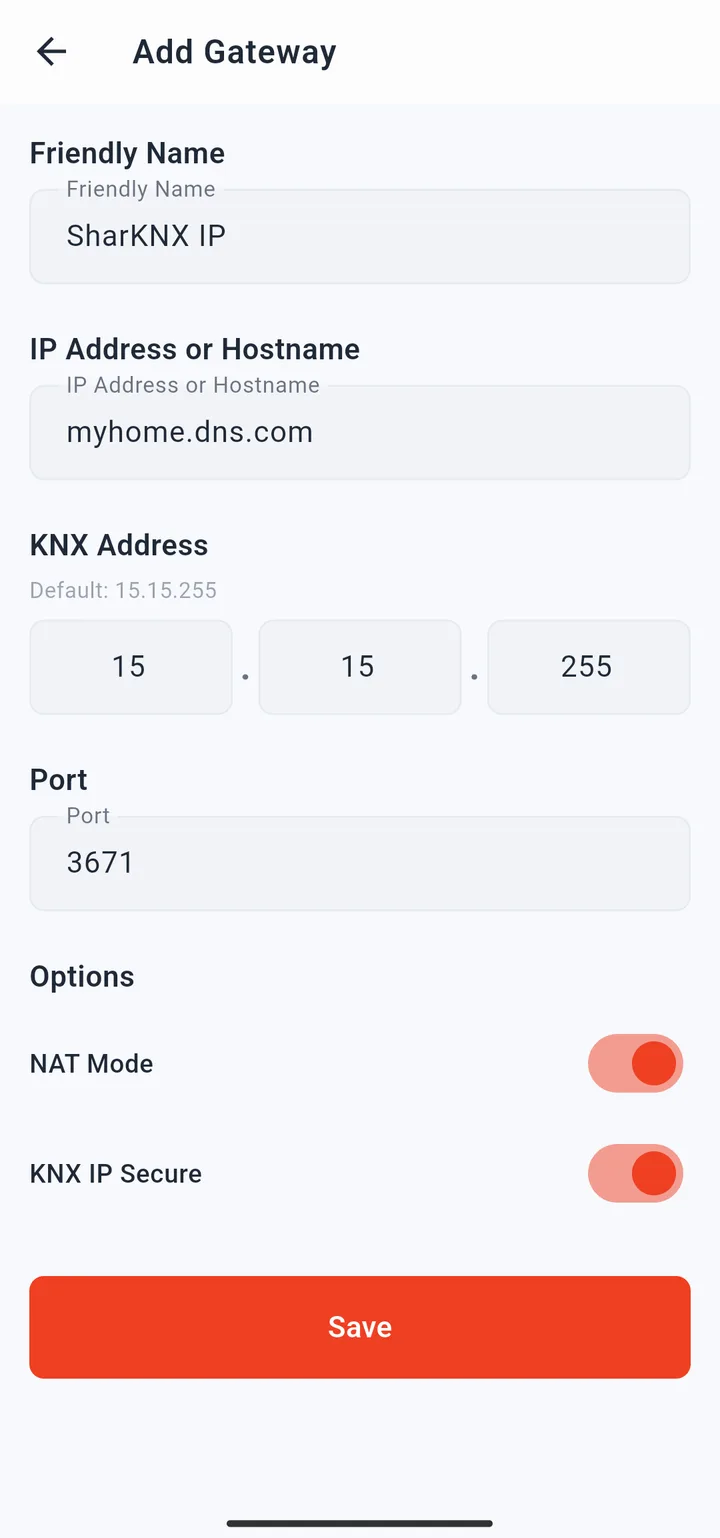
Tap the "+" FAB to open the manual gateway configuration page. Fill in:
| Field | Description |
|---|---|
| Friendly name | A label shown on the card to identify this gateway |
| IP address / hostname | The gateway's IP address or a DNS hostname (e.g. a DynDNS domain) |
| KNX individual address | The gateway's KNX address; defaults to 15.15.255. Must match the device for KNX IP Secure connections. |
| Port | Tunnel port; defaults to 3671 |
| Use NAT | Enable for VPN scenarios where the client and gateway are on different subnets |
| KNX IP Secure | Mark this as a KNX IP Secure connection |
Tap Save to create the entry. The gateway appears as a card in the Config tab.
Config Gateway Cards
Cards in the Config tab work identically to Discover tab cards (Select, Save, detail sheet) with one addition: an Edit button that reopens the configuration page so you can correct or update any field without deleting and recreating the entry.
The Config tab holds a maximum of 50 saved gateways.
Security Tab
The Security tab is where you load KNX IP Secure and KNX Data Secure credentials that apply across the whole app.
Tap the shield FAB to open the credential import sheet. Three input methods are available:
| Method | Use case |
|---|---|
.knxkeys file |
Exported from ETS. Contains interface credentials, backbone key, and tool keys. Requires the keyring password set during export. |
.knxproj file |
Full ETS project export. SharKNX extracts all secure credentials automatically. |
| Manual backbone key | Enter a multicast backbone key directly as hex. For secure multicast only. |
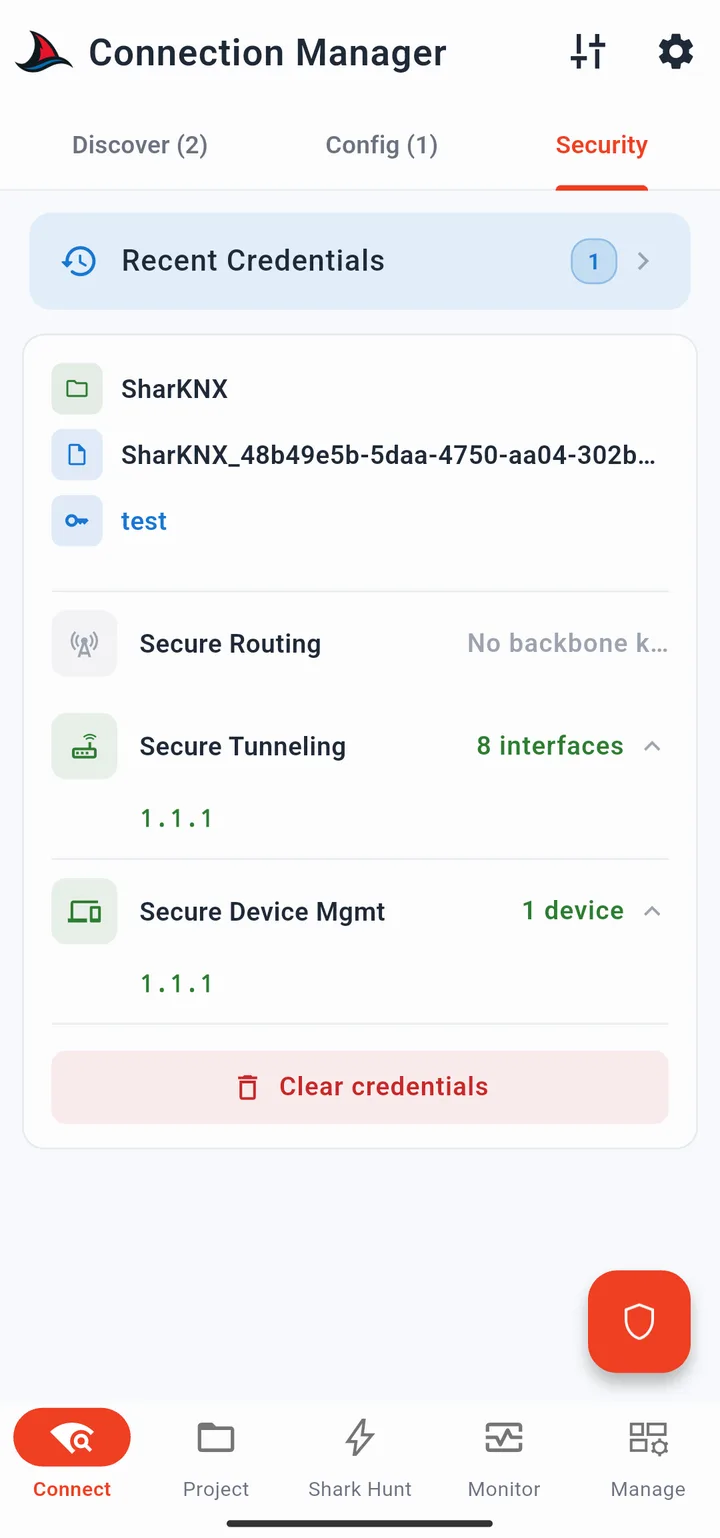
After loading, the tab displays a summary:
- How many KNX IP interfaces were found in the file
- How many KNX Data Secure devices (by individual address) were present
A History button at the top lets you quickly reload recently used credential files without browsing the file system again.
Tool keys: A
.knxkeysfile may also contain tool keys for KNX Data Secure devices. If present, SharKNX stores them automatically to enable encrypted device management operations (toggle programming mode, read device info, etc.). See KNX Data Secure.
Tune Menu
The tune icon in the top bar opens a bottom sheet with quick access to credential loading without navigating to the Security tab:
- Load credentials from .knxkeys - opens the file picker for a
.knxkeysfile - Load credentials from .knxproj - opens the file picker for a
.knxprojfile