SharKNX sends write commands (set a value) and read requests (ask for the current value) to any KNX group address. This guide shows every way to send, from a single tap in your ETS project to the full command composer, and how to resend a command in one tap.
Before you start
- Connect to a KNX gateway - see Connect to a Gateway. If you are not connected when you send, SharKNX asks you to choose a gateway.
- (Recommended) Load your ETS project, so group addresses come with names and the right datapoint type - see Load an ETS Project.
Free plan: 3 sends per day - reads and writes both count. Subscriptions and lifetime access send without limits. See Subscription Plans.
Which way to send?
| You want to… | Use |
|---|---|
| Switch or read something from your project | The project's Send command sheet |
| Send to any address, with or without a project | The command composer |
| Repeat a command you just sent | Quick Send |
| Answer a telegram you see in the monitor | The telegram details |
| Test a device when you have no project | Inspect → Associations |
| Run the same commands on every visit | Shark Hunts |
From your ETS project
The quickest way when a project is loaded - and the monitor does not need to be running.
- On the Project page, tap a group address in the Addresses tab - or in a device's communication objects.
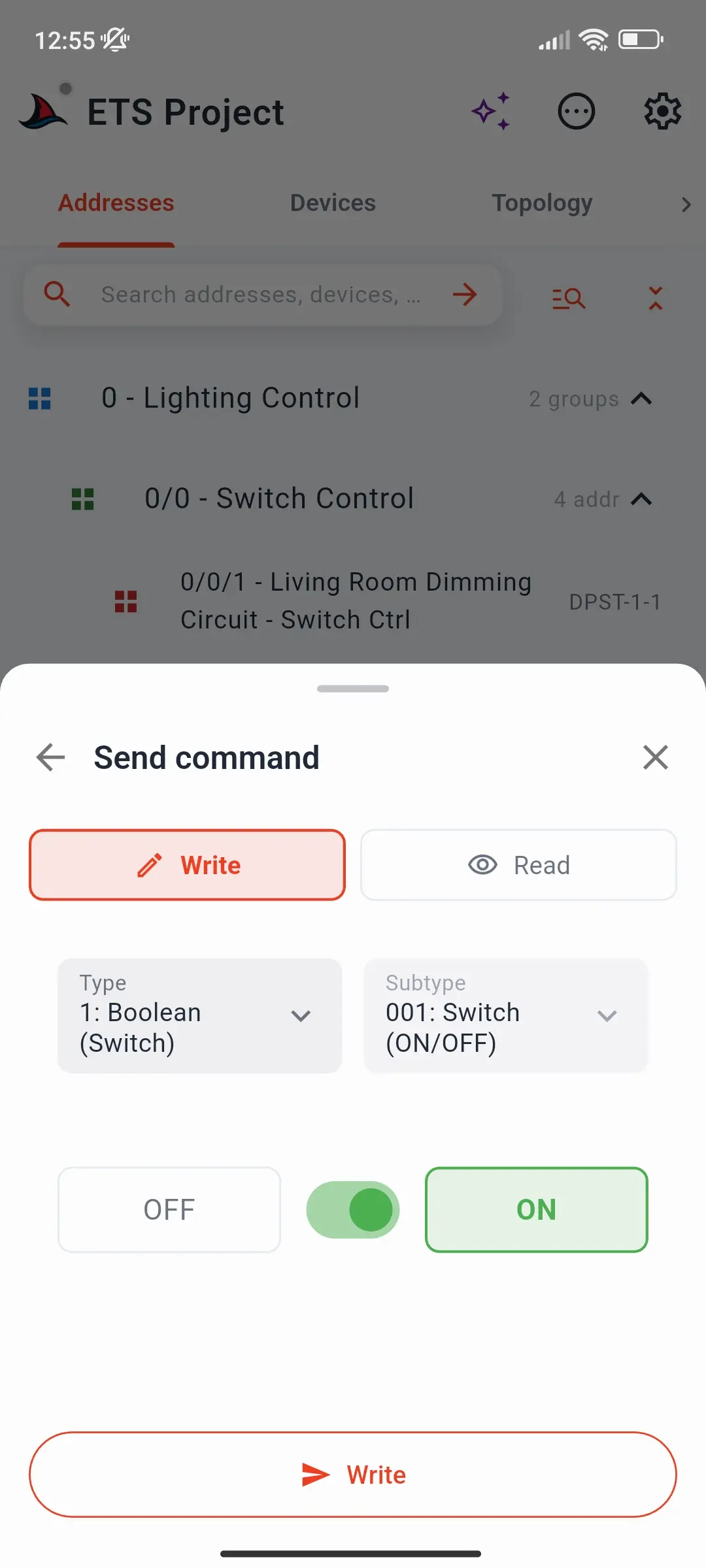
- Its details sheet shows the address, name, and datapoint type. Tap Send command, then choose Write or Read.
- The datapoint type is already set from the project, so you get the right input: an on/off switch, a slider, a colour picker, a number field.
- Tap Write (or Read) at the bottom. Responses to a read appear right in the sheet.
The command composer
The composer sends to any group address, with full control over the datapoint type.
Start the monitor on the Monitor page. The green start button turns into a red send button.
Tap send to open the Quick Send sheet, then tap New Command.
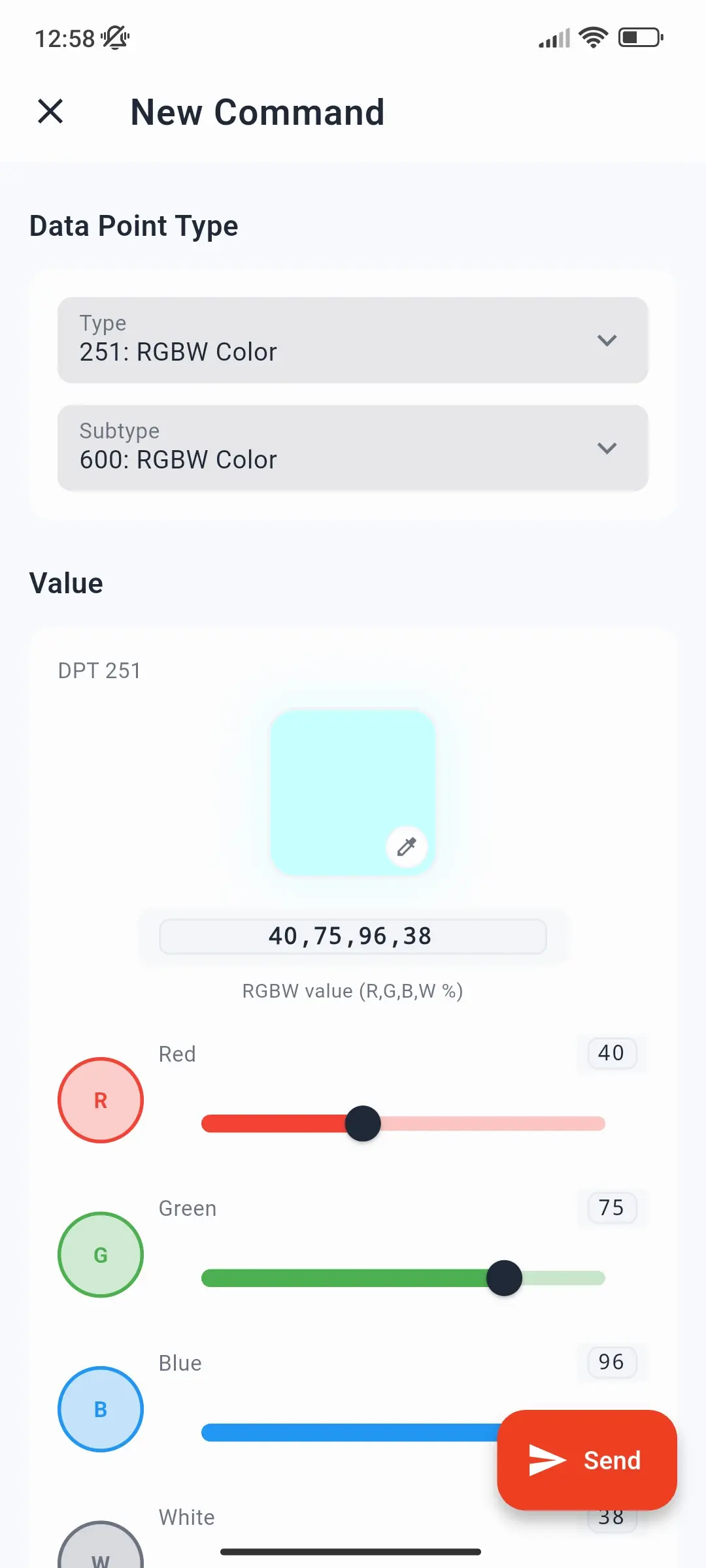
Fill in the composer:
Field Description Group address Type it, e.g. 1/2/3, or tap the search icon to pick one from your projectWrite / Read Send a value, or request the current one Data Point Type Type and subtype, e.g. 1: Boolean / 001: Switch. Filled in automatically when you pick an address from the project Value For a write: an input that matches the datapoint type Tap Send. The command appears in the monitor list straight away.
Send button greyed out? A Bus Monitor session is receive-only. Start the monitor in Group Monitor mode to send.
Resend in one tap: Quick Send
Every command you send from the monitor is listed under Recent in the Quick Send sheet:
- Tap a recent command to send it again immediately.
- Long-press it to open the composer with everything filled in - change the value and send.
From a telegram in the monitor
- Tap any telegram in the monitor list to open its details.
- Tap Write to open the composer with the group address and datapoint type taken from the telegram, or Read to send a read request straight away.
From a device, without a project
When you have read a device on Tools → Inspect, its Associations tab lists the group addresses it uses. Tap one to send Read or Write. Without a project, SharKNX doesn't know the datapoint type, so the value input matches the size of the device's object - an on/off switch for 1 bit, a number or hex field for larger objects. See Inspect a Device.
Other ways to send
- Shark Hunts - save commands and sequences once and run them in one tap on every visit. See Create a Shark Hunt.
- Assistant - type requests such as Read 1/2/3, or switch group addresses by name from your project - see Use the Assistant.
Read requests
A read asks the device that holds a group address's state to answer with its current value. The response appears in the monitor list, and - when you read from the project's Send command sheet - right in the sheet as well. If no answer arrives, check that some device on that group address has its Read flag set.
KNX Data Secure group addresses
Secured group addresses need a sender address that the receiving devices trust - otherwise they silently ignore your command. Set it up on the KNX Secure Senders page before sending. On a KNX IP Secure tunnel, the tunnel's own address is always used as the sender. See Set Up KNX Data Secure and KNX Data Secure.
Troubleshooting
| Problem | What to check |
|---|---|
| Nothing happens on the bus | Check that the right gateway is connected and the group address is correct. Watch the monitor - your command should appear there. |
| The device does not react | The group address may not be linked to the device, or the value doesn't match its datapoint type. With a project, check the address on the Project Connections page. |
| A read gets no answer | No device on that group address has the Read flag set. |
| A secured command is ignored | The receivers don't trust the sender address - see KNX Data Secure. |
| The paywall appears when sending | The free plan's 3 daily sends are used up; they reset tomorrow. |