The Assistant page is SharKNX's chat. Type a request - a question about your ETS project or a task on the bus - and the assistant answers or prepares the task for you to confirm. Open it from any screen with the ✦ button in the top bar.
For how the assistant understands requests and why it asks before acting, see The SharKNX Assistant.
Starting a conversation
An empty chat introduces the assistant and offers example prompts - What can you do?, sharknx help, Show project info, Find gateways, Scan line 1.1, and Read 1/2/3. Tap one to send it.
Type your own request in the field at the bottom and tap the send arrow. Above the field, a status line shows whether a project is loaded (Project Loaded or No project loaded) and whether a gateway is Connected.
The assistant understands English only. Its answers appear in your app language.
Answers and task cards
Each request you send appears on the right, with Copy and Resend under it. The assistant replies below:
- Answers to project questions appear as text, lists, or tables - for example the devices in a room, or the group addresses of a function.
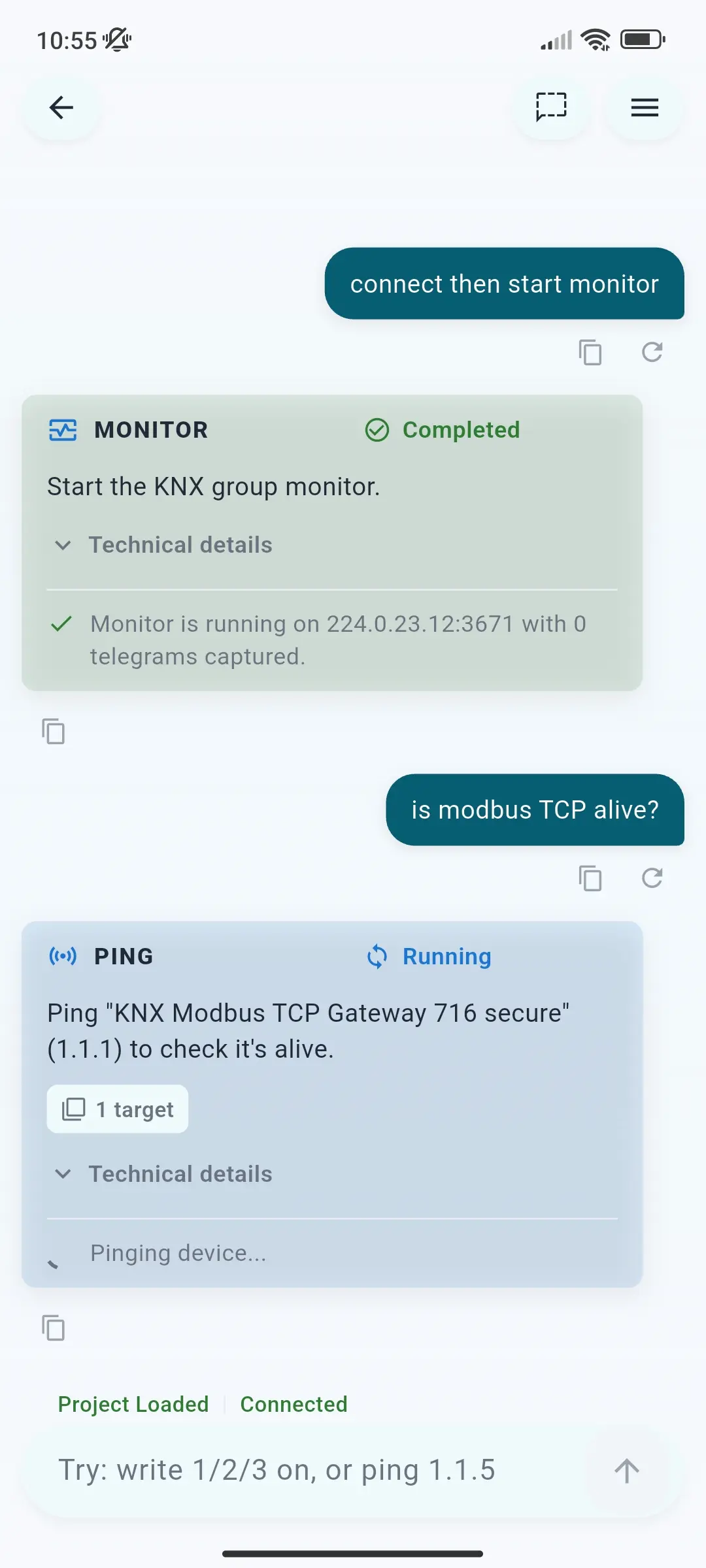
- Tasks appear as cards. The header shows the task - PING, MONITOR, PLAN, and so on - and its state:
| State | Means |
|---|---|
| Awaiting confirmation | Tap Confirm to run it, or Cancel |
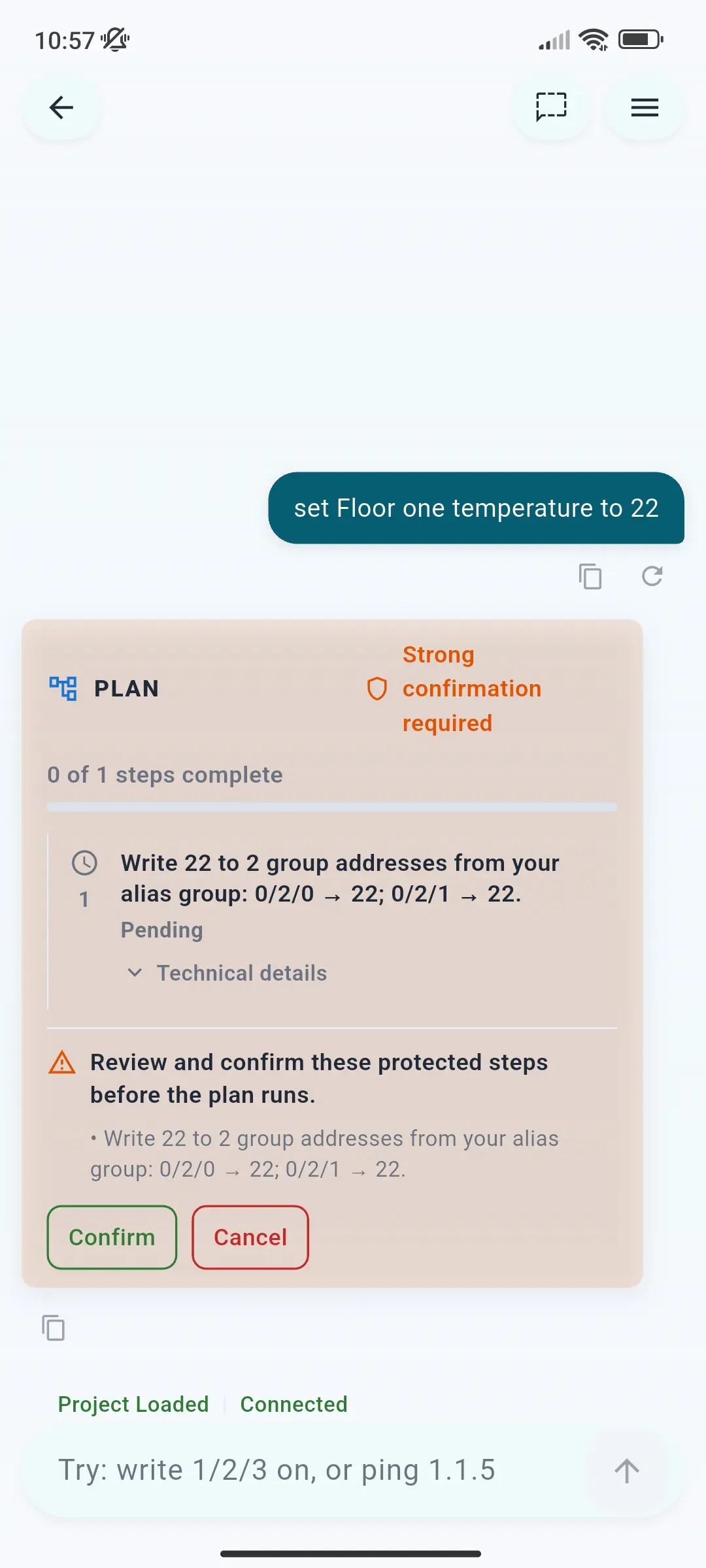
| Strong confirmation required | A protected task - review the listed steps, then Confirm |
| Input required | The assistant needs one more detail |
| Running | In progress, e.g. Pinging device... |
| Completed | Done - the result is shown on the card |
| Completed with warning | Done, with something worth checking |
| Failed | Not done - the card says why, e.g. No gateway is selected |
| Cancelled | You cancelled it |
A card shows what the task will do in plain words - Ping "KNX Modbus TCP Gateway 716 secure" (1.1.1) to check it's alive - and how many targets it affects. Technical details opens the exact command and its values; Why this target? explains how a name from your request was matched to a project entry. When a task fails or is cancelled, Retry runs it again and Edit and retry puts your request back in the field to change it. If a task needs a project, the card offers Load project. When the assistant doesn't recognise a request, it suggests similar ones under Try one of these: - tap one to send it.
Plans
A request with several steps - "connect then start monitor", or a script - becomes a PLAN card. It lists each step with its state (Pending, Running, Completed, Skipped) and shows progress, for example 1 of 3 steps complete. A step is Skipped when the step before it had to succeed and didn't. Protected steps are confirmed together before the plan starts.
Clarifications
When your request could mean more than one thing - a name that matches several devices, or a missing value - the assistant asks and offers the choices. Tap one, or type an answer in English. Asking "connect" without a saved gateway offers your Configured gateways, Discovered gateways, Routing, and Search network.
Top bar
| Button | Does |
|---|---|
| ← | Back to where you opened the assistant |
| Clear chat | Starts a new conversation - shown once the chat has messages |
| ☰ | Help and Settings |
Help
Help has three tabs:
- Assistant - what it can do, how it confirms, and example prompts
- Commands - plain language versus exact
sharknxcommands, chaining, and the command list; tap a command to copy it - Aliases & scripts - the kinds of alias and scripts, and Download template, a ready-to-import example file
Settings
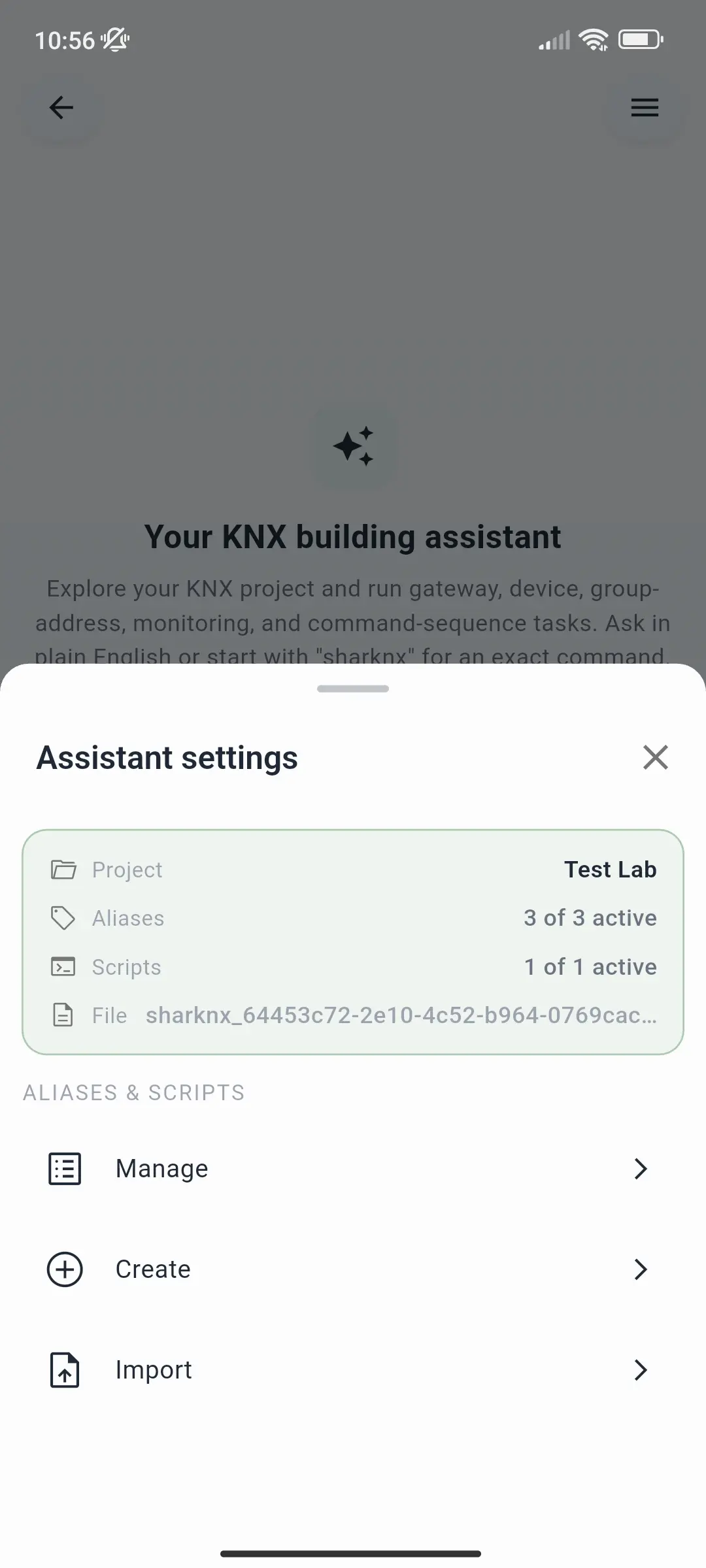
Settings opens Assistant settings. The card at the top shows the loaded Project, how many Aliases and Scripts are active, and the File they came from. Below it, under Aliases & scripts:
| Item | Does |
|---|---|
| Manage | Turn aliases and scripts on or off, edit, duplicate, or delete them, and re-export the alias file |
| Create | Add an alias in the app - a phrase, an address, or a group |
| Import | Import a YAML file of aliases and scripts, and reuse earlier files from History |
See Aliases and Scripts for all three.
Limits
On Android, iOS, and macOS, the free plan includes a daily number of prompts; answers to a clarification question don't count. Device tasks and scans need a subscription, and writes count towards the daily send allowance. See Subscription Plans and Limits.
Related
- The SharKNX Assistant - how it works
- Use the Assistant - what you can ask
- Assistant Commands - exact
sharknxcommands