The Connect page is where SharKNX finds, stores, and connects to your KNX IP interfaces and routers, and where you load KNX IP Secure credentials. It is the first tab in the bottom navigation bar and opens when the app starts.
The page has three tabs: Discover, Config, and Security. The numbers next to Discover and Config show how many gateways each holds.
For a step-by-step walkthrough, see Connect to a Gateway. Not to be confused with the Project Connections page, which shows how the devices in your ETS project are linked.
Discover tab
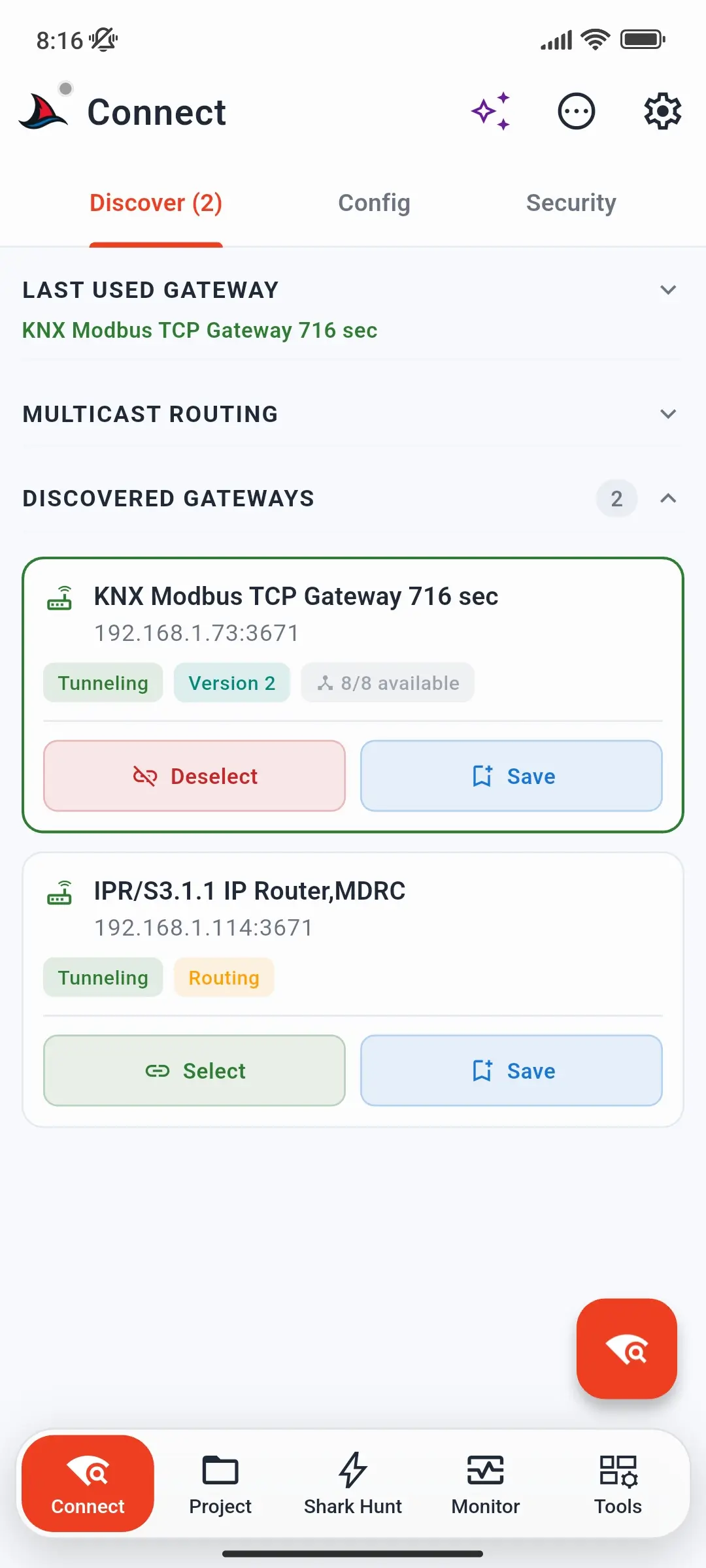
Tap the scan button (bottom right) to search your network. The results are grouped into three sections:
| Section | Shows |
|---|---|
| Last used gateway | The gateway you used last. Tap it to reselect it without scanning, or tap Forget to clear it. |
| Multicast Routing | Multicast connection options - see Multicast below |
| Discovered Gateways | Every KNX IP interface and router that answered the scan |
Gateway cards
Each card shows the gateway's name, IP address and port, and chips for what it supports:
| Chip | Meaning |
|---|---|
| IP Secure | Requires KNX IP Secure - see Set Up KNX IP Secure |
| Tunneling | Accepts tunnel connections |
| Version 2 | Also accepts tunneling over TCP (KNXnet/IP Tunneling v2) |
| Routing | A router that can carry multicast routing |
| 8/8 available | Free tunnel slots out of the total, when the gateway reports them |
The card's buttons:
- Select - selects the gateway and connects to it straight away. The selected gateway's card gets a green border, and the button changes to Deselect.
- Save - keeps the gateway on the Config tab for next time. Saving a Version 2 gateway sets its connection mode to Auto, so it uses TCP when it can.
Gateway details
Tap a card itself to open its details sheet. Gateway Details lists the gateway's KNX address, serial number, MAC address, medium, and device management support. Connect / Disconnect connects to or disconnects from the gateway.
For a KNX IP Secure gateway, the sheet also shows a Credentials card: the loaded file, how many Tunnel Interfaces it contains, and Gateway Match - whether it has credentials for this gateway. Load Credentials or Change loads a different keyring or project right from here.
Multicast
Instead of a tunnel to one gateway, you can join the KNX IP routing multicast group - by default 224.0.23.12, port 3671, set in Discover Settings.
- Multicast Routing - plain routing
- Secure Routing - encrypted routing with a backbone key. It shows Ready when a backbone key is loaded, No backbone key otherwise.
The multicast options appear once a router with routing capability is found. To show them always, turn on Always Show Multicast Options in Discover Settings - without a router in the installation, multicast does nothing.
Config tab
The Config tab keeps the gateways you saved or added by hand - available at any time, without scanning. It holds up to 50 gateways.
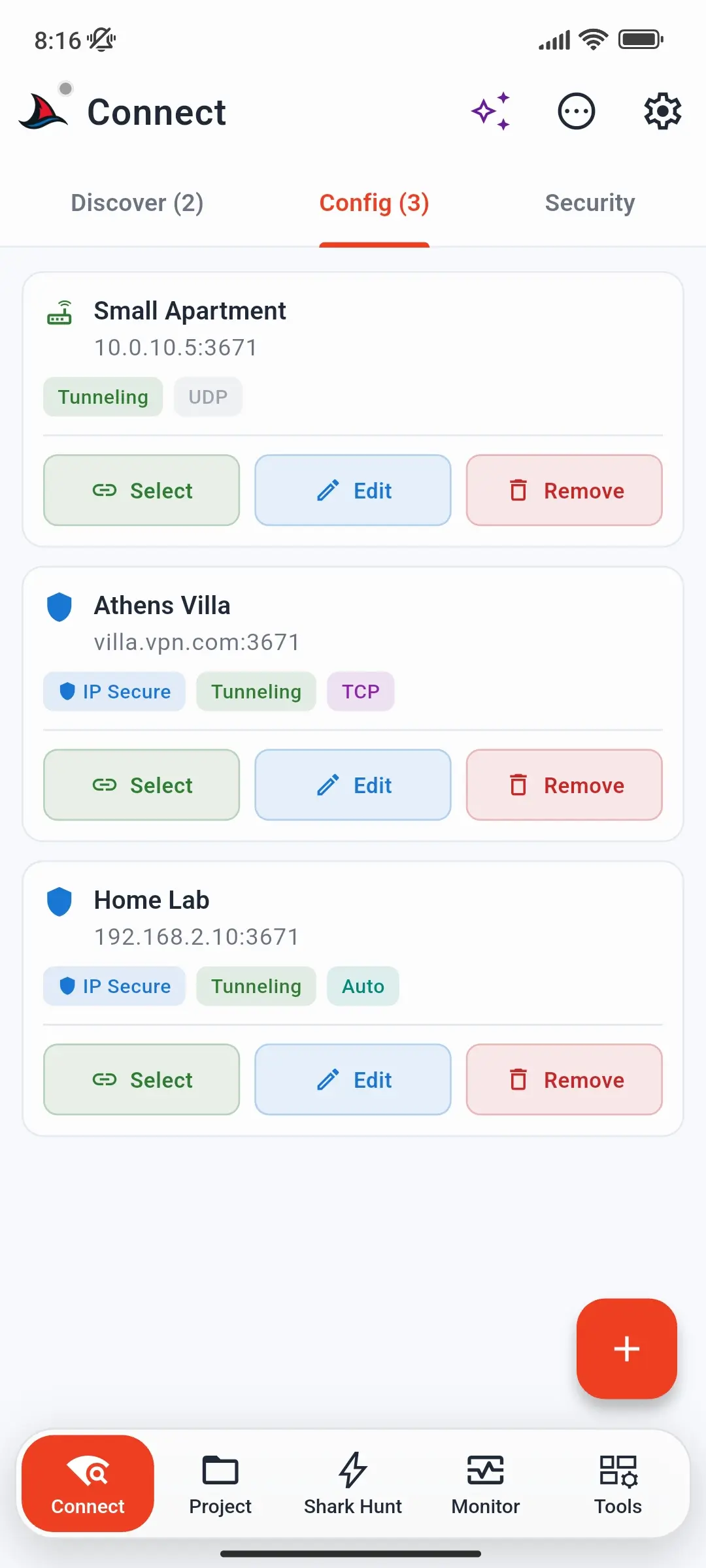
Each card shows the same chips as on the Discover tab, plus the gateway's connection mode: UDP, TCP, or Auto. Its buttons:
- Select - select and connect
- Edit - change any field of the saved gateway
- Remove - delete it
Adding a gateway
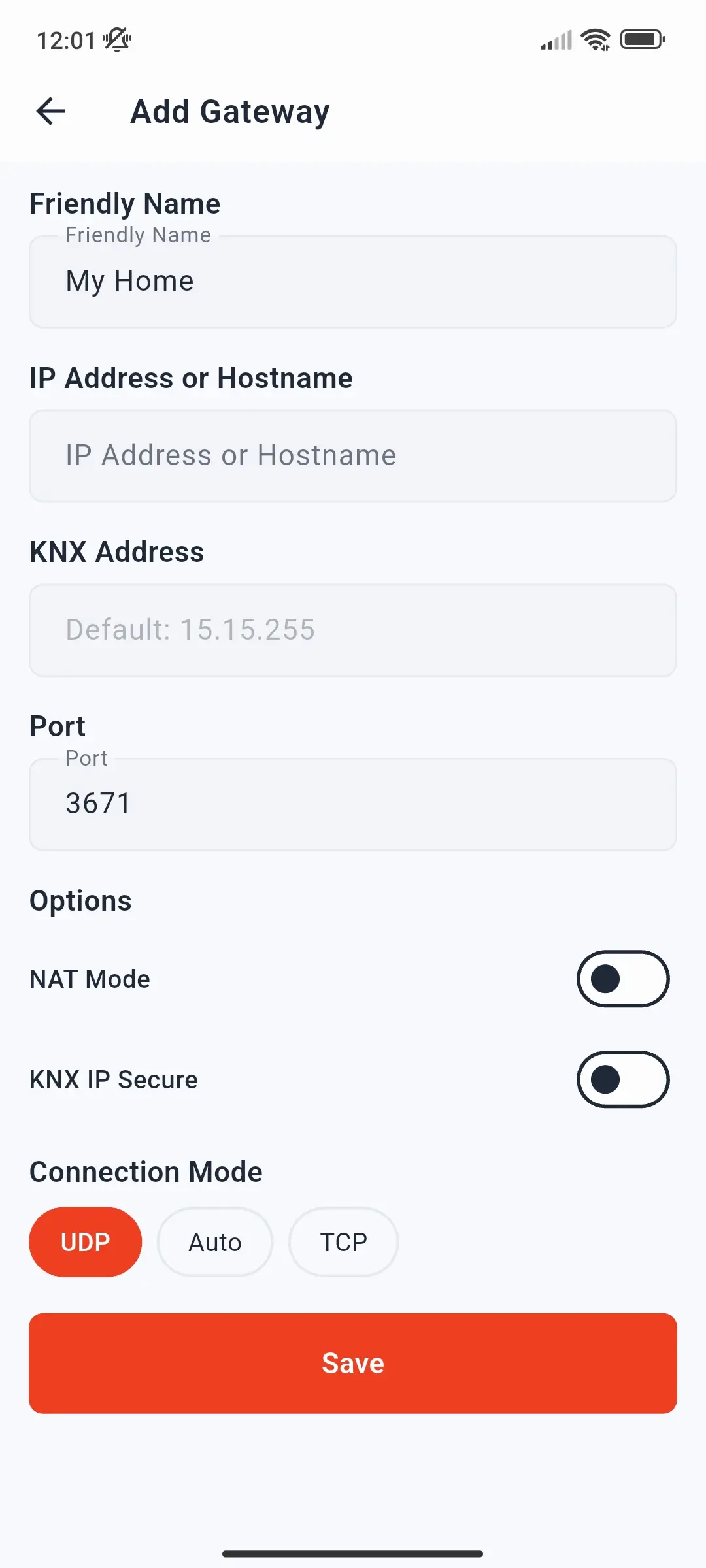
Tap + to open the Add Gateway form and add a gateway by hand - for example one on another subnet, behind a VPN, or reached over the internet:
| Field | Description |
|---|---|
| Friendly Name | A label for the card |
| IP Address or Hostname | An IPv4 address, or a hostname such as myhome.dyndns.org |
| Port | Usually 3671 |
| KNX Address | The interface's individual address (default 15.15.255). Needed for KNX IP Secure, so SharKNX can match the gateway to its credentials. |
| NAT Mode | For connections through a router that translates addresses, e.g. remote access |
| KNX IP Secure | The gateway requires a secure tunnel |
| Connection Mode | UDP (classic), Auto (TCP first, then UDP), or TCP (always TCP) |
Which mode to choose is explained in Connect to a Gateway → UDP or TCP?. Tap Save to add the gateway to the Config tab.
Security tab
The Security tab holds the KNX Secure credentials SharKNX uses across the whole app. Tap the shield button to load them:
| Option | Loads |
|---|---|
| Keyring File | A .knxkeys keyring exported from ETS, protected by the password you set during export |
| ETS Project | The credentials inside a .knxproj project |
| Backbone Key | A 32-digit hex backbone key, for secure routing only |
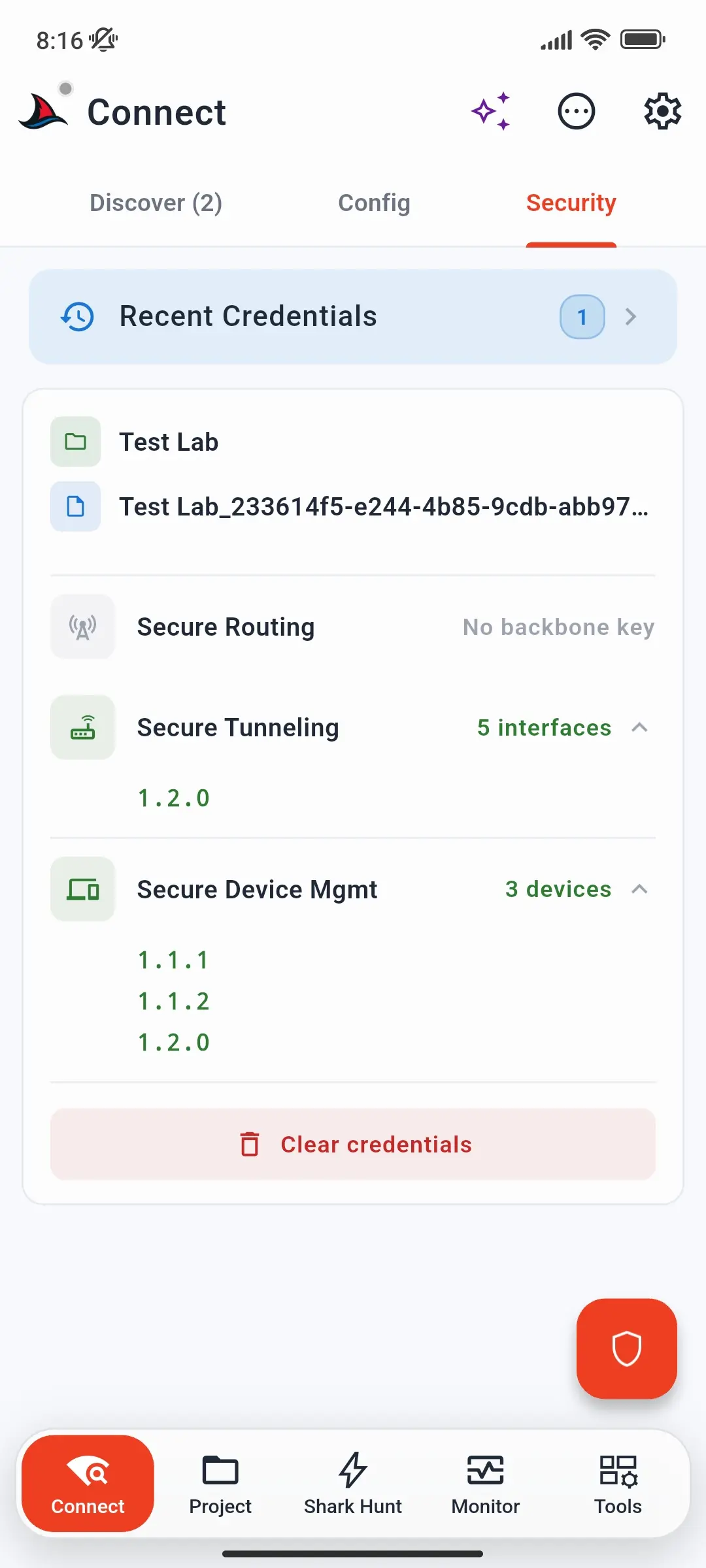
Once loaded, the tab shows the source file and what it contains:
| Row | Shows |
|---|---|
| Secure Routing | Ready with a backbone key, otherwise No backbone key |
| Secure Tunneling | How many secure tunnel interfaces the file has - expand to see their addresses |
| Secure Device Mgmt | How many KNX Data Secure devices SharKNX has tool keys for - expand to see them |
Clear credentials removes them. Recent Credentials at the top lists files you loaded before, so you can reload one without browsing. A wrong keyring password is rejected straight away.
Loading a keyring or project here also installs the KNX Data Secure group keys - see KNX Data Secure.
Actions for this page
The ⋯ Actions sheet opens with two sections expanded on this page:
- Connection → Configure connection - add a gateway by hand, the same as + on the Config tab
- Security → Keyring File - load a
.knxkeyskeyring
Related
- Connect to a Gateway - step by step, including UDP vs. TCP
- Set Up KNX IP Secure - secure tunneling and routing
- Discover Settings - multicast address, timeouts, and unicast scanning