Loading your ETS project (.knxproj) gives SharKNX the group address names, datapoint types, devices, building structure, and KNX Data Secure keys of your installation. Without a project, SharKNX still works, but the monitor shows raw addresses and hex values instead of names and decoded values.
Loading projects is free and unlimited on every plan. For what a loaded project unlocks, see ETS Projects in SharKNX.
Before you start
Export the project from ETS. SharKNX reads .knxproj files from ETS5 and ETS6, including password-protected projects.
Get the file onto your device. Any of these work:
- Send it to yourself in a messaging app - for example your own chat in WhatsApp, Viber, or Telegram - or by email
- Put it in a cloud drive (iCloud Drive, Google Drive, OneDrive) and open it from there
- Use AirDrop (iPhone, iPad, Mac) or copy it over USB
Open it straight into SharKNX (iPhone, iPad, Android): tap the
.knxprojin your Files app, mail, or messaging app and choose Open with or Share → SharKNX. SharKNX adds the project to its Archive - it doesn't switch the current project or ask for a password yet. You can send several files at once, and a project that is already in the Archive is recognised instead of added twice. Then open it from the Archive whenever you need it (see below).
Load the project
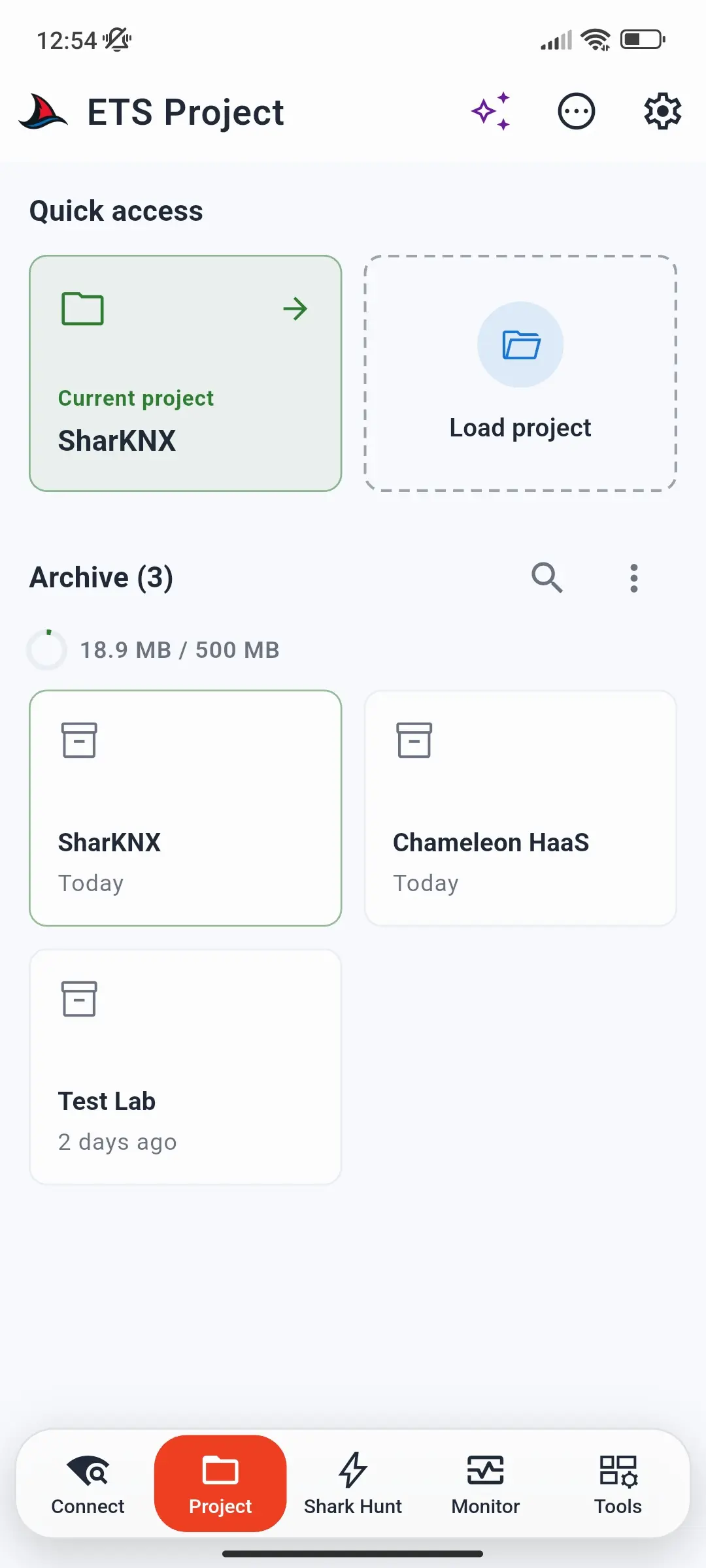
- Open the Project page - the second tab in the bottom navigation bar. It opens on the project dashboard.
- Under Quick access, tap Load project. The system file picker opens.
- Choose your
.knxprojfile. - If the project is password-protected, enter its password. If it is wrong, SharKNX asks again - or tap cancel to stop.
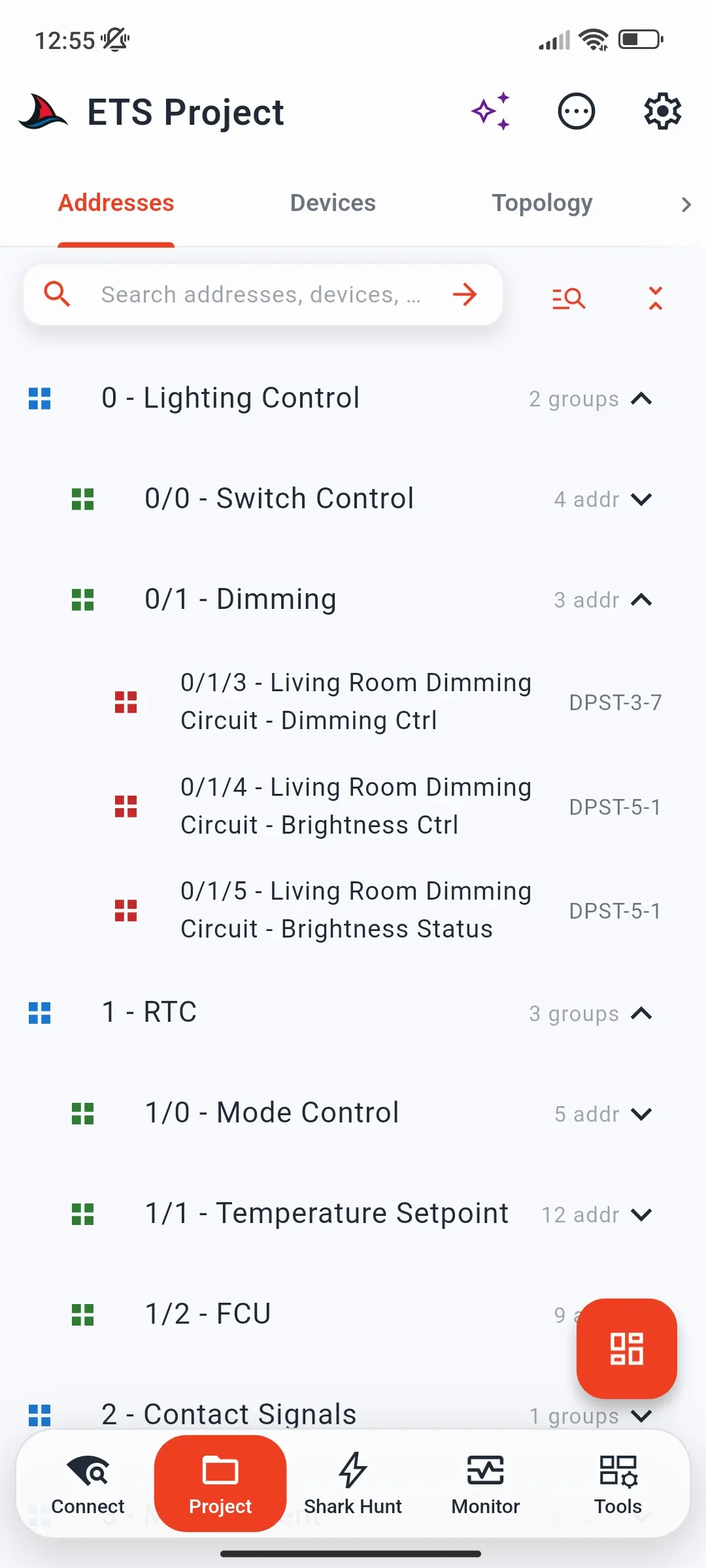
- When loading finishes, the project opens in four tabs: Addresses, Devices, Topology, and Buildings.
Choose the language of product texts
Manufacturers ship their product data in several languages, and ETS projects carry those translations. SharKNX can show them in any of the 24 languages ETS supports - for example German communication object names on a German site, even if your phone is set to English.
- Open Settings → Project Settings and tap KNX Project Language.
- Pick the language, e.g. German · de-DE.
- Load the project again - the language is applied when a project is loaded.
The setting affects texts that come from the manufacturers, such as communication object names and function texts. Names you typed in ETS yourself - group addresses, devices, rooms - exist in one language only and always appear as entered. If a manufacturer ships no translation for the chosen language, its original text is shown. The setting is independent of the app's own interface language.
Reopen a project from the Archive
Every project you load is also saved in the Archive on the project dashboard. Next time, tap it there to reopen it - no file browsing needed, and it still works if the original file is no longer on your device.
To get back to the dashboard while a project is open, tap the dashboard button at the bottom right of the Project page.
The Archive holds up to 500 MB. If adding a project would go over, SharKNX asks whether to add it anyway; if you decline, the project still opens but is not archived. See Limits.
Load a project from other pages
You don't have to go to the Project page:
- The ETS Project badge on the Monitor page and on a running Shark Hunt shows whether a project is loaded - green when it is, red when not. Tap it to load a project or see the current one.
- ⋯ Actions → Load Project works from any page.
What changes after loading
- The Monitor and Shark Hunt monitors show group address names and decoded values for new telegrams.
- The Project page lets you browse, search, and filter the whole installation, see how devices are connected, and send commands straight from any group address.
- If the project contains KNX Data Secure group addresses, their keys are installed so secured telegrams are decrypted. A banner below the tabs lets you set up sender addresses for sending secured commands - see Set Up KNX Data Secure.
Update or replace the project
SharKNX uses one project at a time. After you change the project in ETS, export it again and load the new file the same way - it replaces the current project and is added to the Archive.
Telegrams already in the monitor keep the names and values they had. To name and decode telegrams that were recorded without a project, stop the monitor and use ⋯ Actions → Apply Project Data - it fills in telegrams that have no name yet. To see everything with the new project, clear the monitor and record again.
To stop using a project without loading another, choose ⋯ Actions → Unload Project, or from the current project in the Archive. Monitor, Shark Hunts, and the assistant then stop using it until you load it again.
Troubleshooting
| Problem | What to check |
|---|---|
| The project won't open | Make sure it is a .knxproj exported from ETS5 or ETS6. Other ETS files, such as .knxpkg product catalogues, are not supported. |
| An Unable to Verify screen appears instead of the file picker | On Android, iOS, and macOS, SharKNX must reach the store once after install to verify your plan. Connect to the internet and tap Restore Purchases. |
| Names in the monitor look wrong | You may have loaded a different project than the installation you are on. Check the project name on the dashboard. |
| Recent ETS changes are missing | SharKNX reads the file you loaded, not ETS itself. Export the project from ETS again and reload it. |
SharKNX never changes your .knxproj file.