The Project page is where you load your ETS project and work with it: browse the installation, see how devices are linked, send commands, and check and commission devices. It is the second tab in the bottom navigation bar and is titled ETS Project in the app.
For what a loaded project unlocks across SharKNX, see ETS Projects in SharKNX.
Project dashboard
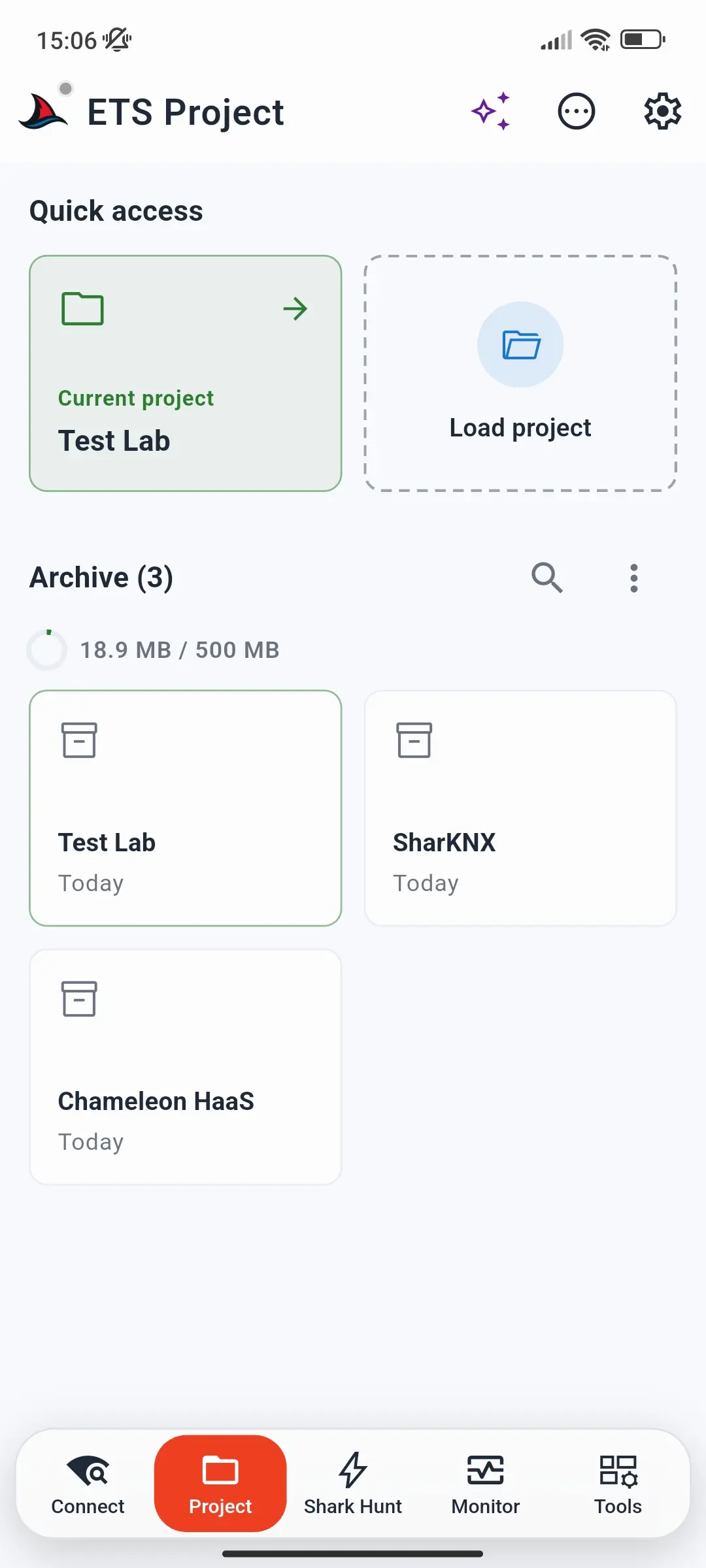
Without a project - or when you tap the dashboard button (bottom right) - the page shows the project dashboard:
- Quick access - the Current project (tap to return to it) and Load project, which opens the file picker for a
.knxproj. Password-protected projects are supported. - Archive - every project you have loaded, with the storage used out of 500 MB. Tap a project to reopen it, even if the original file is gone. The search button finds archived projects; a project's sheet shows its details and lets you save a copy or remove it.
See Load an ETS Project for loading, the Archive, and choosing the language of product texts.
Tabs, search, and filters
A loaded project opens in four tabs: Addresses, Devices, Topology, and Buildings. Above the list:
- The search field finds addresses, devices, and names across the project.
- The advanced filters button narrows each tab - see Advanced filters.
- The expand / collapse button opens or closes every branch of the tree at once.
If the project contains KNX Data Secure group addresses, a banner below the tabs shows whether sender addresses are set - Configure Data Secure senders or Data Secure senders configured. Tap it to open the KNX Secure Senders page; see Set Up KNX Data Secure.
Addresses
The group address tree as in ETS: main groups, middle groups, and group addresses with their datapoint types. Secured group addresses are marked with a shield.
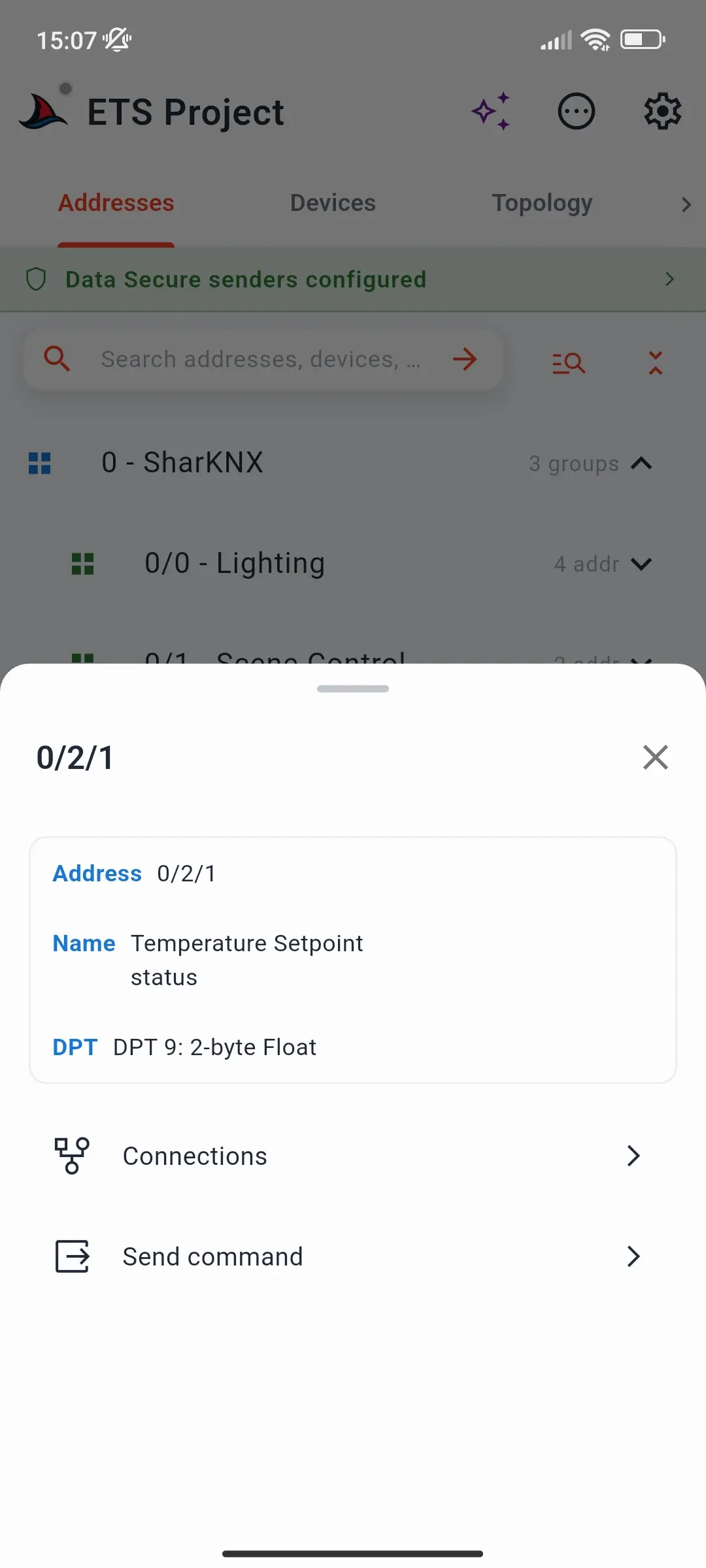
Tap a group address to open its details - Address, Name, and DPT - with two actions:
- Connections - every device that sends on or listens to it, on the Project Connections page
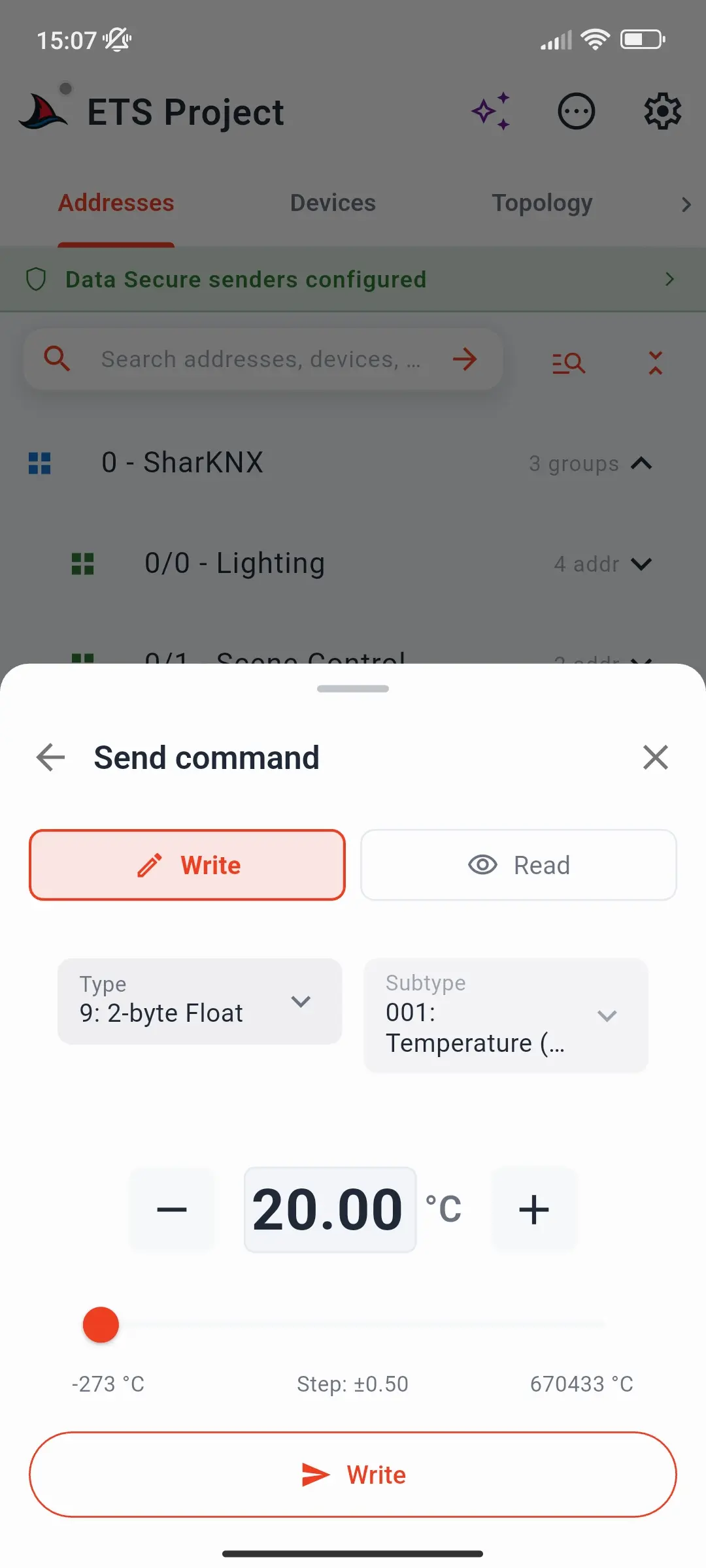
- Send command - write to or read the group address, with an input that matches its datapoint type. Responses to a read appear in the sheet.
Devices and Topology
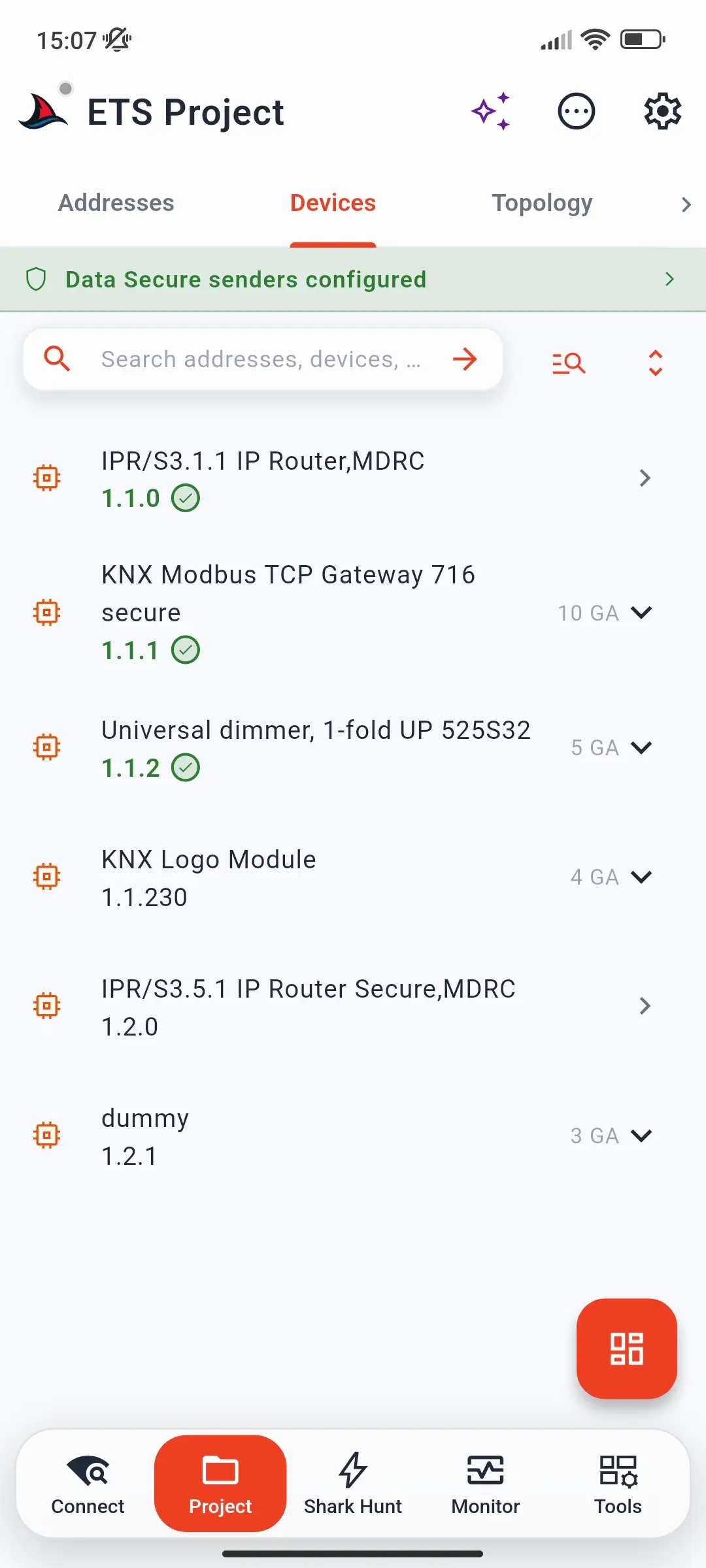
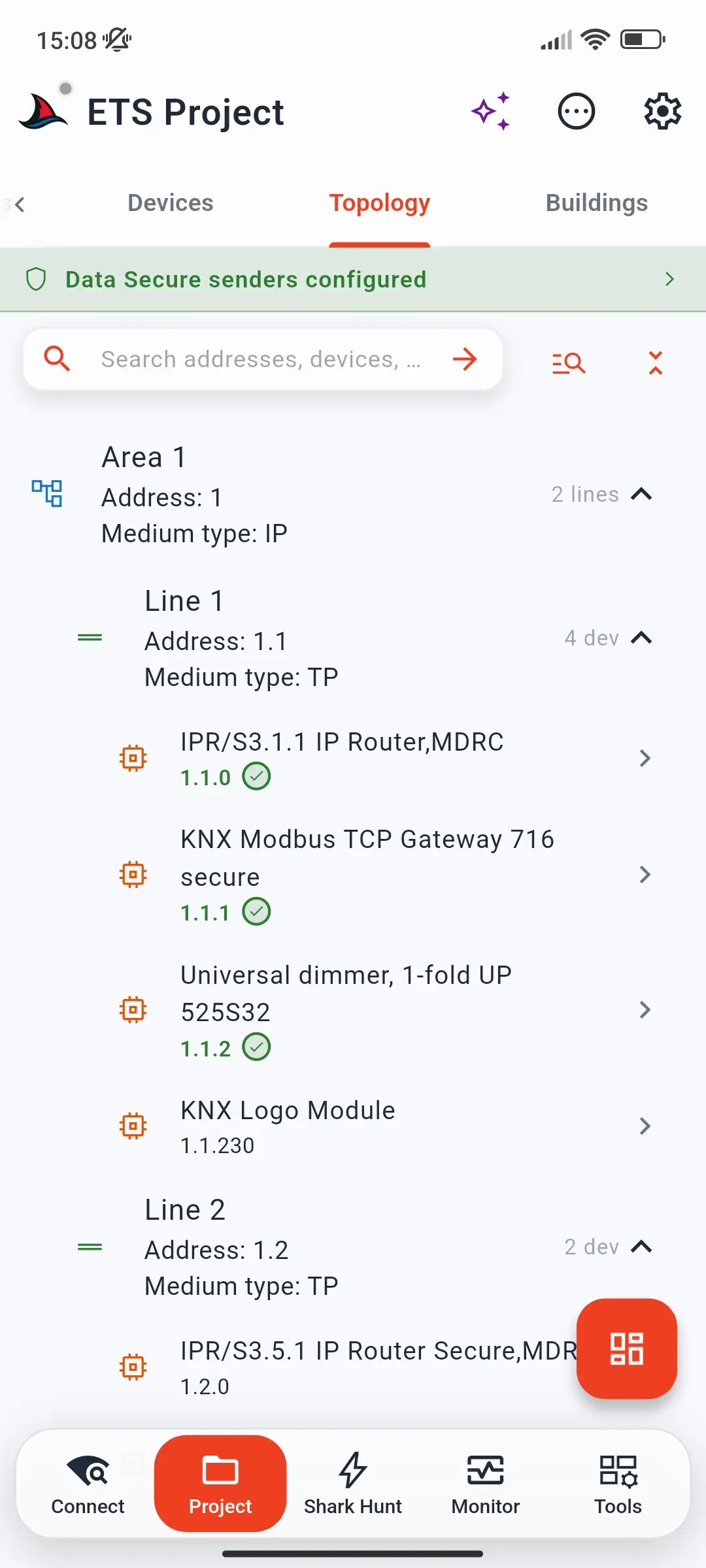
Devices lists every device by individual address; Topology groups them by area and line, with each area's and line's medium type. An address shown in green with a check means ETS has downloaded that individual address to the device. Devices with group addresses show how many - expand them to see the addresses.
Buildings
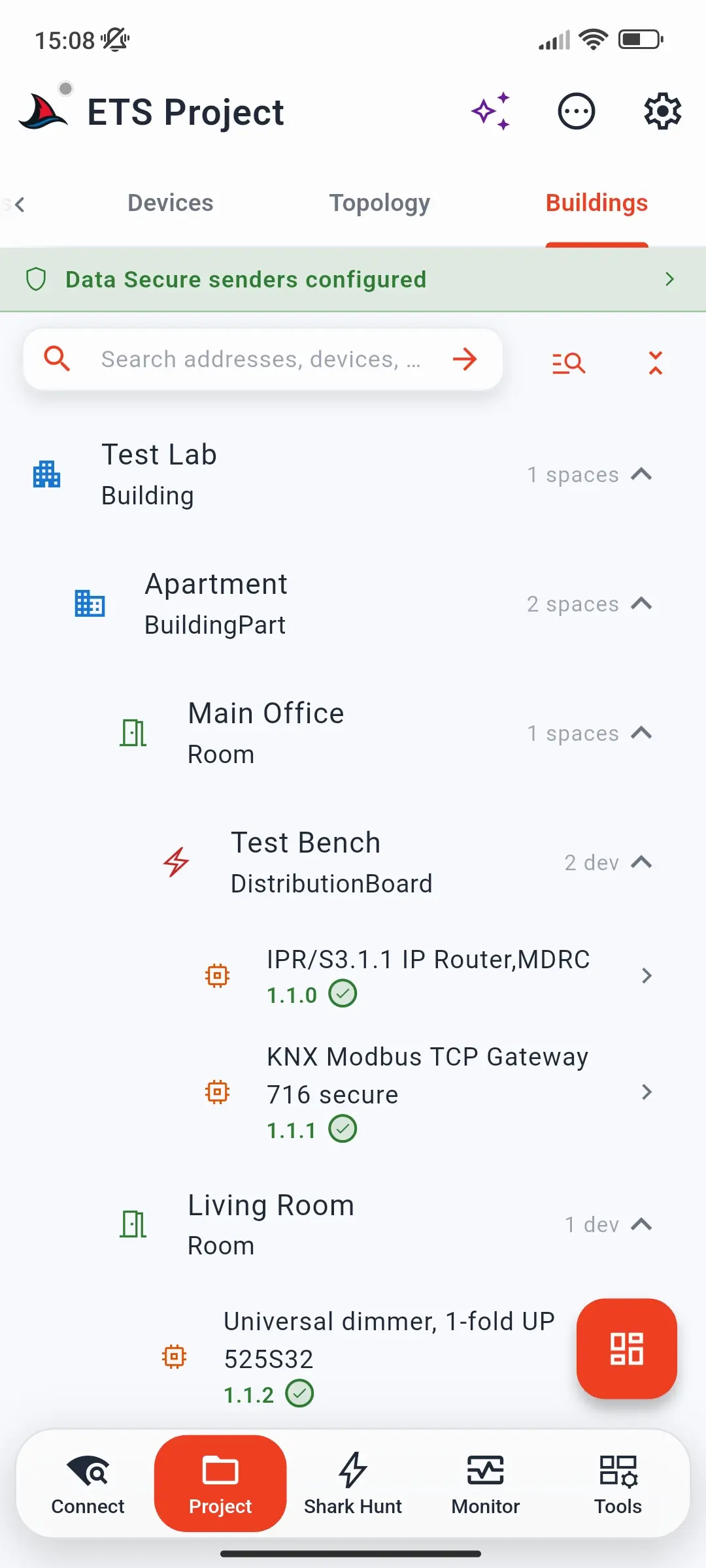
The building structure from ETS - buildings, building parts, floors, rooms, distribution boards, and functions - with the devices and group addresses in each space. Each space shows its type and how many spaces or devices it contains.
Advanced filters
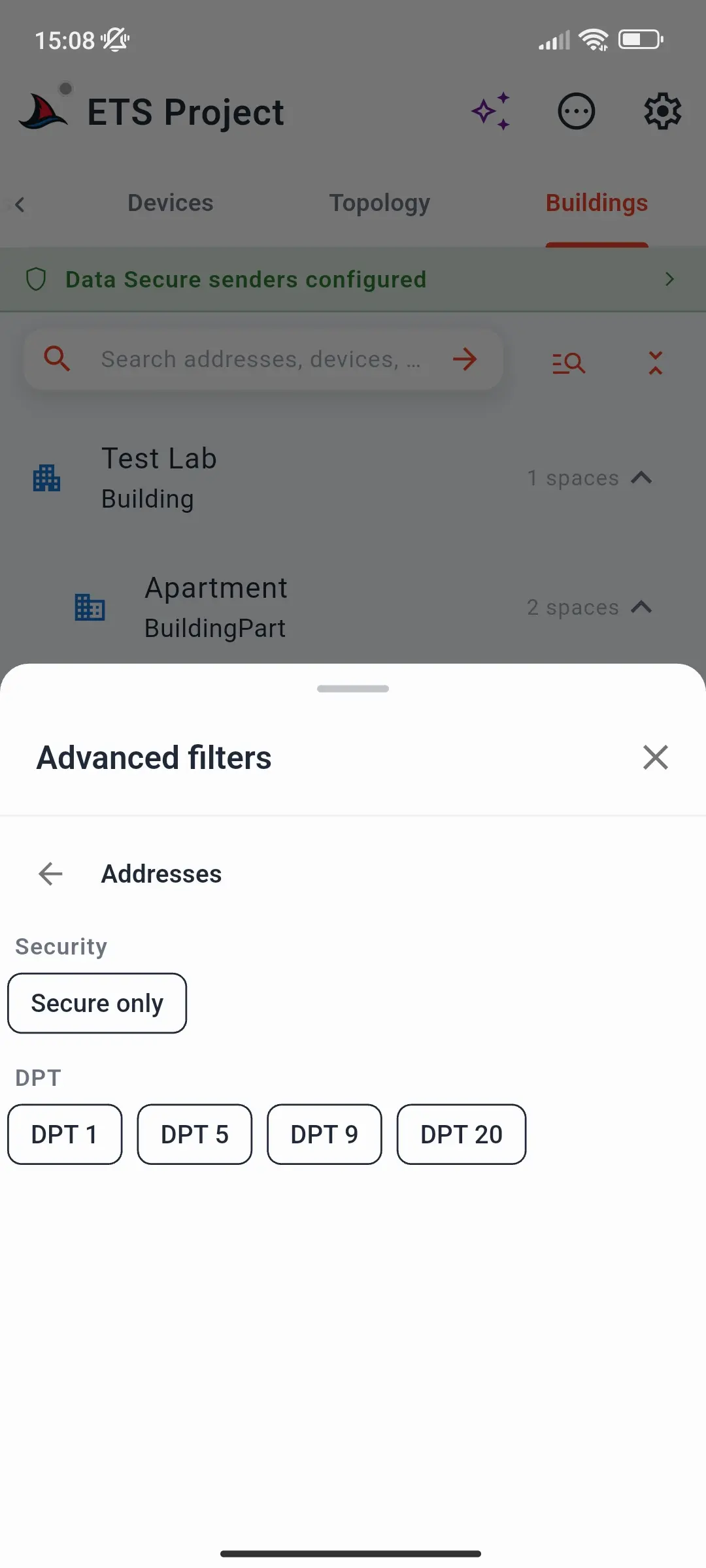
The advanced filters button opens filters for the tab you are on:
| Tab | Filters |
|---|---|
| Addresses | Secure only; datapoint types, e.g. DPT 1, DPT 9 |
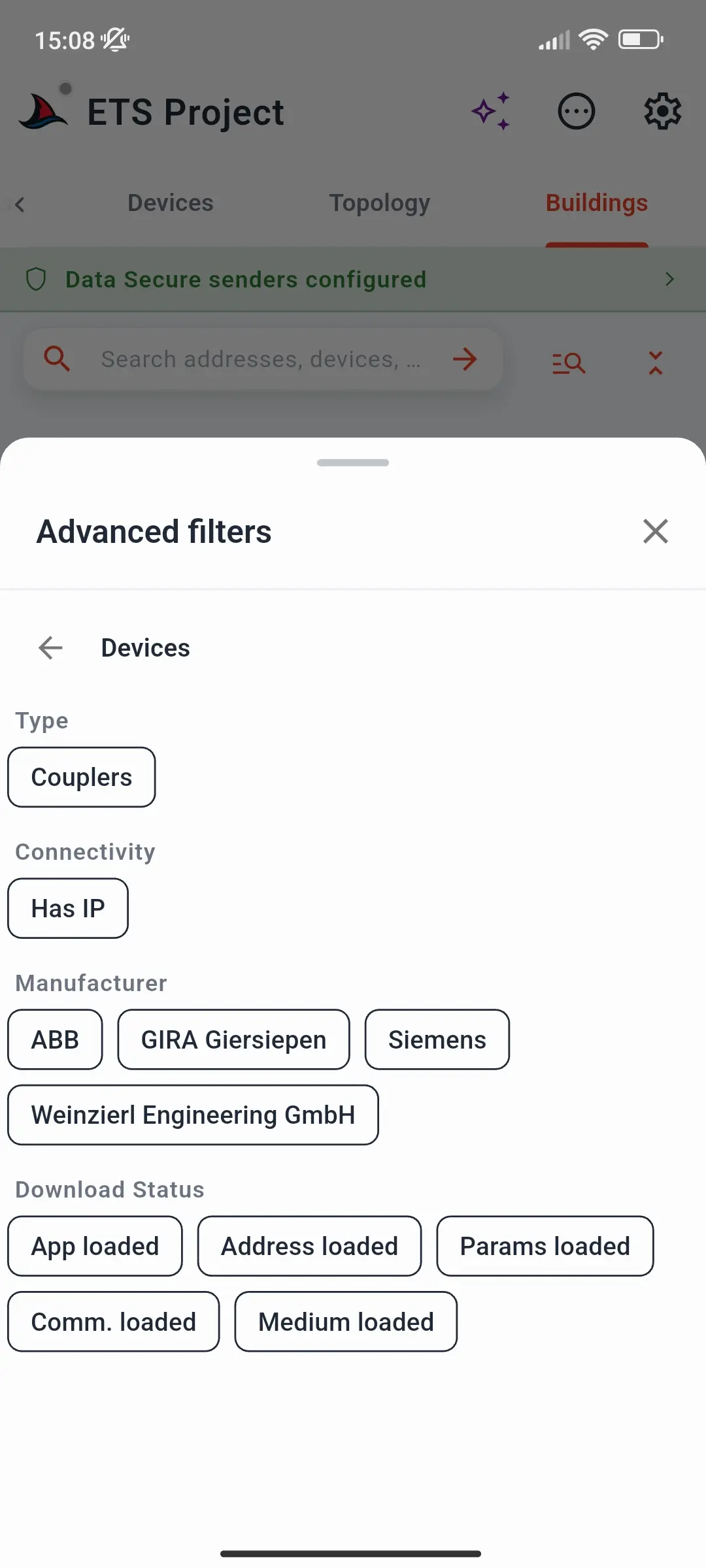
| Devices | Couplers; Has IP; manufacturers; ETS download status - App loaded, Address loaded, Params loaded, Comm. loaded, Medium loaded |
| Topology | ETS download status |
| Buildings | Space types and function types; only spaces with functions or devices |
The download-status filters make a commissioning to-do list: show the devices whose address or application is not downloaded yet.
Device sheet
Tap a device in the Devices, Topology, or Buildings tab to open its sheet. It shows the device's name and ETS download status - App, Addr, Params, Comm, and Medium Loaded - and, with a gateway connected:
| Action | Does |
|---|---|
| Check Presence | Confirms the device answers on the bus |
| Read Info | Reads its identity, hardware, firmware, and status |
| Reset | Restarts the device, after asking you to confirm |
| Program Address | Writes the address from the project - press the device's programming button when prompted |
| Read Filter Table | For line and IP couplers - see Coupler filter tables |
Below them, Communication Objects and Connections open the device's objects and links.
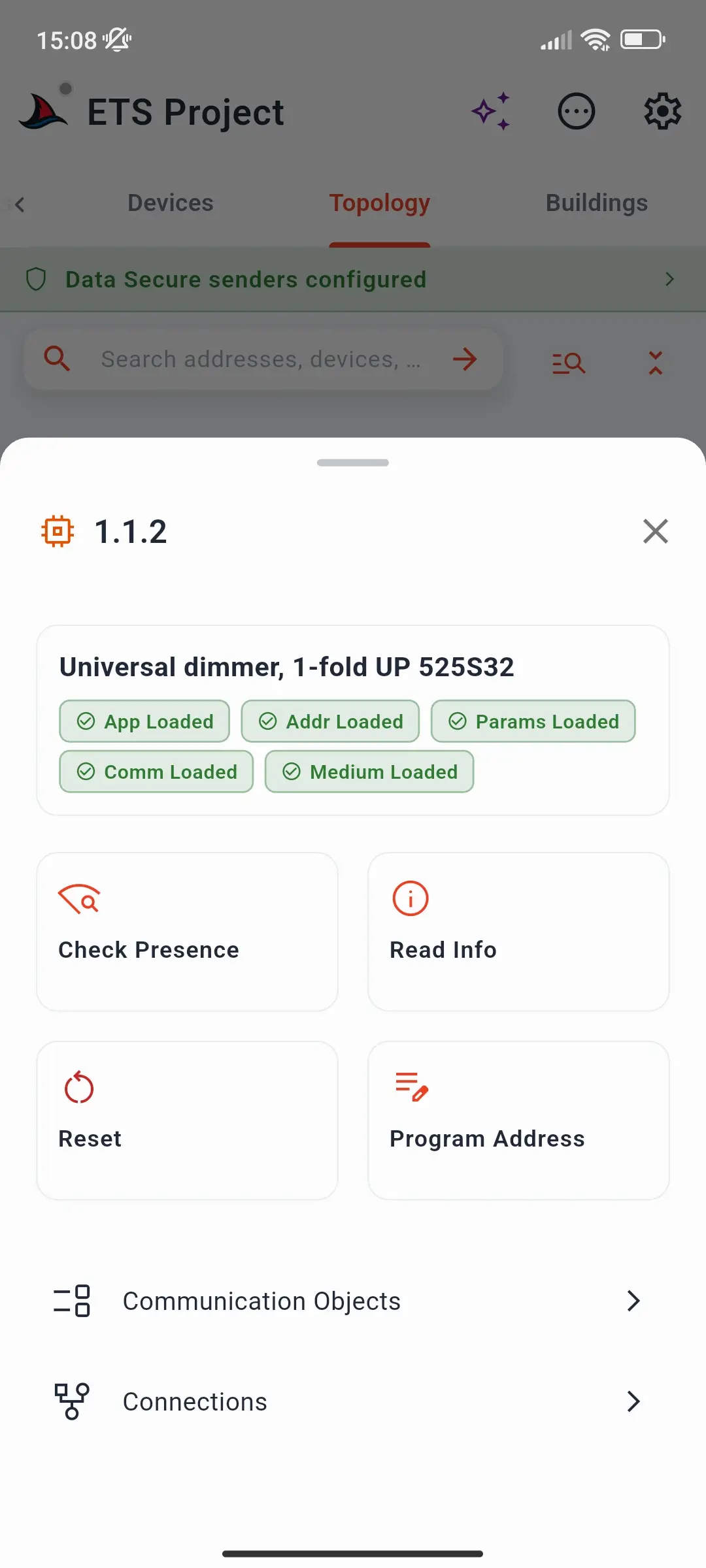
Device operations are a premium feature on Android, iOS, and macOS - see Subscription Plans. For programming addresses, see Program a Device Address.
Communication objects
Communication Objects in the device sheet opens the device's objects: its manufacturer, download status, and the dates it was last modified and downloaded in ETS, then every object linked to a group address. Expand an object to see its flags (R W C T U I), function, size, datapoint type, and group addresses; tap a group address to send to it. The search button finds an object.
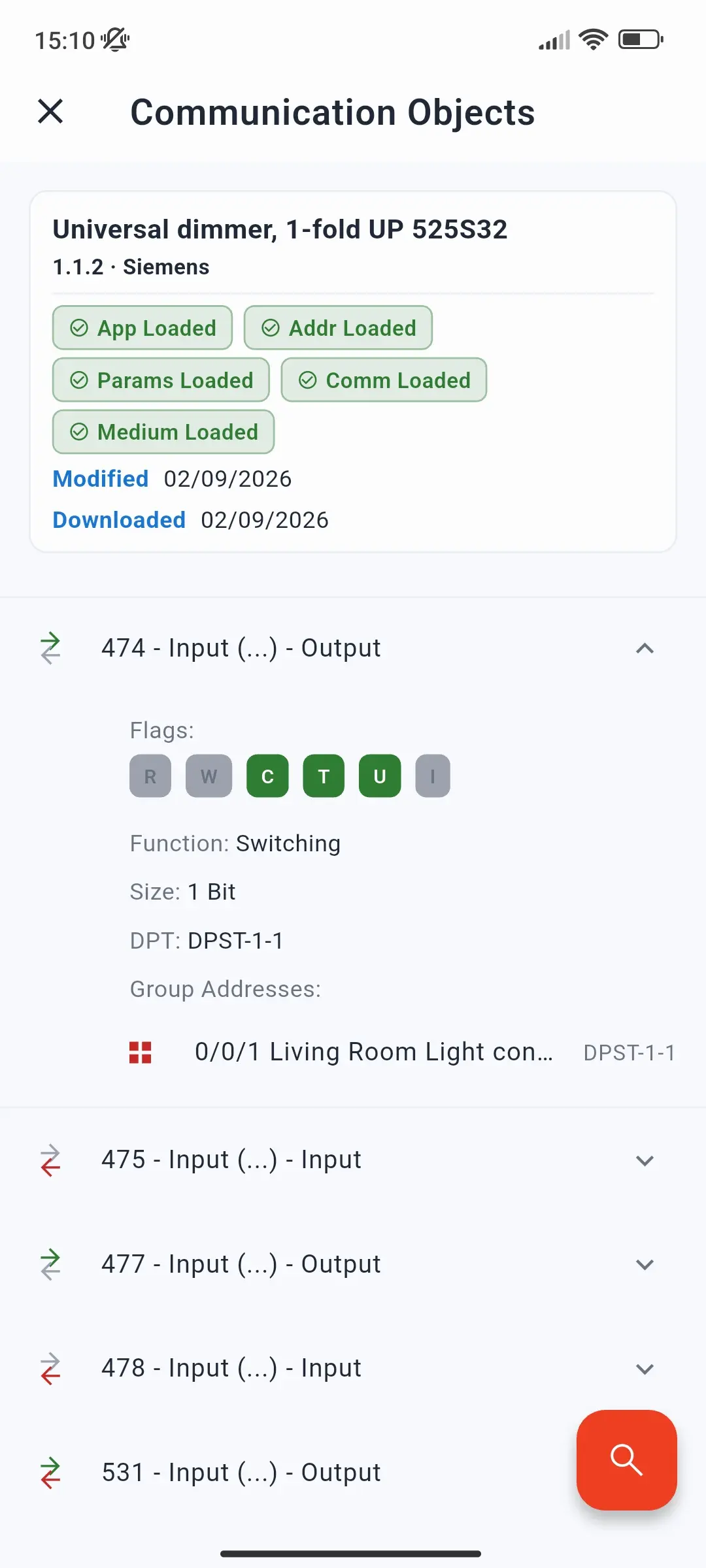
This page needs Load communication objects in Project Settings, which is on by default.
Coupler filter tables
A line or IP coupler only passes group telegrams whose addresses are in its filter table. For couplers, the device sheet offers Read Filter Table:
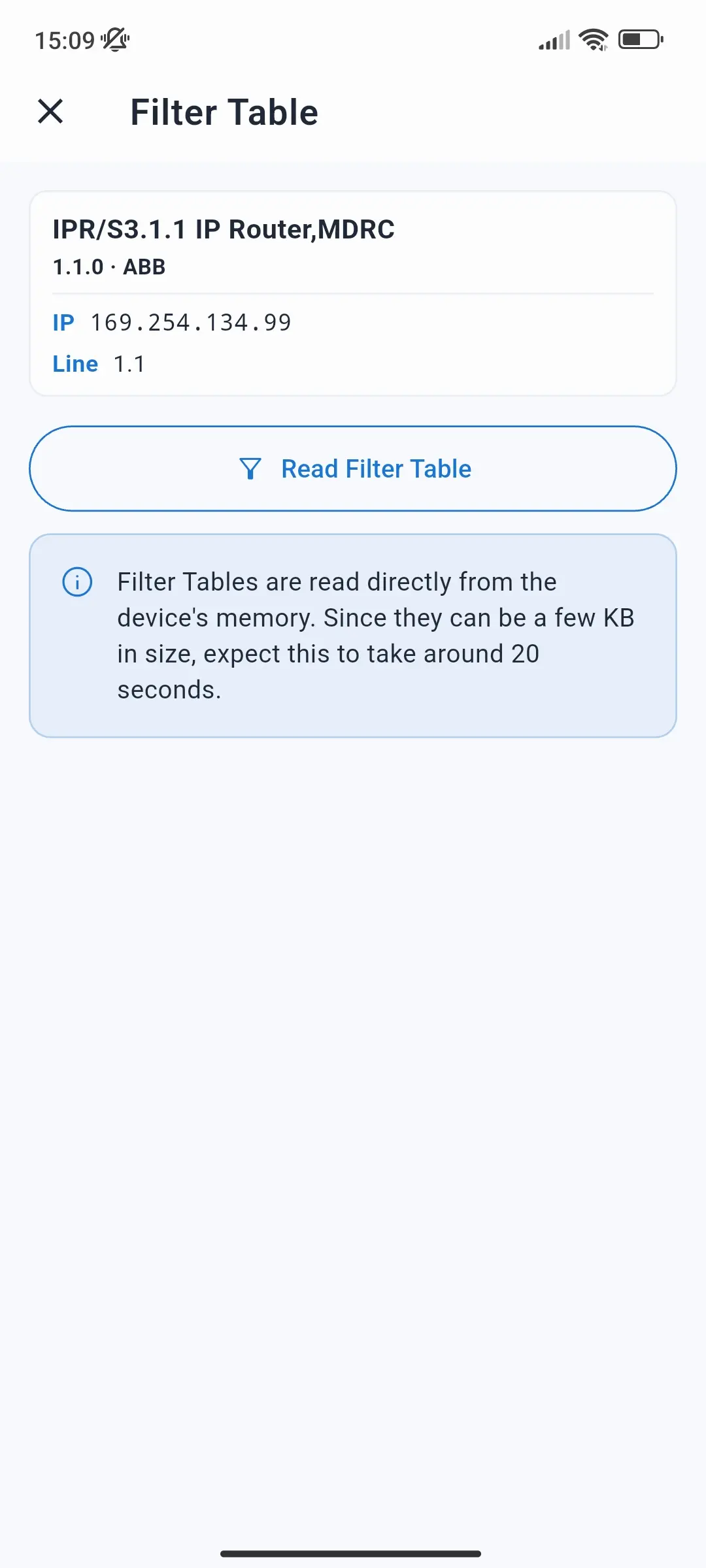
- The Filter Table page shows the coupler - its name, address, manufacturer, IP address, and line.
- Tap Read Filter Table. The table is read from the coupler's memory; this takes around 20 seconds.
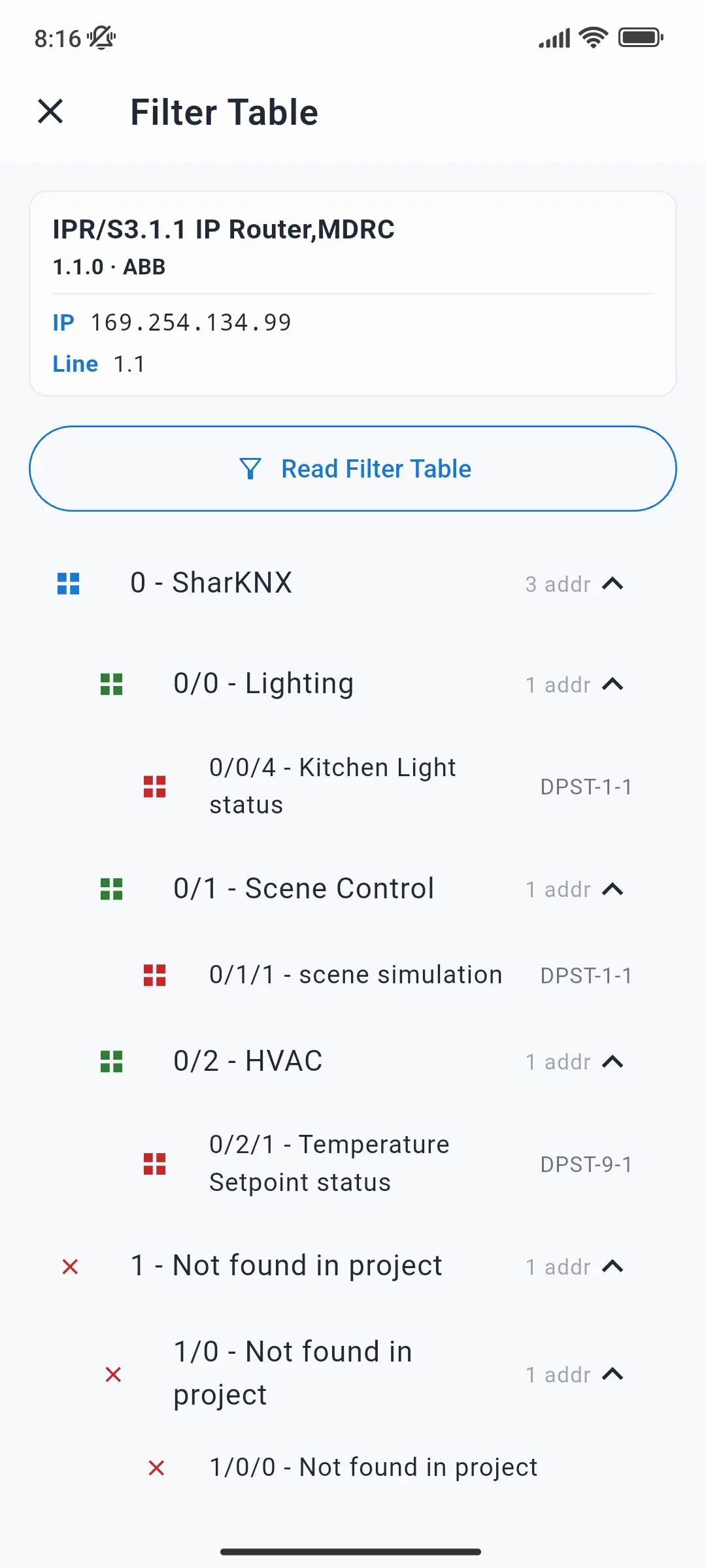
- SharKNX lists every group address the coupler lets through, in the project's group address tree with names and datapoint types. Addresses that pass but are not in the project are marked Not found in project.
A group address you expect but don't see is blocked by the coupler - a common reason telegrams don't reach another line. Addresses marked Not found in project are usually leftovers from an older project version. For a walkthrough and a troubleshooting example, see Read a Coupler Filter Table.
Actions for this page
On this page the ⋯ Actions sheet opens with its ETS Project section expanded: Load Project, Unload Project, and Connections. See Side Menu and Actions.
Related
- ETS Projects in SharKNX - what a loaded project unlocks
- Load an ETS Project - loading, the Archive, and project language
- Project Connections - how devices are linked
- Send Commands - every way to send