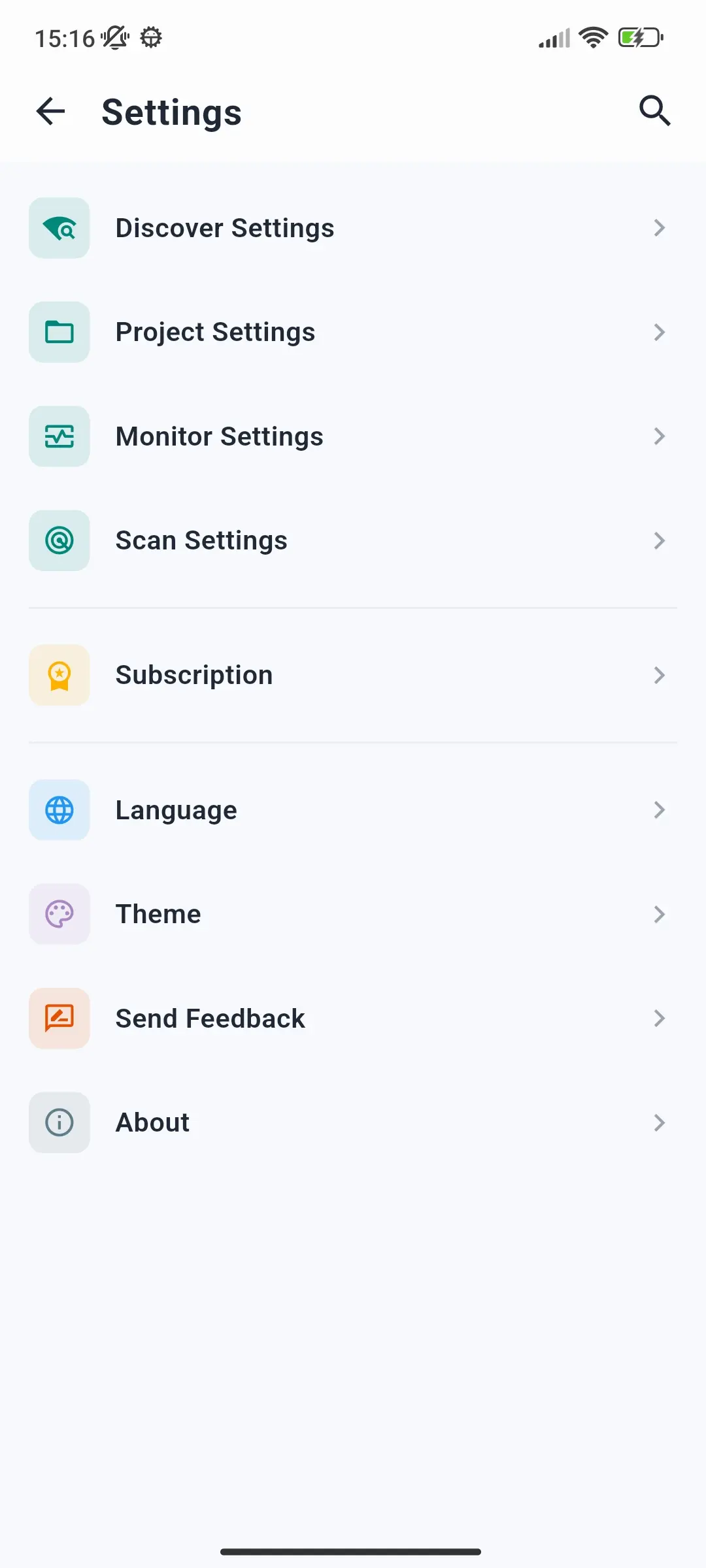
The Settings page is accessible from any screen by tapping the gear icon (⚙️) in the top-right corner of the app bar.
The page groups all configurable options into sections. A search icon (🔍) in the top bar lets you jump directly to a section by name.
Discover Settings
Controls how the app searches for and connects to KNX IP gateways on the network.
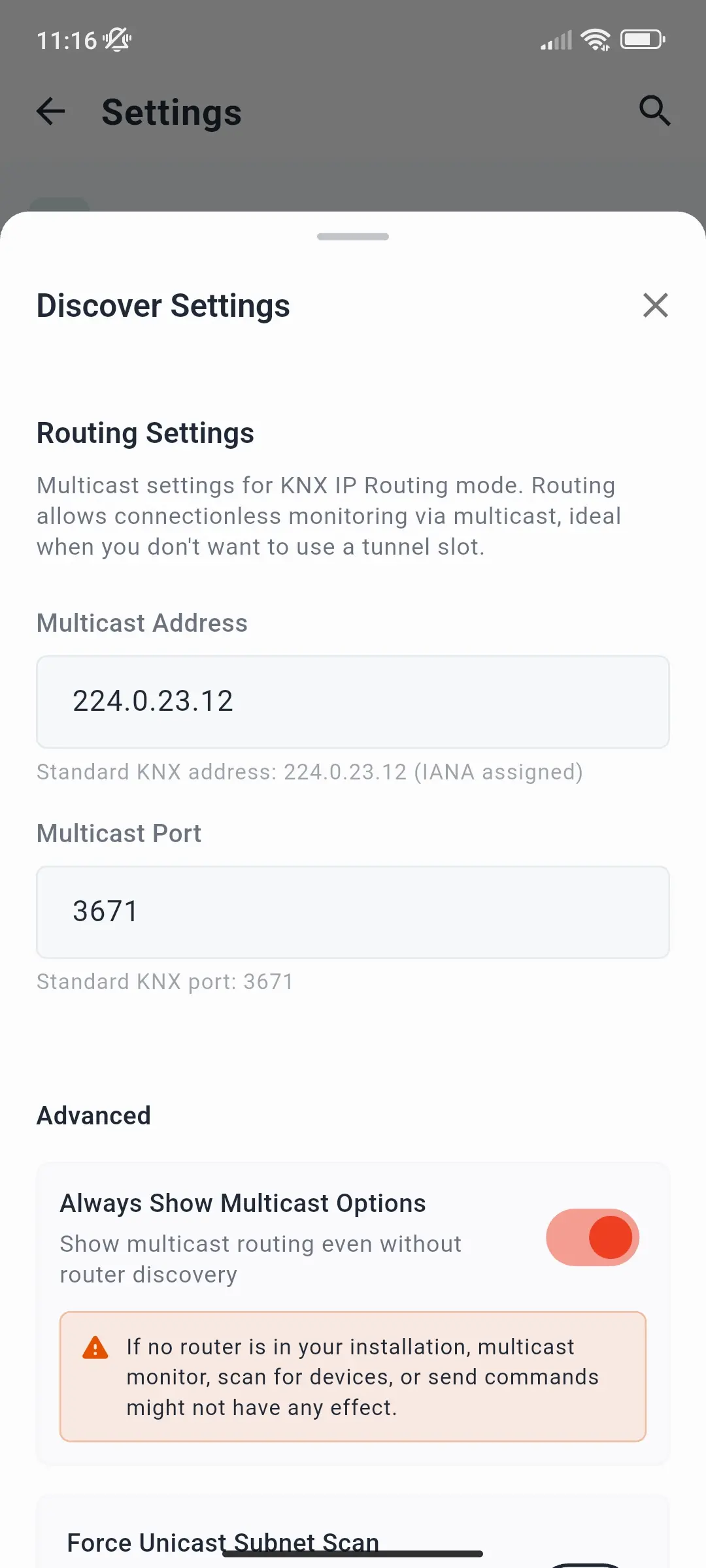
Routing Settings
| Setting | Default | Description |
|---|---|---|
| Multicast address | 224.0.23.12 |
The IP multicast group address used for KNX IP discovery and routing. Only change this if your network uses a non-standard multicast group. |
| Multicast port | 3671 |
The UDP port used for multicast discovery and routing communication. |
Advanced
| Setting | Default | Description |
|---|---|---|
| Always show multicast options | Off | When enabled, multicast connection options are always visible on the Discover tab. When disabled, they only appear if a KNX IP Router with routing capabilities is found during a scan. Without a router in the installation, multicast monitoring, scanning, and sending may have no effect. |
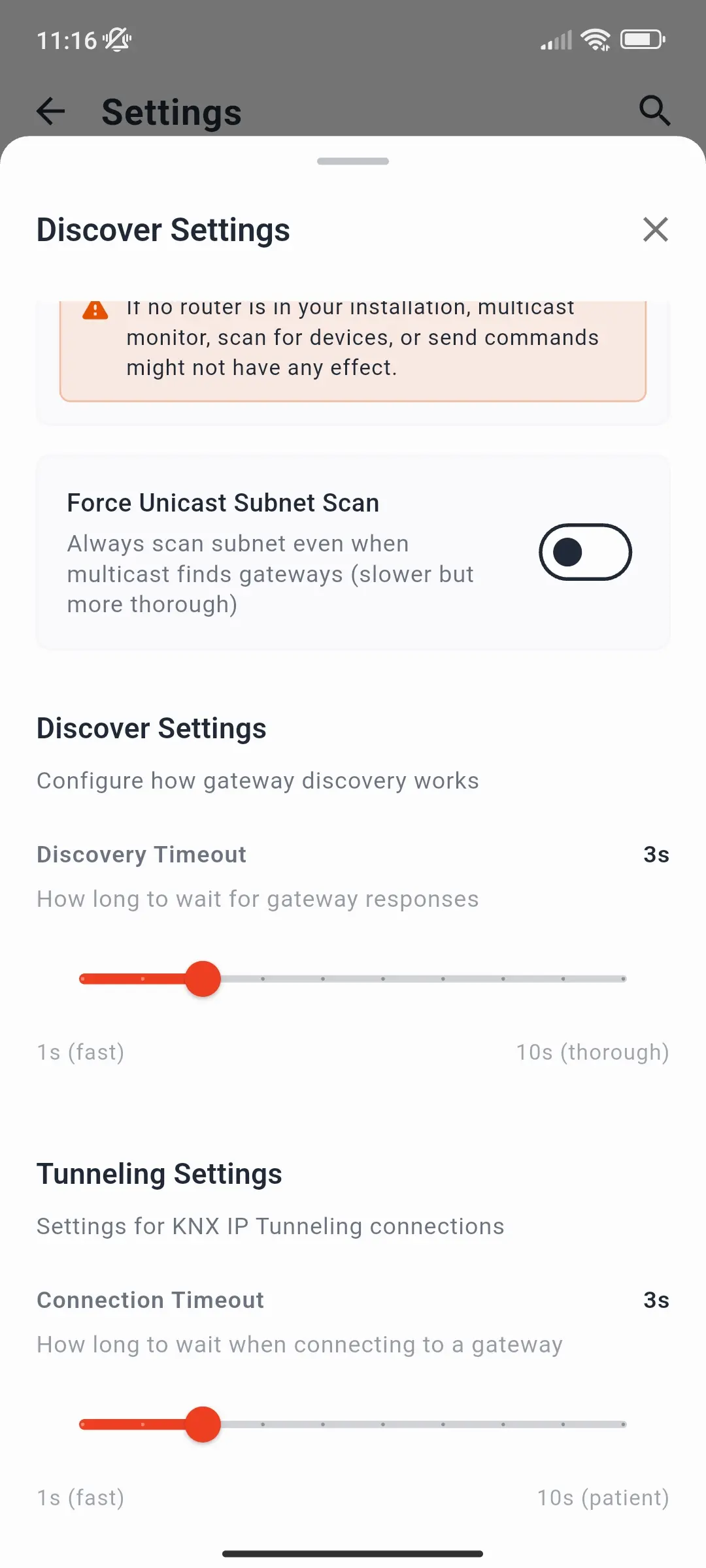
| Force unicast subnet scan | Off | When enabled, after sending multicast discovery requests the app also sends individual unicast search requests to every IP address in the current subnet. Useful on Wi-Fi networks where routers may drop multicast packets. If no gateway is found via multicast, a unicast scan always runs automatically as a fallback, regardless of this setting. |
Discovery and tunneling timeouts
Shown under Discover Settings and Tunneling Settings in the app.
| Setting | Default | Min | Max | Description |
|---|---|---|---|---|
| Discovery timeout | 3 s | 1 s | 10 s | How long the app waits for gateway responses after sending discovery requests. Increase this on slow or congested networks. |
| Connection timeout | 3 s | 1 s | 10 s | How long the app waits when attempting to establish a tunnel connection to a gateway before treating it as unreachable. |
Project Settings
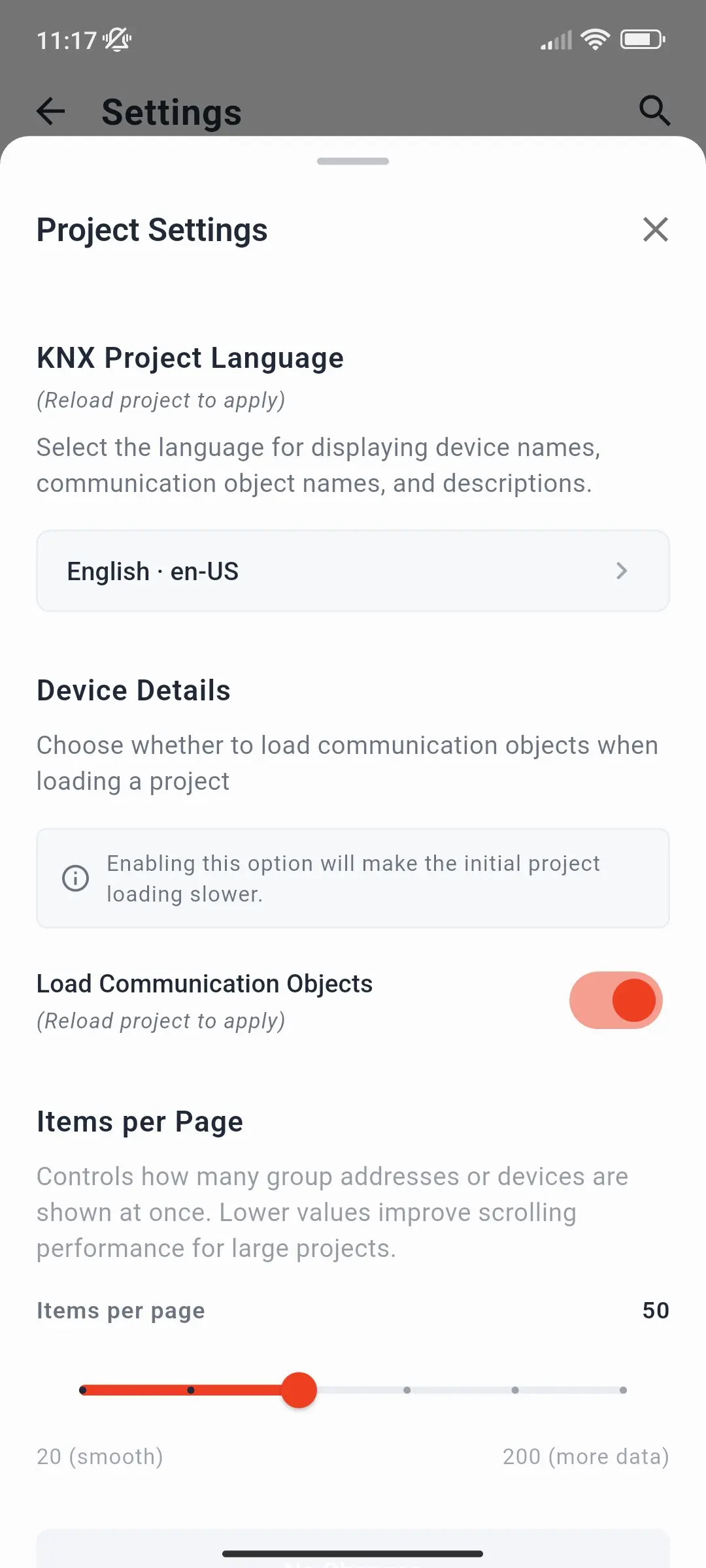
Controls how ETS project files are parsed and displayed. Changes take effect when you tap the apply button at the bottom of the panel, which reads No Changes until you change something.
| Setting | Default | Description |
|---|---|---|
| KNX project language | English · en-US | The language used for device names, communication object names, and descriptions taken from the manufacturers' product data in the ETS project. Tap to pick from the 24 languages ETS supports (Czech, Danish, German, Greek, English, Spanish, Finnish, French, Hungarian, Icelandic, Italian, Japanese, Norwegian, Dutch, Polish, Portuguese, Romanian, Russian, Slovak, Slovenian, Swedish, Turkish, Ukrainian, Chinese). Which languages are actually available depends on the translations each manufacturer ships; untranslated texts appear in their original language. Names you entered in ETS - group addresses, devices, rooms - are not affected. Independent of the app's interface Language. Reload the project to apply - see Load an ETS Project. |
| Load communication objects | On | When enabled, the app parses and stores communication objects for every device in the project that has at least one group address connected to it. Disabling this makes the initial project load faster and reduces memory usage on large projects, but removes the Communication Objects view from the Project page. Reload the project to apply. |
| Items per page | 50 | Options: 20 · 30 · 50 · 100 · 150 · 200 - The number of group addresses or devices shown at once when expanding a list in the project tree view (e.g. group addresses inside a middle group). Once the limit is reached, a Load more button appears. Lower values improve scrolling performance on large projects. |
Monitor Settings
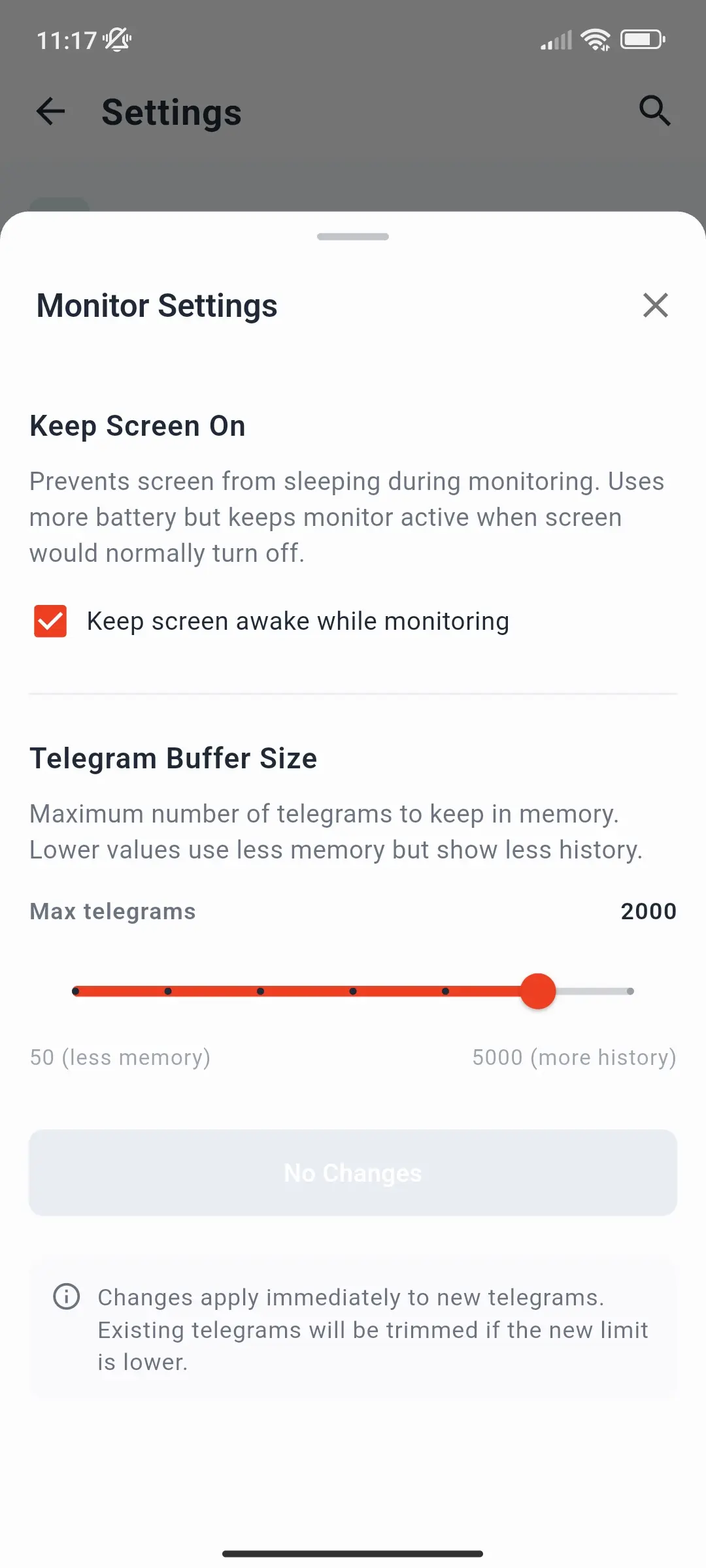
Controls the behaviour of the bus monitor. Changes take effect when you tap the apply button at the bottom of the panel.
| Setting | Default | Description |
|---|---|---|
| Keep screen on | On | Prevents the device screen from turning off while a monitor session is active. Recommended because most mobile operating systems will close the IP connection when the screen turns off. Disable to conserve battery, but be aware that monitoring will stop if the screen turns off. Note: the monitor always stops when the app moves to the background, regardless of this setting. |
| Telegram buffer size | 2000 | Options: 50 · 100 · 200 · 500 · 1000 · 2000 · 5000 - The maximum number of telegrams kept in the monitor list at any time. When the limit is reached, the oldest telegrams are overwritten by incoming ones. Increase this value if you need a longer history; decrease it to reduce memory usage on low-end devices. Lowering it trims the telegrams already in the list. On the free plan the buffer is locked at 20 telegrams - see Subscription Plans. |
Scan Settings
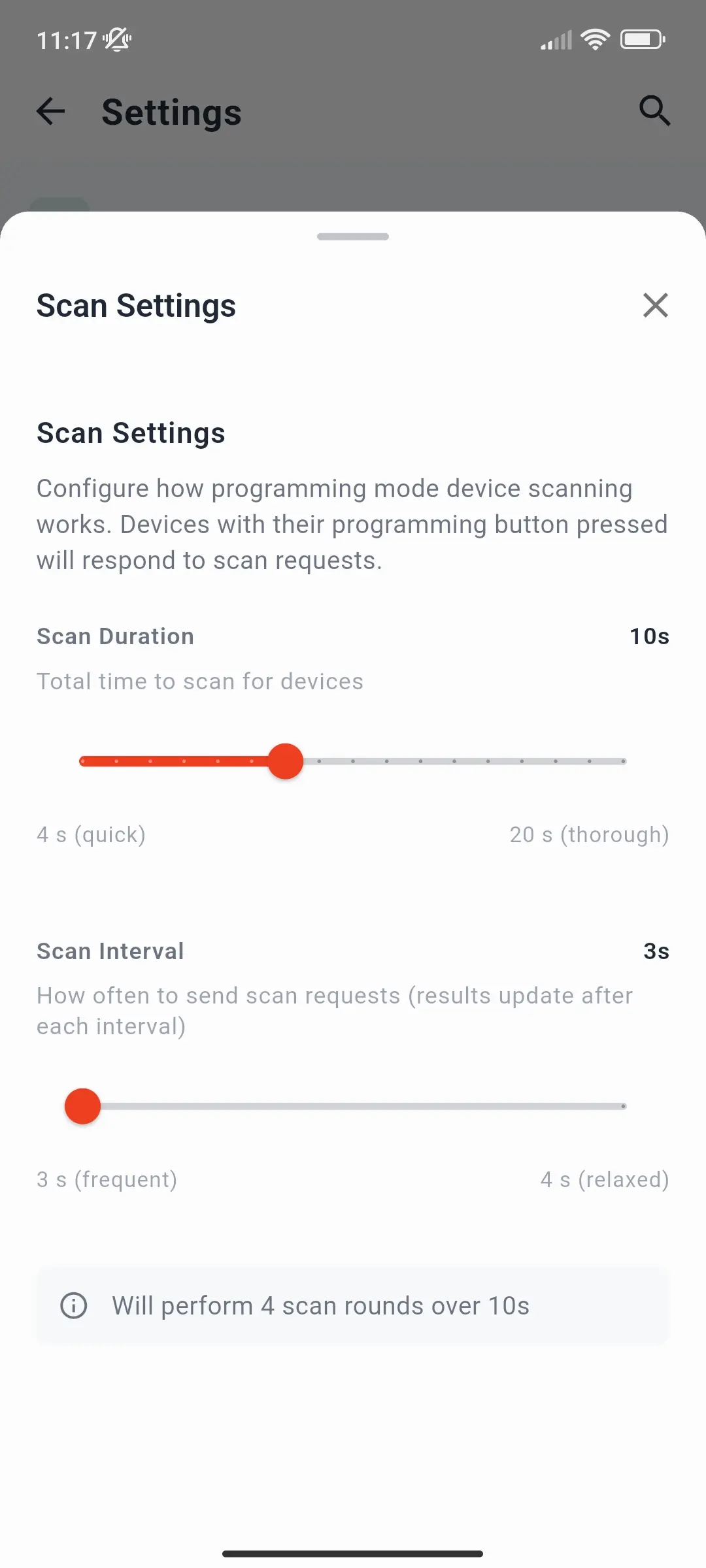
Controls the programming mode scan in Tools → Prog. Mode - see the Diagnostics page.
| Setting | Default | Min | Max | Description |
|---|---|---|---|---|
| Scan duration | 10 s | 4 s | 20 s | Total duration of a programming mode scan. The app listens for devices that are in programming mode for this length of time. |
| Scan interval | 3 s | 3 s | 4 s | How often the app sends a scan request during a scan session. Results update after each interval. The 3 s minimum matches the fixed response window the KNX standard gives devices to answer each request. |
Below the sliders, the panel shows how many scan rounds the current values produce - the duration divided by the interval, rounded up (the defaults give 4 rounds over 10 s). A Reset to default button appears under a slider when its value differs from the default.
Devices only answer while their programming button is pressed (programming LED on), so press it before or during the scan.
Subscription
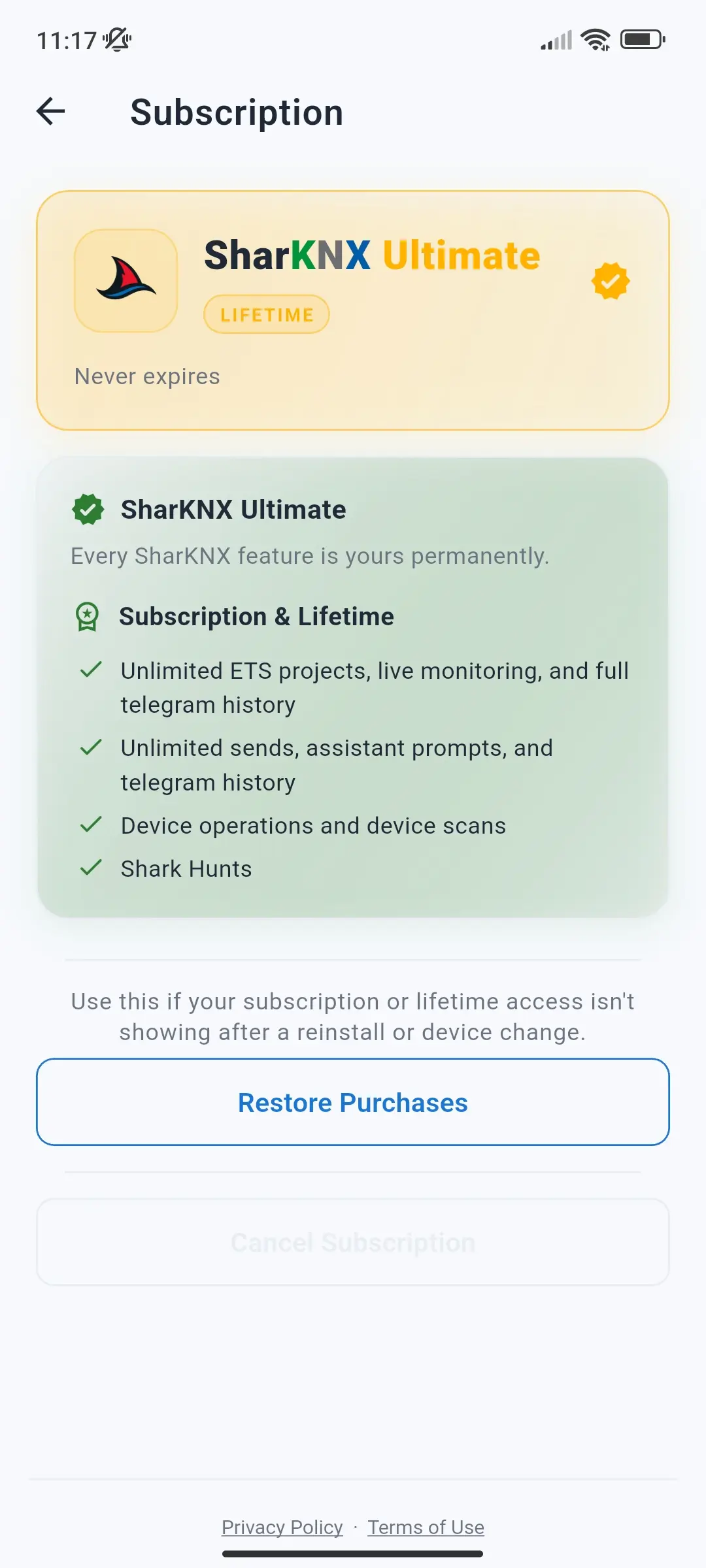
Shows the status of your current subscription and provides plan management options.
| Item | Description |
|---|---|
| Current plan | Displays your plan: SharKNX Free, Monthly, Yearly, or Ultimate (lifetime or legacy), with the renewal date or remaining trial days where relevant. The Upgrade Your Plan button opens the plan picker. See Subscription Plans for what each plan includes. |
| Restore purchases | Re-applies a previously purchased subscription to the current device. Use this after reinstalling the app or switching devices. |
| Cancel subscription | Opens the subscription management page in the App Store (iOS/macOS) or Google Play (Android), where you can cancel an active recurring subscription. Not applicable to Lifetime plans. |
| Privacy Policy | Link to the app's Privacy Policy. |
| Terms of Service | Link to the app's Terms of Service. |
Language
Opens a list of the app's supported interface languages. Selecting a language takes effect immediately without restarting the app.
Available languages:
- 🇬🇧 English
- 🇩🇪 German
- 🇫🇷 French
- 🇪🇸 Spanish
- 🇮🇹 Italian
- 🇨🇳 Simplified Chinese
Theme
Sets the visual appearance of the app.
| Option | Description |
|---|---|
| Light | Always uses the light colour scheme. |
| Dark | Always uses the dark colour scheme. |
| Match system | Follows the device's system-wide light/dark mode setting. |
Send Feedback
| Option | Description |
|---|---|
| Leave a review | Opens the app's store listing so you can leave a rating or review. |
| Report a bug | Opens a pre-addressed email to info@owl-automata.com to report an issue. |
| Write to us | Opens a blank email to info@owl-automata.com for general enquiries. |
For structured bug reports, see also the How to Report an Issue guide.
About
Displays the current app version number and copyright information.