Every page in SharKNX shares the same top bar. From it you reach the side menu - a status overview of your connection, project, and network - and the Actions sheet, which gathers the file and project actions of every page in one place. This page lists everything they contain.
The top bar
| Button | Opens |
|---|---|
| SharKNX logo (left) | The side menu. A small dot on the logo shows the connection state - see Status dot. |
| ✦ | The assistant - see Assistant Page |
| ⋯ | The Actions sheet |
| ⚙ | Settings |
Status dot
| Dot | Means |
|---|---|
| None | No gateway selected |
| Grey | A gateway is selected, not connected |
| Amber, pulsing | Connecting, or starting the monitor |
| Green | Connected |
| Green with a teal ring | Connected and monitoring in Group Monitor mode |
| Blue with a teal ring | Connected and monitoring in Bus Monitor mode |
| Red | The connection has a problem |
Side menu
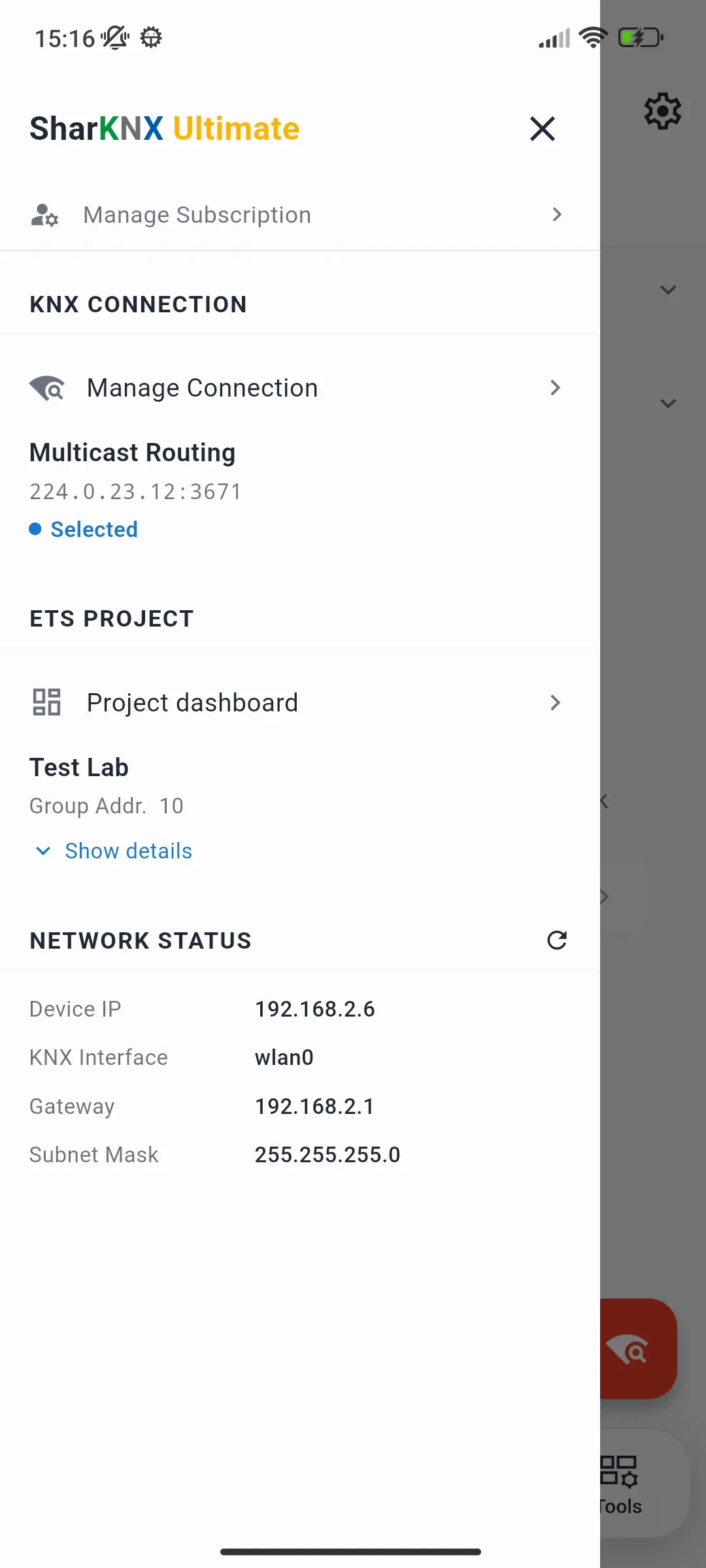
Tap the SharKNX logo to open it. It shows the state of everything the app is working with, with shortcuts to where you change it.
Plan
The top of the menu shows your plan - for example SharKNX Free, SharKNX Yearly, or SharKNX Ultimate. Below it, Upgrade Plan (on the free plan) or Manage Subscription opens the Subscription page. This row is not shown on Windows, where SharKNX is a one-time purchase.
KNX Connection
The gateway or multicast connection you are using - its name, address, and state: Selected, Connecting, or Connected. Secure connections show Secure · credentials loaded. Manage Connection takes you to the Connect page.
ETS Project
The loaded project's name and number of group addresses. Show details adds the areas, lines, devices, group address format, creation and last-update dates, author, and contract number. Project dashboard takes you to the dashboard with the project Archive.
Network Status
How your phone, tablet, or PC is connected to the network - useful when a gateway can't be found:
| Row | Shows |
|---|---|
| Device IP | Your device's IP address |
| KNX Interface | The network interface SharKNX uses, e.g. wlan0 for Wi-Fi |
| Gateway | Your network's router |
| Subnet Mask | The size of your local network |
Tap the refresh button after switching networks. If your device and the KNX gateway are not in the same subnet, discovery will not find it - see Connect to a Gateway.
Actions
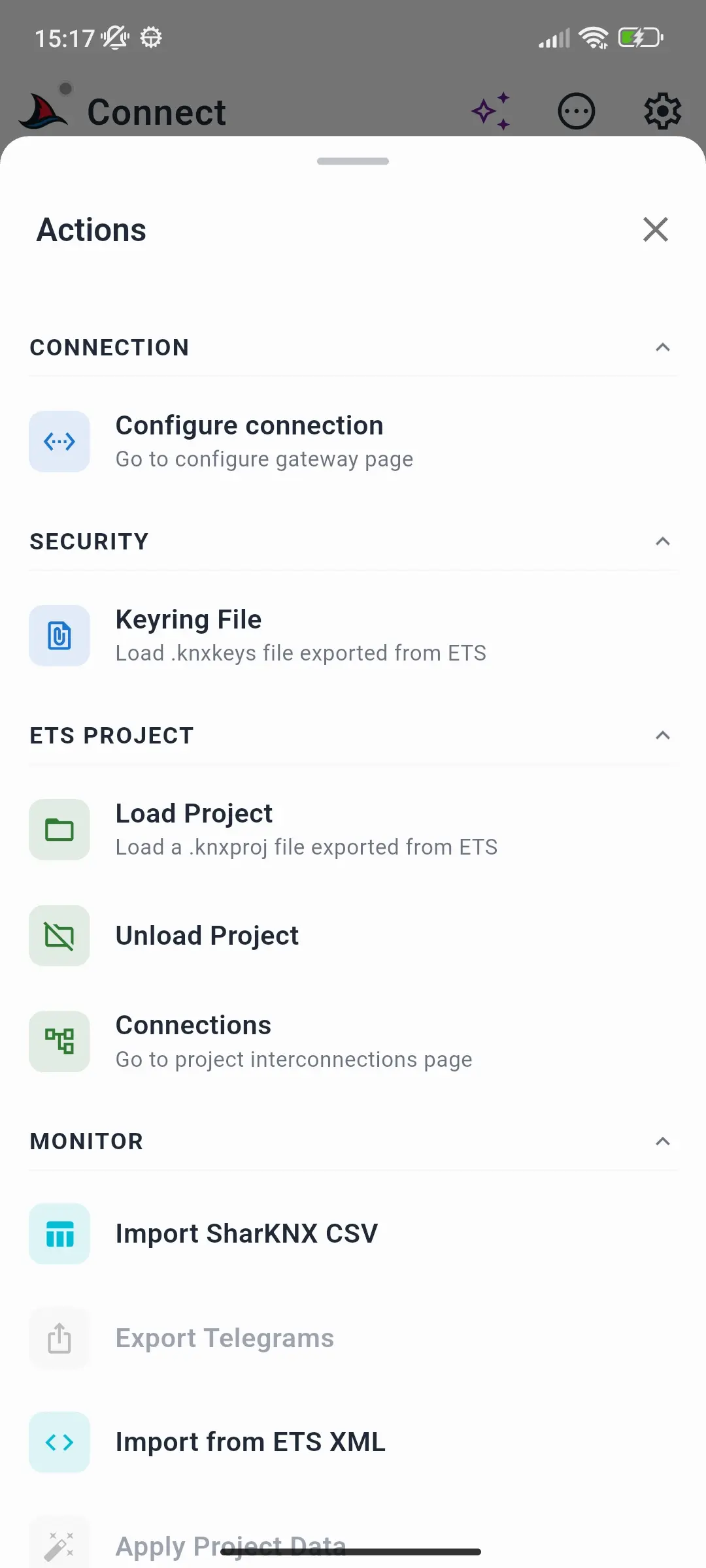
Tap ⋯ in the top bar to open the Actions sheet. It is the same on every page and groups its actions by area; the sections that belong to the page you are on open expanded, the others are collapsed until you tap them. Actions that can't be used right now are greyed out.
Connection
| Action | Does |
|---|---|
| Configure connection | Opens the form to add a gateway by hand - see Connect to a Gateway. Available on the Connect page. |
Security
| Action | Does |
|---|---|
| Keyring File | Loads a .knxkeys keyring exported from ETS - see Set Up KNX IP Secure |
ETS Project
| Action | Does |
|---|---|
| Load Project | Loads a .knxproj exported from ETS - see Load an ETS Project |
| Unload Project | Stops using the current project. Available while a project is loaded. |
| Connections | Opens the Project Connections page. Available while a project is loaded. |
Monitor
| Action | Does |
|---|---|
| Import SharKNX CSV | Loads a SharKNX CSV export into the monitor |
| Export Telegrams | Saves or shares the monitor's telegrams as XML or CSV. Available when the monitor has telegrams. |
| Import from ETS XML | Loads an ETS communication log into the monitor |
| Apply Project Data | Names and decodes telegrams recorded before the project was loaded. Available when a project is loaded, the monitor has telegrams, and monitoring is stopped. |
See Export Telegrams for importing and exporting.
Shark Hunt
| Action | Does |
|---|---|
| Import Hunts | Adds hunts from a SharKNX hunt file |
| Export Hunts | Saves all your hunts to one file. Available when you have hunts. |
| Delete All Hunts | Deletes every hunt, after asking you to confirm. Available when you have hunts. |
| Help | What are Shark Hunts? - a short introduction |
See Create a Shark Hunt for sharing hunts.
Line Scan
| Action | Does |
|---|---|
| Export as Text | Exports the latest line scan as a TXT report. Available after a scan. |
| Export as PDF | Exports the latest line scan as a PDF report. Available after a scan. |
See Scan a Bus Line.