The Dashboards page is where you keep and open your dashboards - touch screens for a KNX installation, with spaces, pages and widgets - and your Shark Hunts - reusable sets of KNX send actions and monitor filters. It is the third tab in the bottom navigation bar.
To build a dashboard, see How to Build a Dashboard. For what a hunt is and how its actions work, see Shark Hunts. Dashboards are included in every plan; Shark Hunts are a premium feature on Android, iOS, and macOS - see Subscription Plans.
The page
The page has two sections:
- Last opened - the dashboard or hunt you opened most recently, for a quick way back. It is hidden while you search or filter.
- Library - every saved dashboard, then every saved hunt.
The Search... field filters both by name, and the star next to it (Favorites only) shows only your favourites.
Dashboard cards have a purple dashboard icon, the dashboard's name and when it was last updated. A star marks a favourite, and Opens at app startup marks the dashboard the app opens when it starts. Tap ▶ (Run) to open it in Dashboard view, or ✎ (Edit) to open it in the editor.
Hunt cards have a bolt icon and, under the name, the hunt's type, both in the type's colour:
| Colour | Type | Contains |
|---|---|---|
| Green | Commands | Send actions only |
| Blue | Monitor | Monitor actions only |
| Red | Combined | Send and monitor actions |
| Grey | Incomplete | An unfinished hunt, saved during creation. Edit it to finish setup. |
Tap ▶ (Open hunt) to open it, or ✎ (Edit) to reopen the creation wizard.
Long-press a hunt card to select several hunts, then Duplicate, Export Selected, or Delete them together. Selecting covers hunts only.
Adding
Tap the + button. The Add sheet offers:
| Choice | Does |
|---|---|
| Create Dashboard | Opens the editor on a new, empty dashboard - see How to Build a Dashboard |
| Import dashboard | Reads a dashboard .json file, plain or password-protected - see Sharing and backup |
| Create Shark Hunt | Opens the hunt creation wizard - see Create a Shark Hunt |
| Import Hunts | Loads hunts from a file - one hunt or a whole collection |
There is no limit on saved dashboards. You can keep up to 25 hunts - see Limits.
A dashboard's actions
Tap a dashboard card (away from ▶ and ✎) to open its actions:
| Action | Does |
|---|---|
| Run | Opens it in Dashboard view. Off, with Complete its connection or project settings to run it, while its connection or project settings are incomplete |
| Edit | Opens it in the editor |
| Add to favorites / Remove from favorites | Marks it for the Favorites only filter |
| Open at app startup | Makes the app open this dashboard when it starts - see below |
| Export | Saves it as a .json file: Plain JSON (editable dashboard, without keys) or With keys (password-protected dashboard and keys) |
| Delete | Deletes it, after asking you to confirm. This cannot be undone |
The file format is described in Dashboard File Format.
Open at app startup
For a wall panel or a customer's tablet. When the app starts, it opens this dashboard as its only screen, instead of Professional view. Only one dashboard opens at startup: turning it on for one turns it off for any other. The setting belongs to the device, not to the dashboard file.
Optionally set a PIN to leave (No PIN, or a 4- or 6-digit PIN). It is asked before Back to Professional view in the dashboard's settings, so the dashboard is not left by mistake. It is not a password and protects nothing else.
Forgotten PIN: hold ⌂ (Home) in the dashboard's dock for 20 seconds. The PIN is removed and Professional view opens. The dashboard still opens at startup.
A hunt's actions
Tap a hunt card (away from ▶ and ✎) to open its actions: Open hunt, Edit, Add to favorites / Remove from favorites, Export (saves the hunt as a file), Share, Info (the hunt's details, gateway, and when it was created, last modified, and last run), and Delete.
Actions for this page
On this page the ⋯ Actions sheet opens with its Dashboards section expanded:
| Action | Does |
|---|---|
| Export Hunts | Saves all your hunts in one file |
| Delete All Hunts | Removes every hunt, after asking you to confirm |
| Help | What are Shark Hunts? - an in-app guide to Shark Hunts, action types, and examples |
See Sharing and Portability and Side Menu and Actions.
Hunt page
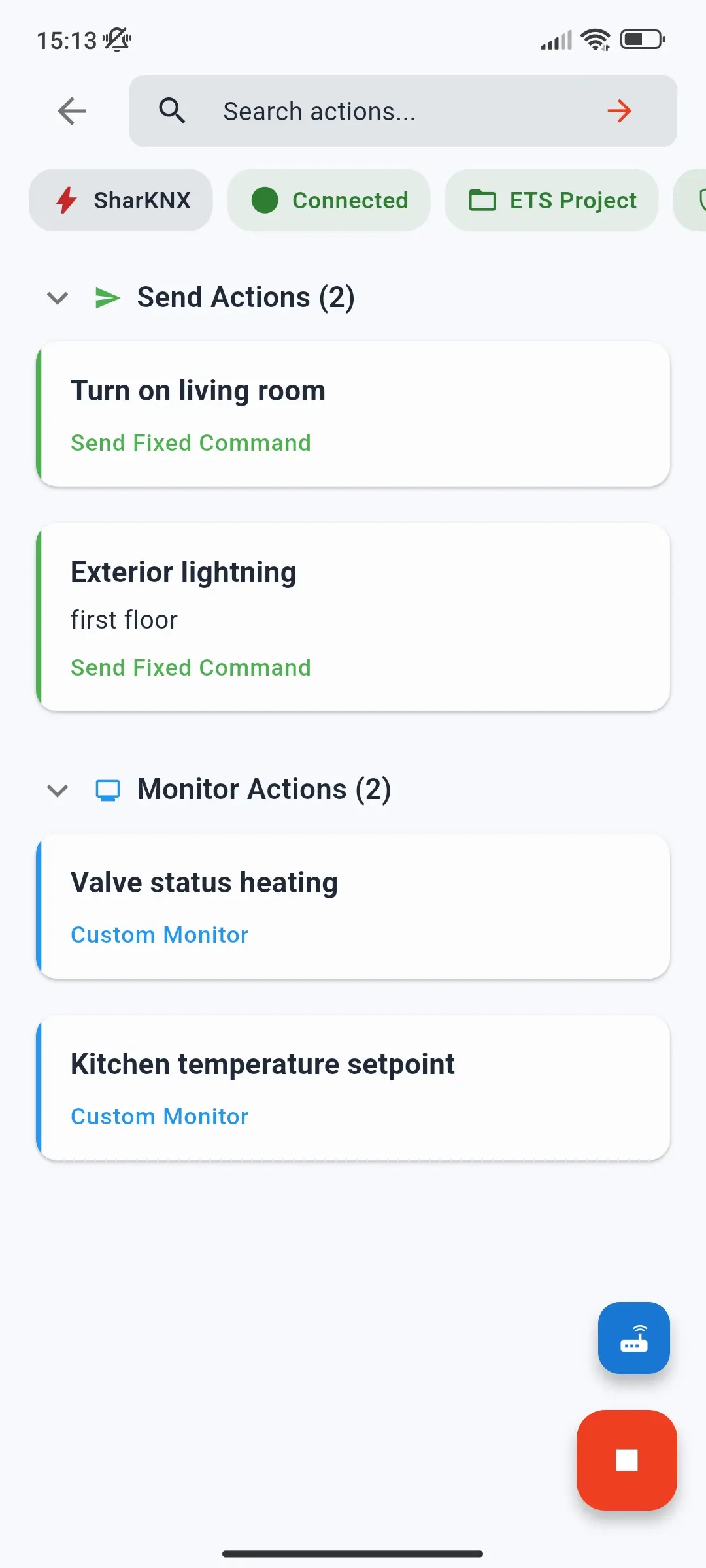
Open a hunt to see its page. The top bar has a back button and a Search actions field that filters the action cards.
Badges
| Badge | Shows | Tap to |
|---|---|---|
| Hunt name | - | Open the hunt's details |
| Connection | Connected (green) or Disconnected (red) | Connect or disconnect |
| ETS Project | Whether a project is loaded | See the project, or load or unload one |
| Data Secure | KNX Data Secure sender status: grey (none in project), amber (not configured), green (configured) | Open the KNX Secure Senders summary - see KNX Data Secure |
| Gateway | The selected gateway | See the gateway's details |
Connecting
The action cards stay faded until you connect.
- The small blue gateway button opens Select Gateway: the Hunt's Gateway saved with the hunt, Configured Gateways, Discovered Gateways, and multicast routing. Go to Connection Page takes you to the Connect page to find more.
- The large button connects - it is green while disconnected. Once connected it turns red; tap it to disconnect.
Send actions
Send Actions are listed first, with how many there are; tap the heading to collapse the section. Tap a card to run it:
- Send Fixed Command sends its value straight away.
- Send Multiple/Sequence sends its commands in order, with any delays you set. Tap the card again while it runs to cancel.
- Send Variable opens a sheet with an input for the datapoint type - for example a slider for a percentage - and sends what you choose.
A card turns green when its commands are sent, or red if sending fails. See Send Actions for each type.
Monitor actions
Monitor Actions follow below. Tap one to open the Shark Hunt Monitor with its filter.
Shark Hunt Monitor
The Shark Hunt Monitor is a bus monitor that shows only the telegrams matching the monitor action's filter. The top bar shows the hunt and action name, and an export button.
Tap the large start button to begin monitoring and tap it again to stop. If the main Monitor is already running, SharKNX asks to stop it first. The small button above it switches to another monitor action of the hunt - the active one has a green dot. Switching clears the captured telegrams, so SharKNX asks first.
Badges
| Badge | Tap to |
|---|---|
| Send | Open Quick Send - a new command, or one of your recent commands |
| Filter details | See the conditions of the active filter |
| Clear all | Remove the captured telegrams |
| Data Secure | Open the KNX Secure Senders summary |
| View | Change the sort order and address format |
| Telegrams | Open statistics - shows how many telegrams are captured, up to 3000 |
| Gateway | See the gateway's details |
Telegrams
The list works like the Monitor page's: tap a telegram for its details, with Read, Write, and Plot - see Telegram details.
The export button saves or shares the captured telegrams as an ETS-compatible XML log or a CSV file - see Export Formats.
Captured telegrams are not kept. When you leave the Shark Hunt Monitor, SharKNX warns you that they will be lost - export them first if you need them.
Related
- How to Build a Dashboard - the editor, widgets, Dashboard view, and customer panels
- Dashboard File Format - the dashboard JSON file
- Shark Hunts - hunts, actions, and filters explained
- Create a Shark Hunt - the creation wizard
- Monitor Page - the main bus monitor